Eigene Themes mit CSS erstellen
Hinweis: Farben, Schriften und Diagrammfarben stellen Sie heute ohne CSS im Theme Studio ein, auch direkt aus Ihrer PowerPoint-Vorlage. Eigenes CSS brauchen Sie nur noch für Sonderfälle. Ihr Stylesheet tragen Sie unter Admin → Projekte → Design → Eigener Code ein, entweder als URL im Feld CSS Stylesheet oder direkt im Feld Benutzerdefinierte CSS-Styles.
Um Ihr eigenes Theme in einem DataLion-Projekt zu verwenden, erstellen Sie ein Cascade Style Sheets File, z.B. in einem Texteditor.

In diesem CSS-File definieren Sie Ihr CSS für das Theme. Es enthält alle Selektoren und Attribute, die Sie anpassen möchten. Finden Sie hier Informationen zu CSS und hier eine Auswahl der in DataLion relevanten Selektoren.
So kann Ihr CSS beispielsweise aussehen:
#page-wrapper, .footer { background-color: teal; font-family: fixedsys, consolas, monospace; }
#page-wrapper { margin-top: 40px !important; padding-top: 20px; }
.grid-stack > .grid-stack-item > .grid-stack-item-content { left: 0; right: 0; margin-top: 0px; padding: 0px; }
.grid-stack-item-content { left: 1px !important; right: 1px !important; top: 1px !important; bottom: 1px !important; background: #fff; height: 100%; width: 100%; position: relative; border: 1px solid #000; z-index: 9999; border-radius: 0; }
.chart__footer { background-color: transparent; border: none; }
.grid-stack-item { background: #cdcdcd; padding: 2px 4px 4px 2px !important; border: 1px solid #000; }
.chart__header, .panel-default>.chart__header { padding: 0 !important; background: #000080; color: #fff; text-align: center; line-height: 24px; height: 26px; font-weight: 500; font-size: 21px; border-bottom: solid 1px #000; border-radius: 0; }
.chart__header > .pull-right { width: 100%; position: absolute; top: 28px; right: 0px; padding: 0 !important; margin: 0 !important; visibility: visible; height: 23px; vertical-align: baseline; display: flex !important; }
.chart__header * .glyphicon { top: 0 !important; }
.chart__header * button { background: #c0c0c0; color: #000; display: inline-block; min-width: 20px !important; min-height: 20px !important; width: 26px !important; height: 26px !important; font-size: 15px; border: outset 3px !important; line-height: 26px; z-index: 5555; padding: 0 !important; margin: 0 !important; border-radius: 0; }
.chart__header * .btn-group { height: 26px; width: 26px; }
.chart__title > i { display: none; }
.header__buttons__close { position: absolute !important; top: -28px !important; left: 0px !important; display: inline-block; background: #c0c0c0; border: outset 3px; margin: 0; padding: 0; }
.close.close { padding: 0 !important; position: absolute; display: inline-block; opacity: 0; }
.header__buttons__close:after { content: “—”; padding-left: 4px !important; position: absolute !important; opacity: 1; color: #fff; font-weight: 800; font-size: 22px; text-shadow: -1px 0 black, 0 1px black, 1px 0 black, 0 -1px black; display: block; line-height: 16px; }
.related-charts__button { background: #c0c0c0; color: #000; font-size: 12px; border: outset 3px; z-index: 5555; margin: 0 !important; border-radius: 0; }
.globalfilterbutton { font-family: fixedsys, consolas, monospace; background: #c0c0c0; color: #000; font-size: 12px; border: outset 3px; z-index: 5555; margin: 0 !important; border-radius: 0; margin-left: -10px !important; }
.dropdown-menu { position: absolute; border: solid 1px #000; width: 150px; margin: -1px; margin-top: 0px; z-index:999999999; background: #fff; box-shadow: 1px 1px 5px 0px rgba(0,0,0,.5); border-radius: 0; }
.dropdown-menu > li > a { padding: 5px; font-weight: 600; }
.dropdown-menu > li.active > a { background: #000080; color: #fff; left: 0; }
.dropdown-menu * .glyphicon { display: none; }
.chart__body * tspan { font-family: fixedsys, consolas, monospace; size: 14px; font-weight: 600; }
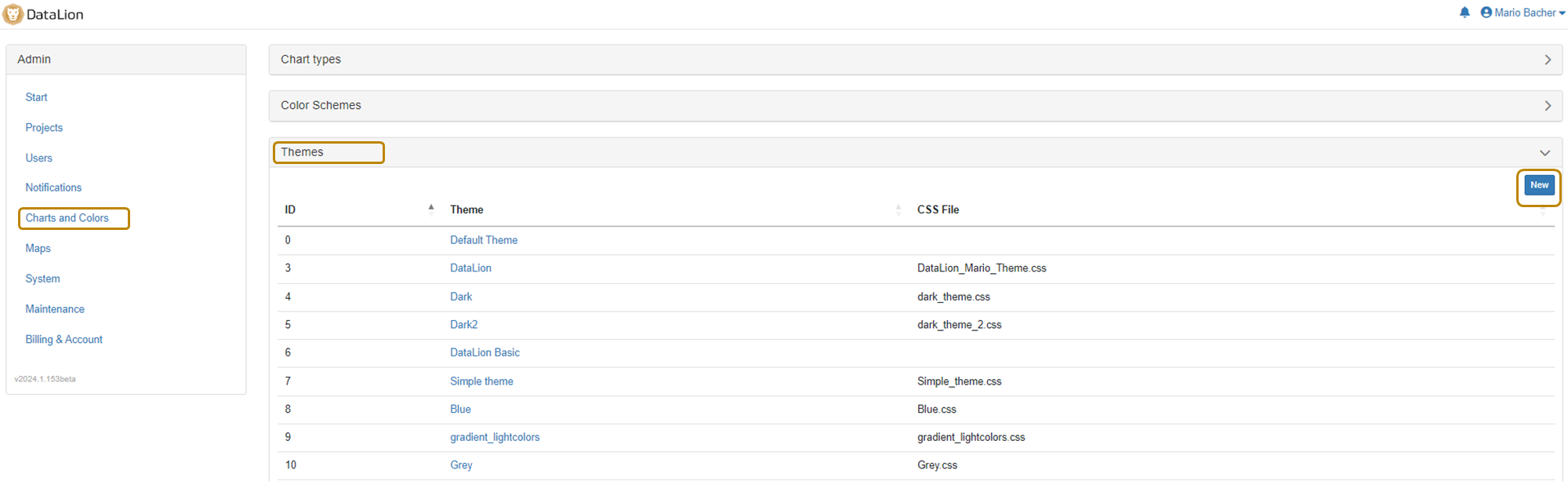
Navigieren Sie in DataLion im Admin-Bereich zu Charts und Farben>Themes. Klicken Sie auf Neu um Ihr CSS-File zu importieren, vergeben Sie einen Namen für das Theme und speichern Sie. Nun steht Ihnen das Theme zur Auswahl als Default-Theme in Ihren Projekten zur Verfügung.