Sorting options for stacked charts (stacked bar and column charts)
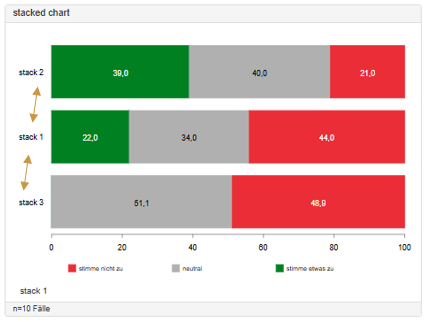
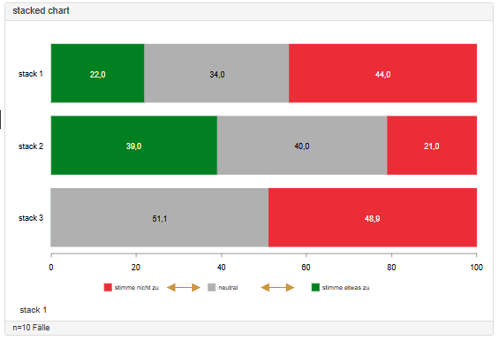
Original chart (without settings):
-
Stacks are shown in the order in which they were created in the dashboard, or in the codebook order (ascending)
-
The categories within the bars are shown in the codebook order (ascending)
-
The labels (legend) are shown in the codebook order (ascending)
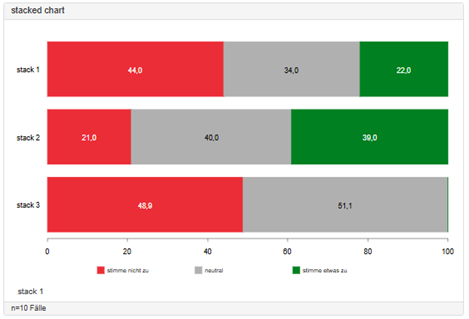
Reverse the order within the bars
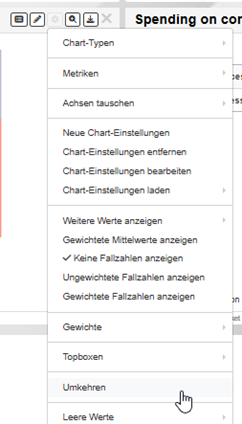
If you want to swap the order of the items within the bars (agreement is then shown on the opposite side), select the “Reverse” option under the gear icon
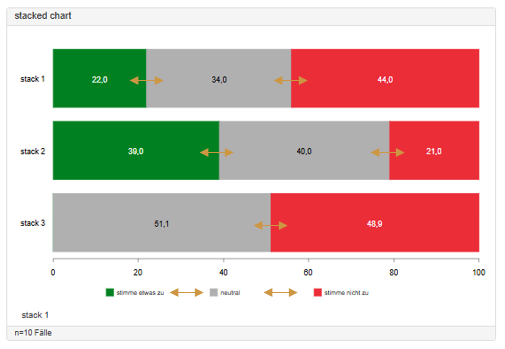
This swaps the order of the bars and of the corresponding labels:
Reverse labels:
If you only want to reverse the order of the labels, open the chart settings (gear icon -> New Chart Settings or Edit Chart Settings) and select “normal” or “reversed” under Advanced settings -> Labels -> Label order.
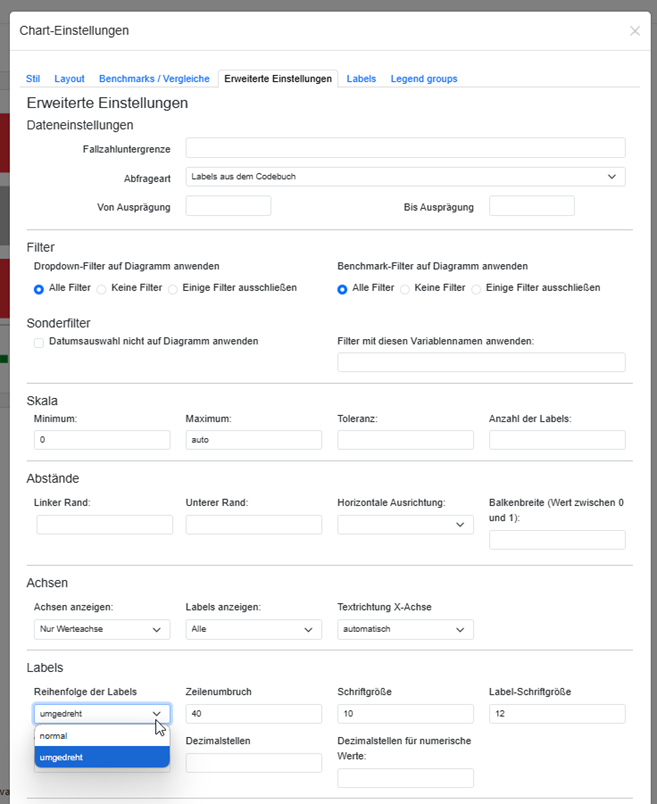
Only the order of the labels is reversed:
Sorting the individual bars
You can adjust the order of the individual bars with the various sort options that appear after you click the gear icon.
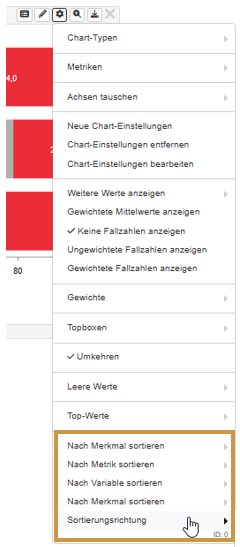
The following options are available:
-
Sort direction (needed most often): sort your bars in different ways: Ascending, Descending, Original, Alphabetical.
Note: If the “Reverse” option is active, ascending/descending is applied with inverted logic. -
Sort by metric: sorting is based on the metric you define. The default is the metric currently displayed
-
Sort by variable: lets you sort by the values of a different variable (e.g. brand liking is shown in the same order as brand awareness (descending))
-
Sort by item (1): Tables only. Sorts the table by the last displayed column.
-
Sort by item (2): In stacked charts you can apply the sort direction based on a specific category (e.g. do not agree) or on top-2 boxes.
Example: The bars (stack 1-3) are sorted in ascending order by the percentage share of “do not agree”: