
Combine, move and label charts
If several charts on a tab use the same scale, such as satisfaction with price, service and delivery, you can combine them into one grouped bar chart. The comparison then sits in one picture instead of three. This page also covers moving charts to another tab and keeping legends and long labels readable.
Requirements
- DataLion release 2026.2.198 or later.
- Edit rights on the project.
Combine the charts of a tab
- In the header of one of the charts, open the Chart settings menu (gear icon) and choose Combine with other charts… in the Data section.
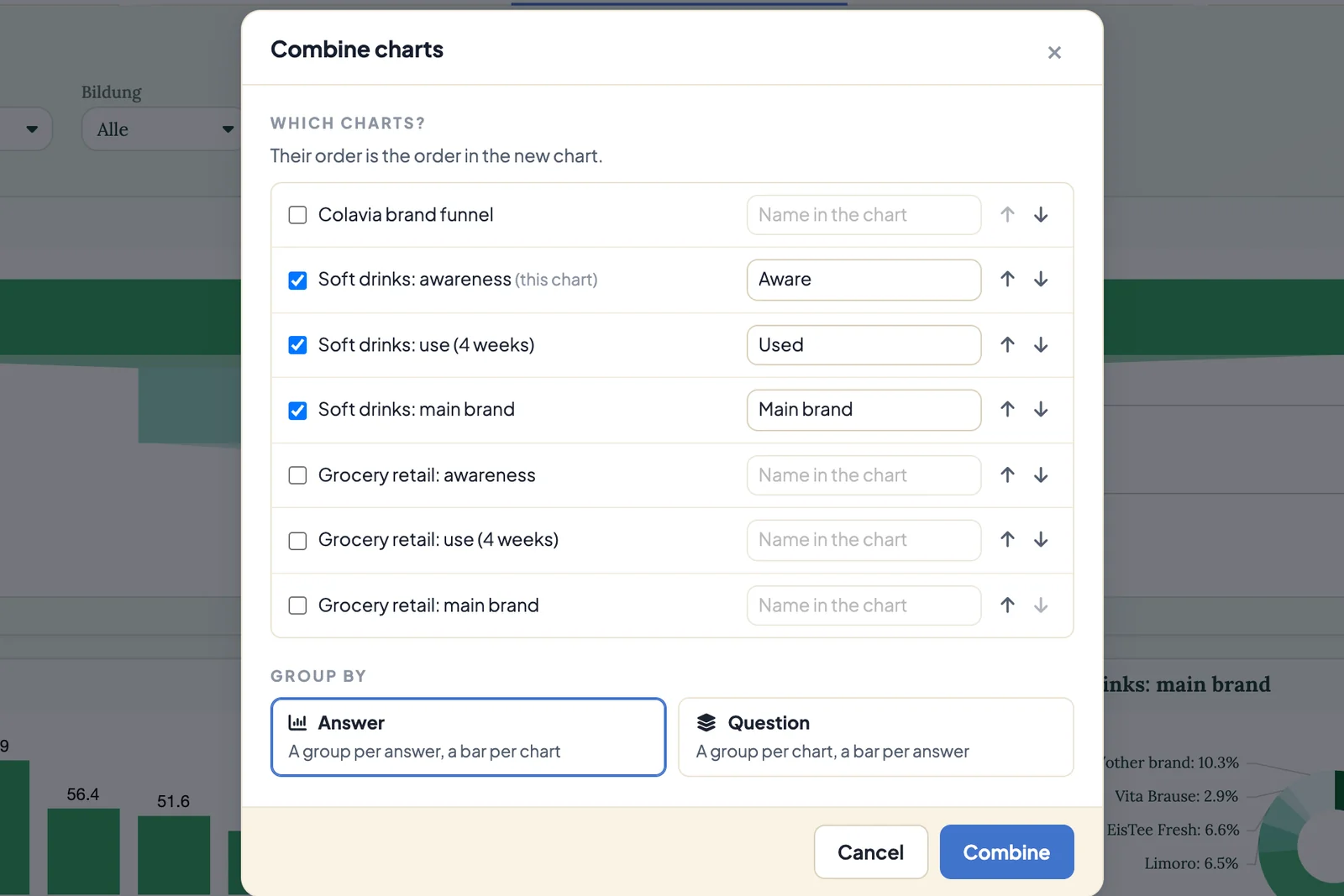
- Which charts? lists every chart on the tab. Tick the charts that should go into the new chart, at least two. Their order is the order in the new chart; the arrows change it.
- Under Name in the chart, give each chart a short name, for example “Price” instead of the whole question.
- Under Group by, choose:
- Answer: a group per answer, a bar per chart. This is the default and fits when you want to compare the topics within an answer, such as “Very satisfied” for price, service and delivery.
- Question: a group per chart, a bar per answer.
- Under Which answers become groups? (or … bars?), pick the answers, for example only the top two. The search field and All / None help with long scales.
- Check the Name of the new chart and click Combine.
The combined chart takes the place of the first selected chart, and the other selected charts leave the tab. It is always created as a grouped bar chart. Save the tab to keep the change.
DataLion creates a new question for it in the codebook, right next to the first question. The combination therefore survives a regeneration of the codebook.
What can be combined
Questions with answer options whose codes are plain values can be combined. Charts that already merge or separate several questions, and questions without answer options, appear in the dialog with the note “Cannot be combined”. Only charts on the current tab count.
Change a combination
On a combined chart, the menu entry reads Edit combination…. It opens the same dialog with the saved selection. Change charts, names, answers or the grouping and click Save.
Chart style… styles a combined chart with all its parts at once. Under Layout, Space out the bars of a group adds small gaps between the bars of a group.
Several questions as small multiples
If a chart shows several questions separately side by side, DataLion draws one panel per question. The title names every question, and the data picker groups the answer options by question. Dropped filters apply to every panel.
- Axes → Swapped pivots the view: one panel per answer, one bar per question.
- Under Legend, choose Shared legend below or Shared legend on the right instead of labels on each axis.
Move a chart to another tab
- In the chart header, open the download menu and choose Move to tab….
- Pick the target under Tab and click Move chart.
The chart moves with all its settings and its size to the end of the target tab. Unsaved changes on the current tab are saved together with the move. Moving only works within the same report and into tabs you may edit. If the report has no other tab, the entry is missing. Create a new tab in the Tab actions menu with Add tab to report.
Legend and long labels
The chart style (Chart settings → Chart style…, tab Customize) has a Legend section:
- Show legend turns the legend on or off.
- Legend position: bottom, top, left or right.
- Legend columns: Automatic or a fixed number from 1 to 8.
Long legends wrap or are shortened, with the full text on hover. A legend taller than a third of the chart scrolls.
For long axis labels and legend entries, the setting Long labels and legends offers Wrap, Shorten with … and Smaller font. Set the default for the whole project under Admin → Projects → Design → Visual style in the Chart group. Override it for a single chart in the chart style’s Labels section, where Use project default is also available. Smaller font shrinks the text down to 12 px and only shortens after that.