Generate a codebook automatically
With a structured and labeled dataset, you can generate the codebook automatically.
Advantages:
-
Faster results
-
No need to generate a codebook manually
-
The codebook is automatically generated in the correct form and can then be edited more easily
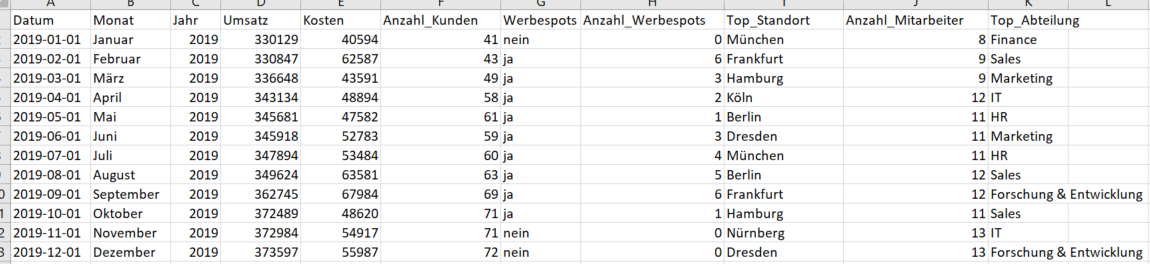
Example of a labeled dataset_
Under Backend >> Data >> Data Upload, you can upload your dataset as usual. You just need to tick the “Create Codebook after Import” checkbox (this is the default setting on the first upload). This way, the codebook is generated automatically and is uploaded directly in the backend:
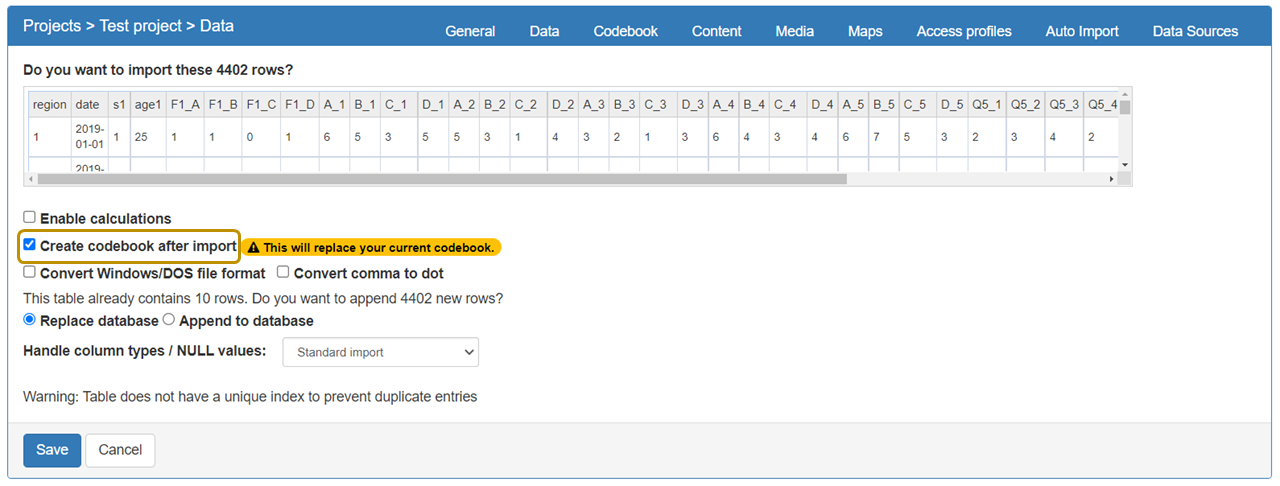
Please note that if you select this option again during a later upload of your data, it will replace your existing codebook. It is advisable to export the codebook beforehand.
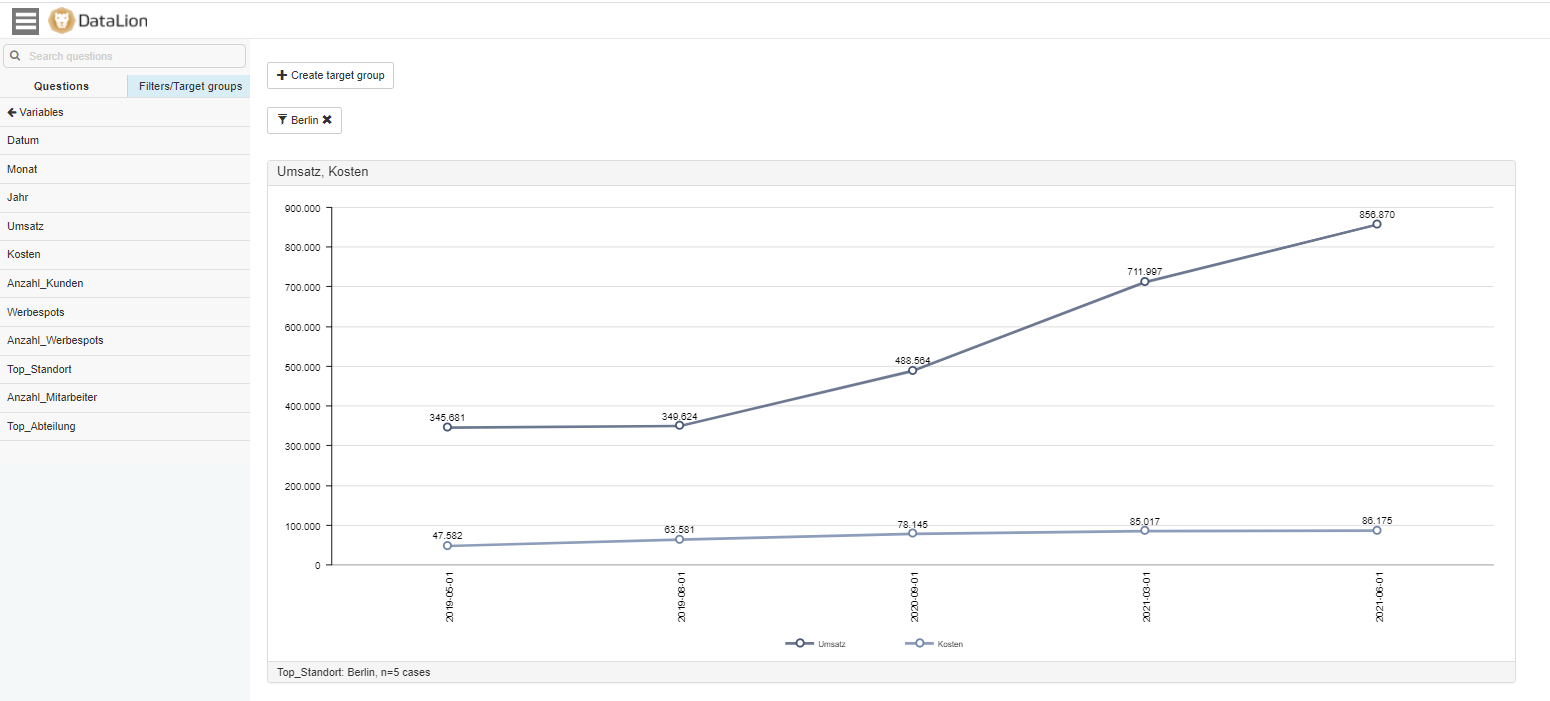
You can work with the variables as usual, for example use them as a filter and change chart types:
If you would like to edit the codebook afterwards, you can export it, edit it, and replace the existing codebook.
Here, too, we recommend that you first generate a copy of the codebook and make changes to that copy, so that you can reset your project to its initial state if necessary.
Please note: When DataLion creates a codebook based on the csv dataset, the codebook entry for each variable/column is created depending on the content of the column. Either a codebook entry for numeric values (numeric variable) or a codebook entry for variables with labels (character variable) is created.
Character variable: Each unique value of the variable is listed in the codebook.

Numeric variable: For this variable, only one row is created in the codebook, which contains the command

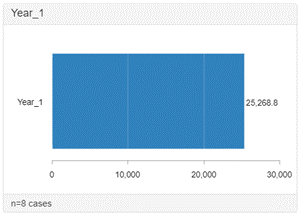
It can happen that DataLion does not interpret the variable type as desired. For example, a column with years (2018, 2919, 2020…) is interpreted as a numeric variable because it contains only numbers. However, you probably do not want to output a numeric value for this variable, but rather represent each individual year as an individual category. In this case, you can export the codebook, make the desired adjustments (here: capturing the years present in the dataset as individual categories), and import the codebook again.
Codebook variable with
Output in the DataLion frontend:
Codebook variable with categories:
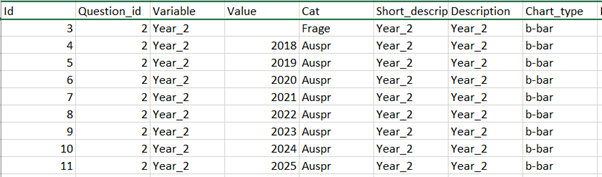
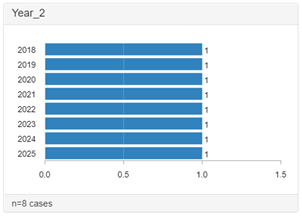
Output in the DataLion frontend: