
Theme Studio: create and apply dashboard themes
Theme Studio decides how dashboards look: background, card colours, fonts, titles and chart colours. A theme belongs to the whole workspace and can be applied to any number of projects. The quickest route is your company’s PowerPoint template or a brand colour. You don’t need CSS for any of it.
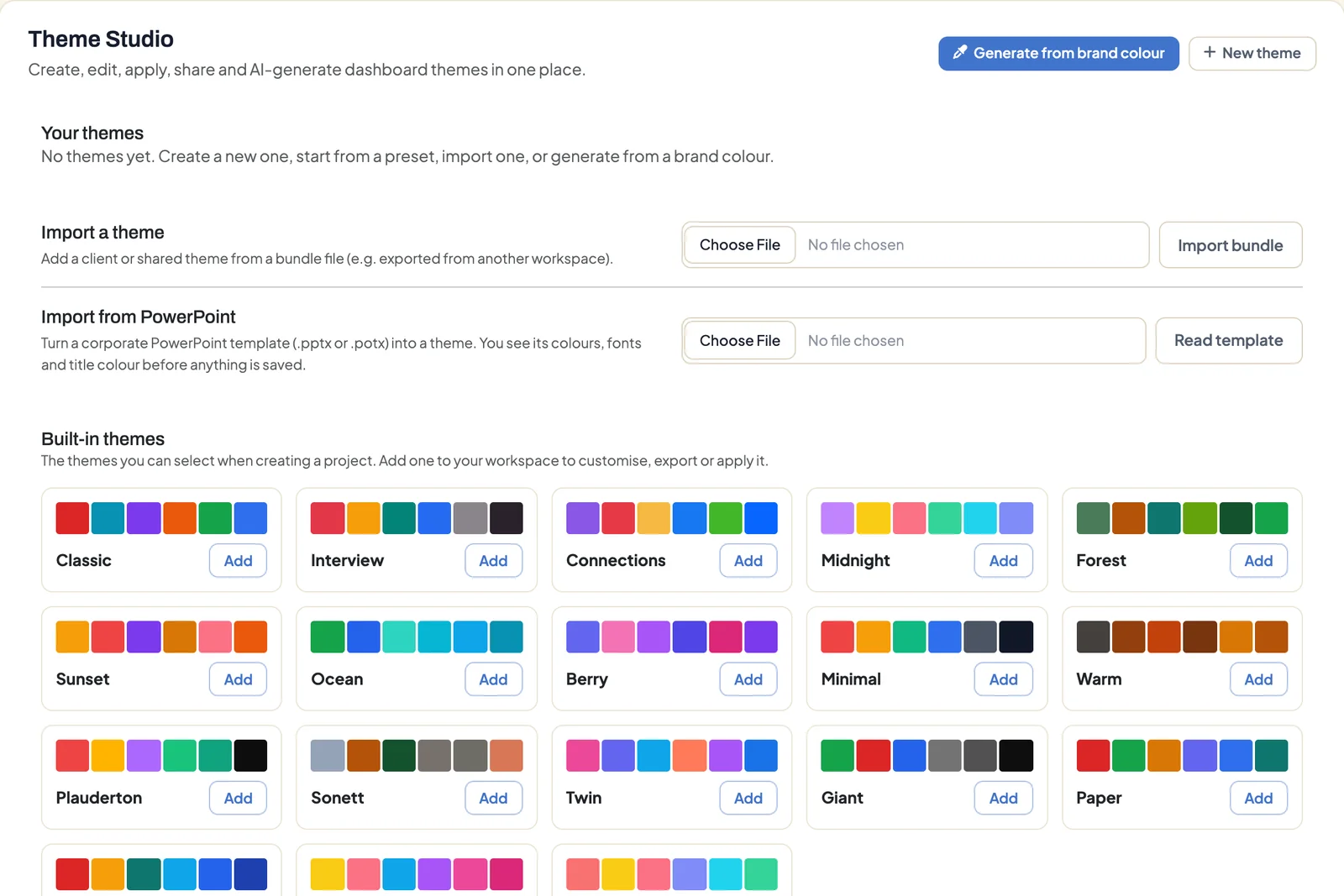
Requirements
- An administrator account. Editors and viewers don’t see Theme Studio.
- For the PowerPoint import: DataLion release 2026.2.198 or later and a template as .pptx or .potx.
Open Theme Studio from Admin → Theme Studio in the admin sidebar.
Theme from a PowerPoint template
DataLion reads the colours, fonts and title colour from your template and shows them to you before anything is saved. No AI is involved: DataLion reads the values straight from the file.
- In Theme Studio, choose the file under Import from PowerPoint (.pptx or .potx, up to 100 MB).
- Click Read template.
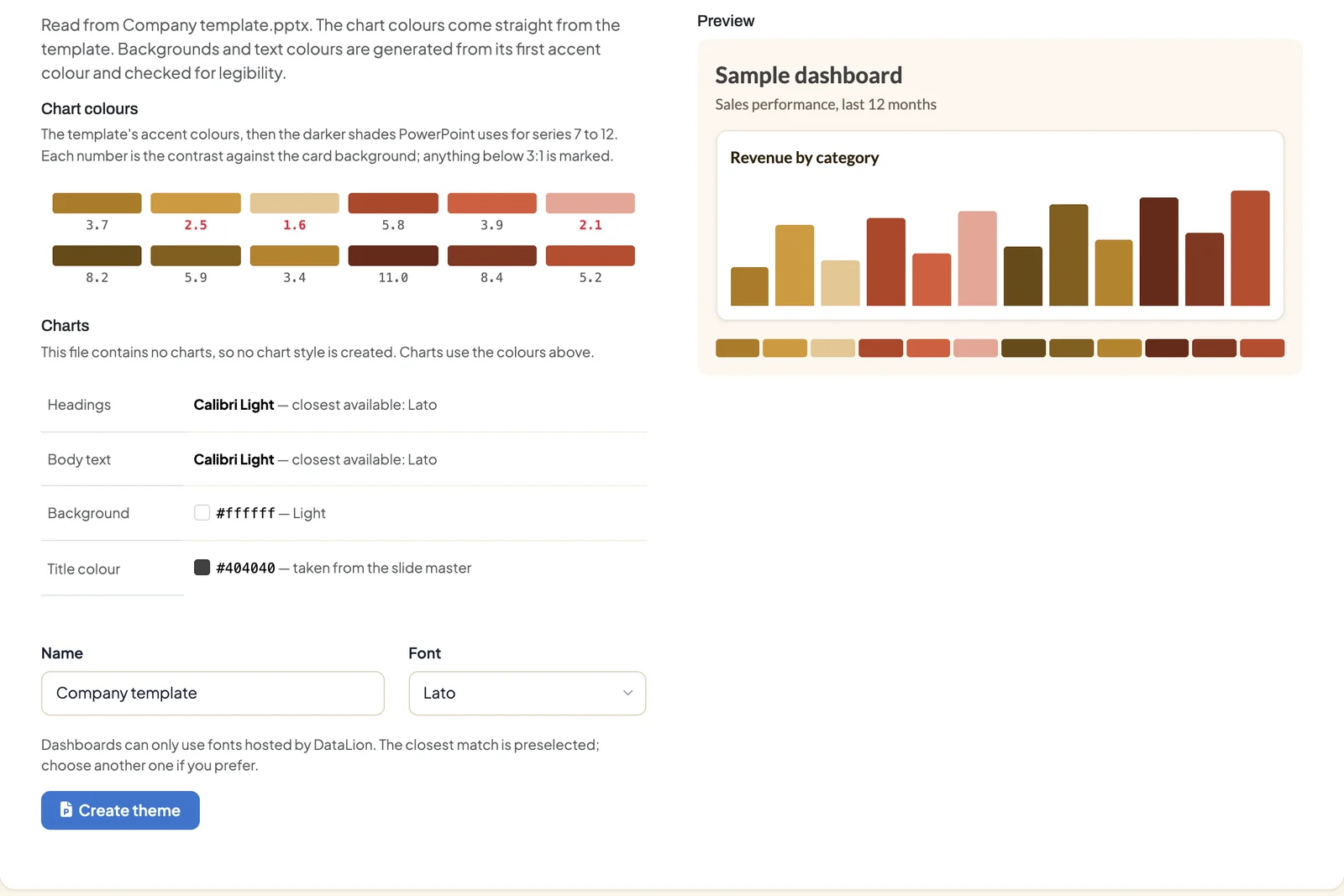
- Review the page Theme from a PowerPoint template:
- Chart colours: twelve series colours. If the file contains charts, their colours come first, then the template’s accent colours. Each colour shows its contrast against the card background, and colours below 3:1 are marked.
- Charts: if charts were found, DataLion shows text colour, title colour, legend, data labels, bar width and font sizes. These become a chart style.
- Headings and Body text: the template’s fonts. If DataLion doesn’t offer a font, the closest available one is shown.
- Background: the slide master’s background colour, and whether the theme will be light or dark.
- Title colour: taken from the slide master. If it would be too faint on the background, DataLion replaces it.
- Adjust Name and Font. The name defaults to the file name.
- Click Create theme. The new theme opens in the editor, where you review and apply it.
Dashboards can only use fonts that DataLion hosts itself, currently 27 families such as Inter, Roboto, Open Sans, Lato, Montserrat or Source Serif 4. You can’t upload your own font.
Theme from a brand colour
If all you have is one house colour, DataLion derives a whole theme from it.
- In Theme Studio, click Generate from brand colour.
- Enter the colour under Brand colour, as a hex value or with the colour picker.
- Under Designed for, choose Light or Dark, and set Name and Font.
- The preview updates with every change. The Contrast check grades headings, descriptions, links and white text on buttons as AA, AAA or Low and checks the twelve chart colours.
- Click Generate theme.
Here, too, DataLion calculates the colours itself, without AI.
Generate a theme with AI
If AI is switched on for the workspace, Generate with AI is available as well. You describe your brand under Brand description, optionally add a Brand website and Primary colours, and choose an AI context project. The AI creates a draft with palette, fonts and styling, which you then adjust in the editor. The website address is only passed to the AI as text; DataLion doesn’t fetch the page. With Derive an accessible palette from the first colour, DataLion calculates the chart colours from your first primary colour.
Edit a theme
Edit in the Your themes list opens the editor. There you change:
- Name and Font,
- under Dashboard, page background, title and subtitle,
- under Charts, card background, border, chart title, chart text and footer,
- under Text boxes and Filters, the colours and sizes of those elements,
- under Chart colors, up to 24 series colours, primary first.
Advanced holds the fields Custom CSS and Custom JavaScript for cases the fields above don’t cover. The JavaScript runs on every dashboard that uses the theme, so only add code you trust.
The Preview on the right shows a sample dashboard in your colours. Save with Save theme.
Apply a theme to a project
- In the Your themes list, pick the project next to the theme and click Apply. In the editor, the Apply to project box does the same.
- If the theme carries a chart style, for example from a PowerPoint template with charts, DataLion saves it in the project under the theme’s name. It then appears in the chart style picker of every chart.
Alternatively, pick the theme in the project under Design → Visual style in the Custom designs group.
Applying a theme replaces the project’s design settings. Custom colours under Visual style and the CSS under Custom code → Custom Style Section are cleared. Back up project-specific CSS first if you still need it.
The logo is not part of the theme. You set it per project under Design → Branding.
Share themes and use presets
- Export downloads a theme as
<name>.theme.json. Import bundle adds it to another workspace. - Built-in themes offers 18 ready-made themes such as Classic, Midnight or Paper. Add copies one into your themes, where you can adjust it.
- New theme starts from the Classic theme.
Surveys don’t use Theme Studio themes. You set their look in the survey under Design, see Survey design and white label.
Dashboard style: Classic or Modern
Since release 2026.2.199 there is a base style for the whole instance. Under Admin → System → Branding, choose the Dashboard style: Classic, the default, or Modern. Modern brings rounded cards, filters as chips, quieter axes and, if you want it, emphasis on the largest bar. Themes and project or chart settings take precedence over the base style.
Custom CSS without a theme
Project-specific CSS is still possible. The old path Project backend → Content → Styles is now Admin → Projects → Design → Custom code. Enter a stylesheet URL there or write CSS in the Custom Style Section field.