
Zero-downtime update (manual)
An (almost) zero-downtime update can be carried out manually. This allows data in a project to be uploaded so that the dashboard is unavailable for only a very short time because of the data upload (during the renaming of the data sources).
How is a zero-downtime update (manual) carried out?
-
Navigate to the data source you want to update

-
Copy this data source (data source name) and rename it to data source name**_new**
(If you want to replace the dataset, create a new data source instead) -
Under “Data upload”, select the dataset you want to upload
-
Click Save
-
You will now see the preview of your data.
Select “Normal update” and decide whether the existing data should be replaced or the new data should be added to it-
Replace table: The data already uploaded is overwritten by the new data. This option is needed when a complete dataset is provided with every upload.
-
Append to table: The selected data is appended to the data already uploaded. This option is needed, for example, when the uploaded data is to be supplemented with new monthly or quarterly data
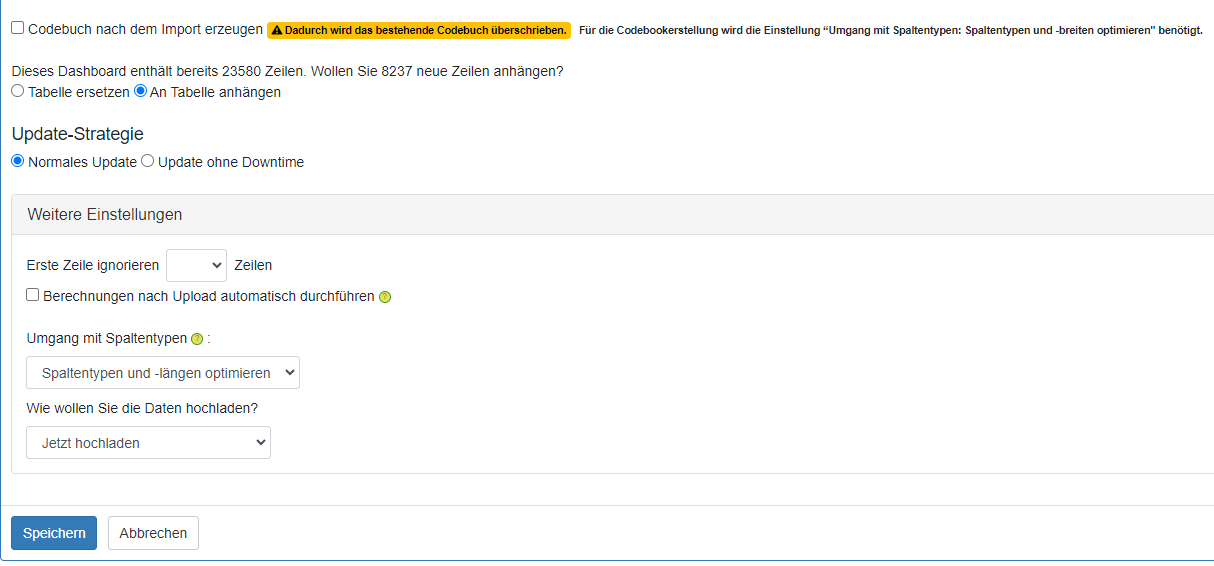
Note: If you want to upload a very large dataset, select the option Upload with notification under Additional settings → How do you want to upload the data?. The upload runs in the background and you receive a notification by email once the upload has completed successfully.
-
-
Start the upload by clicking Save
-
After the successful upload, all that remains is to rename the data sources
-
The data source currently in use is renamed to data source name**_old**
-
The new data source (data source name_new) is renamed to data source name (without suffix)
-
-
As soon as the renaming is complete, the dashboards access the new data
Note: if you retrieve the labels for some variables directly from the dataset, do not forget to update the labels in the backend → Codebook!
(only then are the values read from the data)
Should something unexpectedly go wrong during the upload, you can simply rename the data sources back. The dashboards will then access the “old” data again and you can identify the problem at your leisure.
ATTENTION! If new categories and/or variables have been added to your dataset during a data upload, you still need to add them in the codebook.
You can find more information on data sources and data tables here.