
In most studies the questionnaire is finished before anyone builds the survey. It sits in the project folder as a Word file, signed off by the client, with question numbers, answer codes and filter instructions in square brackets. Then the typing starts: create every question by hand, copy every code, rebuild every filter as a rule. Mistakes made along the way often surface only in the pretest.
Since release 2026.3.201, the AI in DataLion takes over that step. It reads the questionnaire and programs it as a draft survey. Anything it cannot reproduce goes on a short list of notes.
The draft sticks to your document
Wording, question numbers and answer codes are kept, and the number in the document becomes the question code. Tables with rating scales become matrix questions, filter instructions become display logic. In the tutorial, question six in the Word file carries a filter: only people who cycle less than once a week should see it. In the editor it has become a display condition. The rows of the rating grid are rotated, just as the document asked.
Every programmed question carries an "AI-assisted" badge, and a notice above the editor reminds you to review the draft before you publish it.
How to program a questionnaire
- Open Admin → Surveys and click Upload questionnaire.
- Choose the file: Word (
.docx) or a PDF with a text layer. - Add an instruction for the AI if you need one, for example to leave out the screener. Then click Program questionnaire.
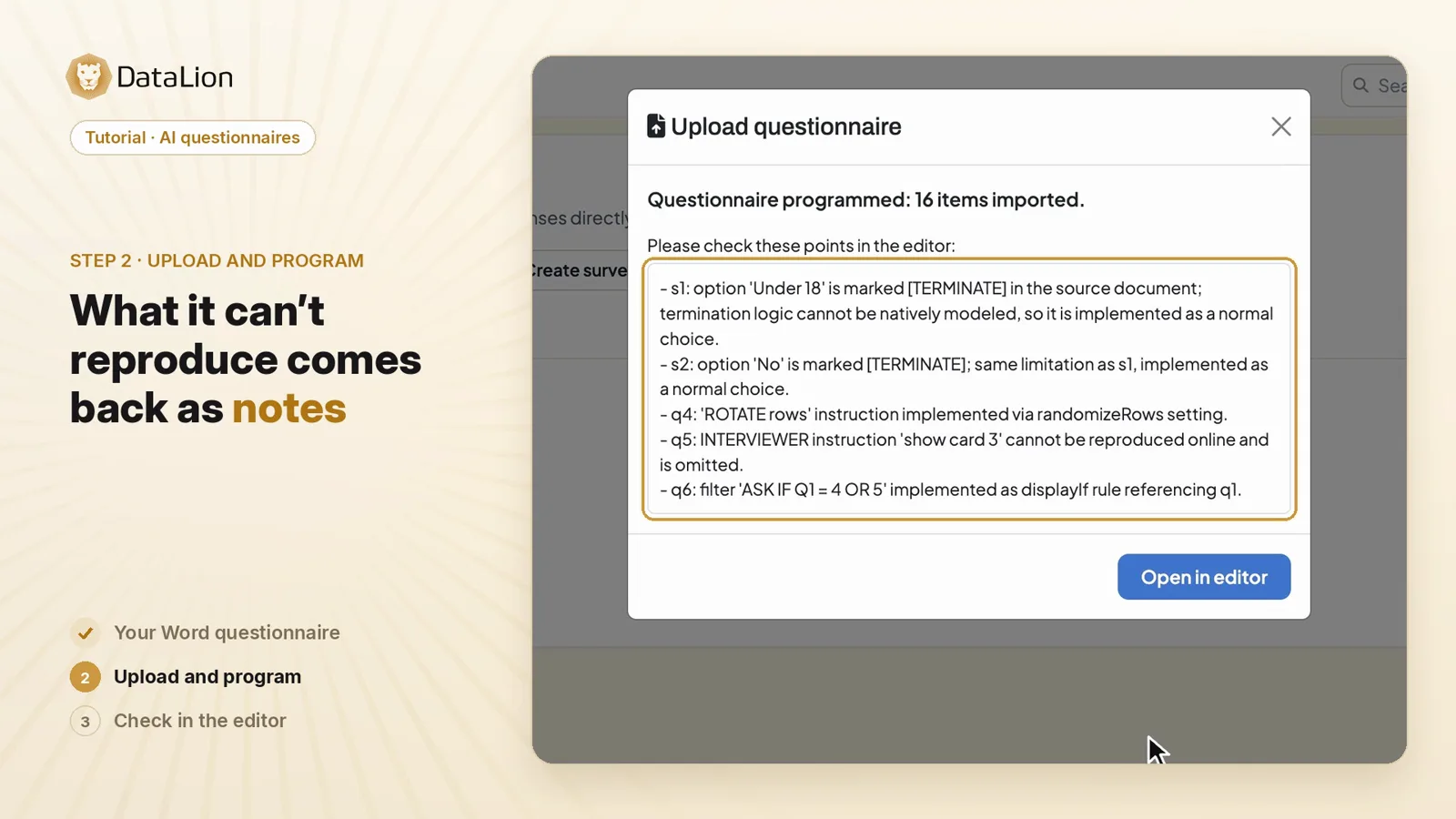
- Read the list of notes. It only appears in this dialog, so copy it before you move on.
- Open the draft in the editor, check questions, codes and filters, and only then publish the survey.
The demo questionnaire in the video has 16 items, and the draft is ready in under a minute.
Prefer to watch? The 2-minute tutorial
Questionnaires from other survey tools need no AI
If a questionnaire is already programmed in another tool, there is no need for AI. Admin → Surveys → Import survey now reads SurveyJS JSON and .qsf export files and creates a new draft from them as well. Display, skip and branch logic from .qsf files and additional languages are not imported, so you rebuild the logic in the editor.
Where the AI reaches its limits
A paper questionnaire contains things that work differently online. In the video, two screen-outs and an interviewer instruction ("show card 3") end up on the list of notes. In release 201 the same goes for quotas, for answers carried forward from an earlier question and for sections that repeat per brand. The survey editor can do all of that, but the AI does not yet program it from the document. You set those parts up yourself after the upload.
So the AI delivers a draft, not a checked survey. Two runs on the same document can turn out differently, which is why grids, filters and codes deserve a look before every launch. Fair enough, that was true when we typed questionnaires in by hand, too.
The feature runs on DataLion's built-in AI, on the Free plan with your own AI key. The document text goes to the AI provider configured in your workspace.
Step by step in the help centre
Every step, the file formats and the full list of what the AI keeps are in the help centre under Upload and import questionnaires. The AI questionnaire page gives an overview of the feature, and the release post covers everything else in 2026.3.201.