
Upload and import questionnaires
Many studies start with a finished questionnaire: a Word file from the client, a PDF from the last wave or an export from another survey tool. Since DataLion 2026.3.201 you no longer have to type such questionnaires in question by question. Admin → Surveys offers two ways in:
- Upload questionnaire: the AI reads a Word or PDF document and programs a draft survey from it.
- Import survey: DataLion takes over a SurveyJS survey (JSON) or a Qualtrics export (
.qsf) without AI.
Both create a new draft. You review it in the editor and publish only once everything is right.
Upload a questionnaire
Requirements
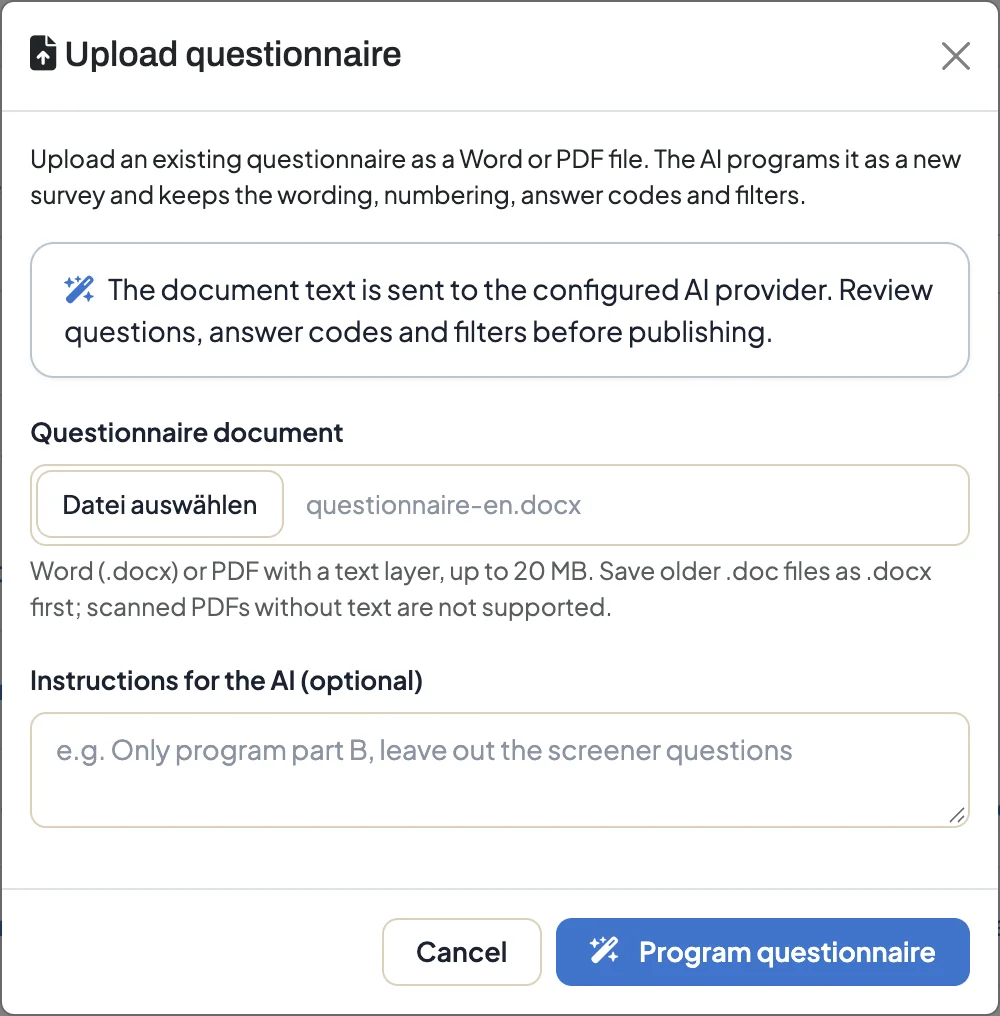
- DataLion release 2026.3.201 or later, and administrator rights.
- Built-in AI is switched on (Admin → Integrations → AI, tab Built-in AI). On the Free plan this needs your own model key. Without AI, DataLion hides the Upload questionnaire button.
- A Word file (
.docx) or a PDF with a text layer, up to 20 MB. Save older.docfiles as.docxin Word first. Scanned PDFs without text can’t be read.
Steps
- Open Admin → Surveys and click Upload questionnaire.
- Choose the file under Questionnaire document.
- Add Instructions for the AI (optional) if needed, for example “Only program part B, leave out the screener questions”. The field takes up to 1,000 characters.
- Click Program questionnaire. Long questionnaires take a few minutes. Keep the dialog open until it finishes.
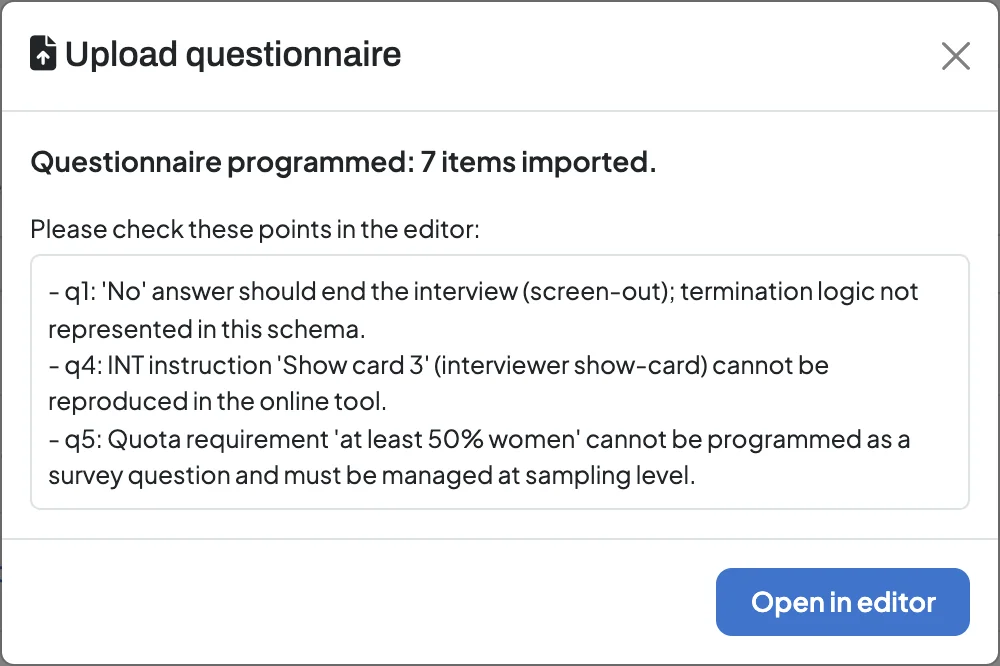
- DataLion then reports how many items it imported and lists everything the AI could not reproduce under Please check these points in the editor:.
- Click Open in editor. A notice at the top of the editor reminds you that the draft contains AI-generated content.
- Review questions, answer codes and filters, then publish the survey.
What the AI keeps
- Wording word for word, in the order and language of the document.
- Numbering as the variable code: “Q1” becomes
q1, “Q3a” becomesq3a. - Answer codes printed in the document, such as “99 Don’t know”. “Don’t know” options become no-answer options, “Other, please specify” an Other option with a text field.
- Filter instructions such as “Q2 only if Q1 = 1” as display conditions.
- Grids as matrix questions, 0 to 10 recommendation questions as NPS questions, scale anchors in the option labels.
- Sections as separate pages. Automatic numbering, tables and checkboxes from Word are read correctly.
The list of open points
Quotas, piping, show cards and interviewer-only notes can’t always become a question. The AI writes them into the list Please check these points in the editor:.
Important: the list only appears in the dialog. Copy it before you click Open in editor. If the AI has nothing to report, DataLion opens the editor straight away.
Good to know
- The document text goes to the AI provider set under Admin → Integrations → AI. The note in the dialog says so too.
- Results can differ between two runs, so always check filters and codes before publishing.
- DataLion refuses very long documents (more than 150,000 characters). Split the questionnaire and upload the parts one by one.
- The AI suggests the survey title. If it finds none, DataLion uses the file name.
Import from SurveyJS and Qualtrics
Questionnaires already programmed in another tool don’t need AI. Admin → Surveys → Import survey reads three formats:
- a DataLion survey (JSON export from DataLion),
- a SurveyJS survey (JSON),
- a Qualtrics export (
.qsf).
DataLion recognises the format by the file content, not by its extension.
Steps
- Under Admin → Surveys, click Import survey.
- Choose the file. The import starts at once, without a confirmation step.
- DataLion opens the new draft in the editor and reports, for example, “Survey converted from Qualtrics QSF and imported as a new draft.” Below that it lists what was not converted.
The message disappears after a few seconds. Read it right away, especially the Not converted: line and the note about logic rules that were not converted.
What is converted
| Source | In DataLion |
|---|---|
| SurveyJS radiogroup, dropdown, checkbox, tagbox, imagepicker, ranking | Single choice, Dropdown, Multiple choice, Picture choice, Ranking |
| SurveyJS boolean, matrix, comment, multipletext, html, file | Yes/no, Matrix, open text, contact fields, info text, file upload |
| SurveyJS rating | Stars or buttons, an NPS question when the scale runs from 0 to 10 |
| Qualtrics Multiple Choice, Text Entry, Matrix (Likert, Profile) | matching DataLion question types, multi-answer Likert as Matrix (multiple answers) |
| Qualtrics Slider, Star Rating, Rank Order, Constant Sum, Text/Graphic, File Upload | Slider, Stars, Ranking, Constant sum, info text, file upload |
Variable names become question codes (Q1 becomes q1), answer values including Qualtrics recode values become answer codes. SurveyJS pages stay pages. For Qualtrics, every block and page break starts a new page, and questions in the trash are left out.
What is not converted
- Logic: display, skip and branch logic and SurveyJS triggers. DataLion counts the affected rules in the message. Recreate them in the editor, see Skip and display logic.
- Unsupported question types, such as signature pads, dynamic matrices or Qualtrics timing questions. The message names them.
- Additional languages: DataLion imports the default language only, and the message doesn’t mention it. Add translations afterwards, for example with Translate with AI, see Multilingual surveys.
Good to know
- The file may be at most 2 MB. Large Qualtrics exports with many graphics go over that quickly.
- If an import fails, the message gives the reason.