
Survey logic: setting up skip and display logic
Survey logic makes sure each person only gets the questions that fit them. You show questions depending on earlier answers, skip parts of the questionnaire, screen out unsuitable participants and pipe answers into later question text. DataLion evaluates the conditions on the server, so respondents can’t get around them.
Requirements
- DataLion release 2026.2.192 or later. Piping, shuffled sections, row-level matrix rules, computed variables and the JSON export arrived in 2026.2.195.
- An administrator account and a survey in Draft status. Once published, the questionnaire is locked.
Set up display logic
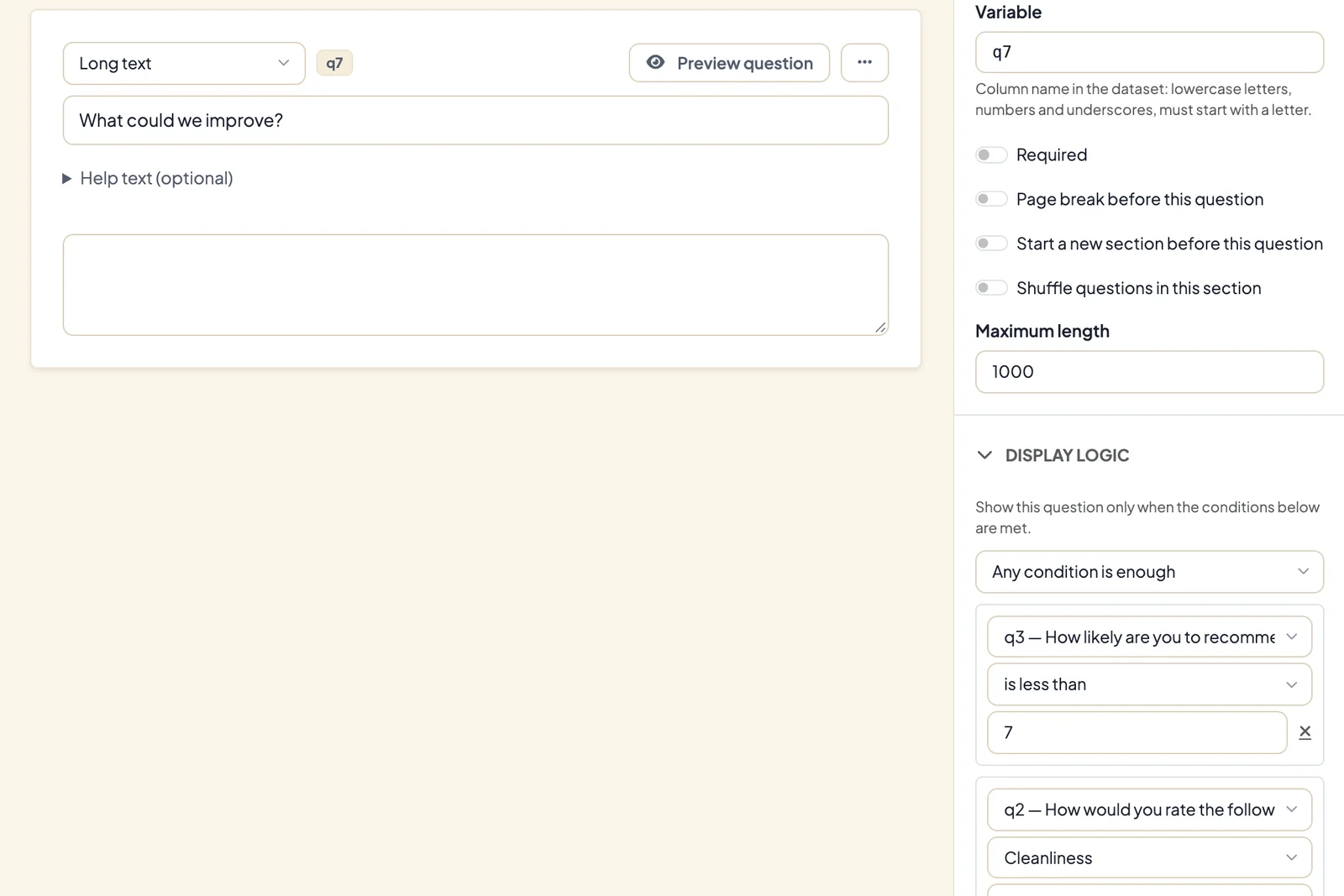
Display logic shows a question only when earlier answers match. It appears in the builder on the right under Display logic as soon as there are other questions or captured URL parameters before the question.
- In the builder, select the question that should appear conditionally.
- Open Display logic on the right and click Add condition.
- Choose the earlier question, a comparison and the value. The options are is selected, is not selected, equals, does not equal, is greater than and is less than. Which of them apply depends on the question type.
- With several conditions, choose at the top whether All conditions must be met (AND) or Any condition is enough (OR).
If the source is a matrix question, an extra selector for the row appears. That way a rule refers to a single statement, in the screenshot above only the “Cleanliness” row.
Set up skip logic
Skip logic decides where respondents go after an answer.
- Select the question after which the jump should happen and open Skip logic on the right.
- Click Add jump rule and set the condition, for example “is selected: Probably not”.
- Choose the target: a later question, End of survey or Screen-out (disqualify).
Jump rules are available for questions with a single answer, such as single choice, dropdown, number, rating scale, NPS, slider or date. For multiple choice and matrices, use display logic on the following questions instead.
Screen-out with your own text
A screen-out ends the survey for people outside your target group. Set its text under Survey settings → General → Screen-out text. Without your own text, participants see a default message. If you work with a panel, enter the address DataLion should redirect to instead under Screen-out redirect URL, see Distribute a survey.
The Monitor tab shows how many people were excluded under Screened out.
Pipe answers into question text
You can insert an earlier answer into later text, for example “What do you like most about {{brand}}?”.
- Type two curly braces
{{in the question text, help text or thank-you text. - A list of all earlier questions, captured URL parameters and computed variables appears. Pick an entry and DataLion inserts
{{variable}}.
A URL parameter is available as {{url_name}}. If the answer is missing, the spot stays empty, so phrase the sentence so it still makes sense without the inserted value.
Shuffle sections
You can group questions into sections and randomize their order.
- On the first question of a section, switch on Start a new section before this question. A divider Section 1, Section 2 and so on appears in the list.
- With Shuffle questions in this section, each person gets that section’s questions in their own order. Description texts stay in place.
- Under Survey settings → General, Shuffle section order also shuffles the sections themselves.
The order is drawn once per person and stays the same throughout their participation.
Computed variables
Under Survey settings → General → Computed variables, click Add computed variable to create your own values, for example q1 + q2 * 2. DataLion calculates them on completion and stores them as numbers in the dataset. Because they only exist at completion, they work in the thank-you text and in the analysis, not for conditions inside the questionnaire. For points with dimensions and a result page, use the scoring editor, see Scored surveys and personal results.
Response limit and close date
Under Survey settings → General you limit participation:
- Maximum responses (0 = unlimited): after this number of completes, the survey stops accepting responses.
- Close automatically on: from this date, the survey is closed.
Limits for individual groups, such as at most 60 business travellers, are set up as quotas.
Export and import surveys as JSON
You can move a survey including its logic to another workspace.
- Export: under Admin → Surveys, open the … menu in the survey’s row and choose Export. You get a file named
name.survey.json. - Import: under Admin → Surveys, click Import survey and pick the file. DataLion creates the survey as a new draft.
The file contains questions, logic, design, texts and settings. Responses, the publish status, the linked project, quotas, contact lists and invitations stay in the old workspace. DataLion resets the retention period to the default on import.
Tips
- Test branched questionnaires with Test survey once for every path. Under Results you then see which questions were answered on which path.
- Give variables meaningful names before you set up logic. The conditions are easier to read.
- How to share the finished survey is covered in Distribute a survey: link, QR code and embedding.