
Ask your data: questions to the dashboard and slides from a tab
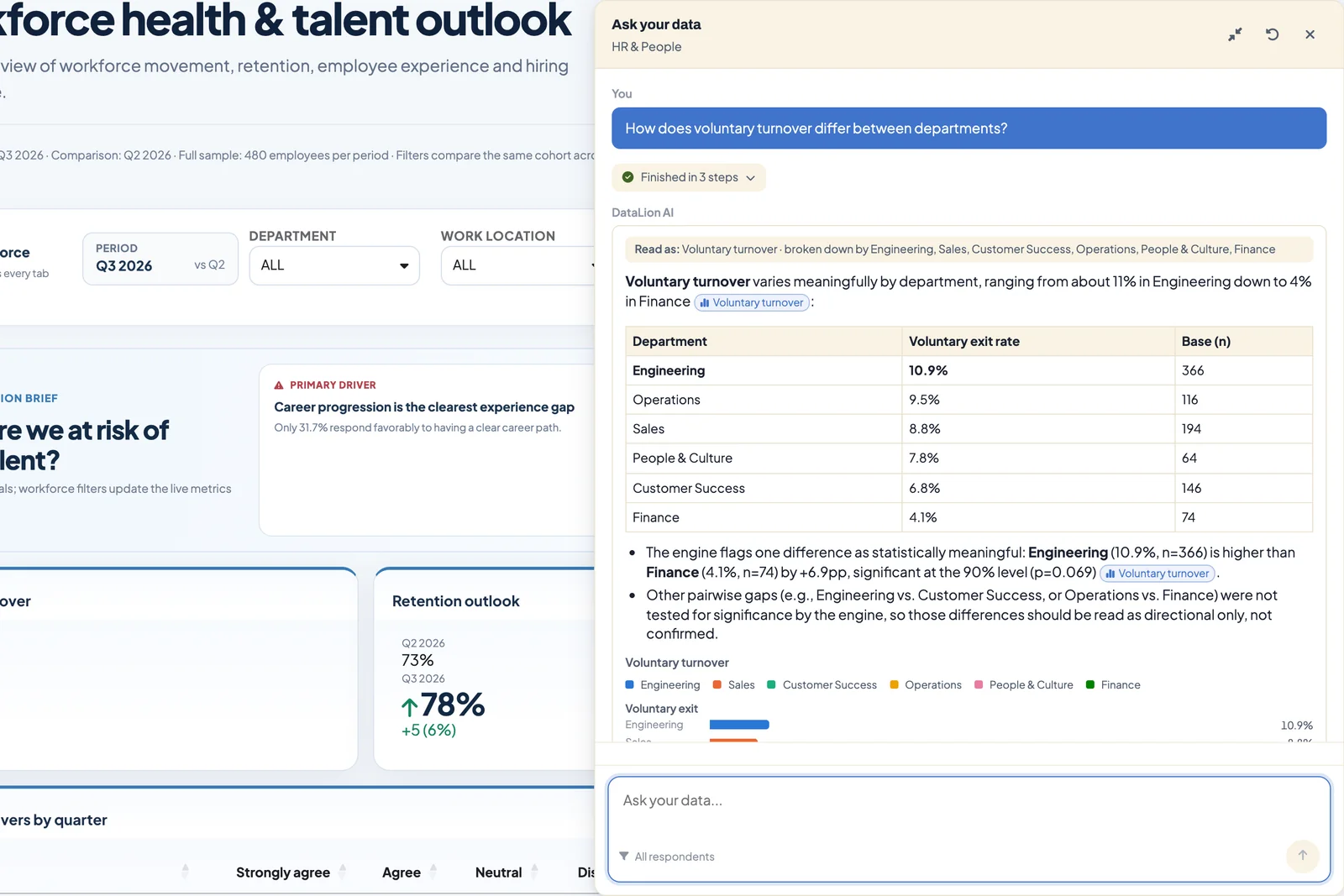
With Ask your data you ask a project questions in plain language, for example “How does satisfaction differ between locations?”. DataLion calculates the figures itself, weighted and with significance tests. The AI picks the right analysis, summarises the result and links every figure to the table it came from. On a dashboard tab it also knows the tab’s charts and builds PowerPoint slides from them on request.
Requirements
- DataLion release 2026.2.198 or later for questions about a tab’s charts and the PowerPoint export. The chat itself has been available since 2026.2.195.
- An account with access to the project. Any role that can view the project can ask questions. For the export you need the same rights as for the tab’s PowerPoint download.
- AI features switched on for the workspace and the project, see Turn Ask your data on and off.
Ask a question
- Open a dashboard or report of the project.
- Click Ask your data at the bottom right. The panel opens next to the dashboard.
- Type your question or pick one of the suggestions under Try one of these. DataLion builds these suggestions from the project’s codebook.
- While the answer is being prepared, the panel shows each step, for example “Searching the codebook for …” or “Computing a weighted results table”.
The answer contains the calculated table, the case count and a short reading under Read as. If the base is small, it adds “Small base — treat this result as directional only.” Copy answer copies the text, New chat starts a new conversation.
Active dashboard filters also apply to the chat. Above the input field you therefore see All respondents or, for example, “2 filters active”.
What Ask your data can answer
The AI works with a fixed set of tools. It can:
- search the codebook to find the right question,
- calculate weighted results tables, also broken down by groups and filtered,
- compare the current wave with the previous one, if exactly one wave is filtered,
- run regression analyses, see below,
- list the project’s reports,
- on a dashboard tab, recalculate any of the tab’s charts and export charts to PowerPoint.
It knows nothing outside the project. If you ask for something the data can’t answer, it says so.
How the answers are backed
Every figure in an answer comes from a table DataLion calculated. The AI doesn’t estimate values or calculate significance itself.
- A citation next to a figure jumps to the matching chart on the page.
- Show calculation shows the Variables, Filters and Base used and whether the table was Tested by the engine.
- The language model receives the calculated tables and information from the codebook. None of the tools hands out individual respondents’ rows, the regression included.
The answers are still AI-generated. Check statements you pass on against the linked table.
Questions about the charts on a dashboard tab
If you open the panel on a dashboard tab, the AI knows that tab’s charts in the order they appear on screen: top to bottom, left to right. Text boxes don’t count. You can therefore refer to charts without looking up the question:
- “What do the first two charts show?”
- “Summarise chart 3 for the South region.”
For each chart you name, DataLion recalculates the table with the chart’s variables, breakdowns and filters plus the dashboard filters currently active. Display settings such as sorting are not part of the recalculation.
Create slides from a dashboard tab
To export, ask for it explicitly in the chat. There is no separate button.
- Open the dashboard tab and the Ask your data panel.
- Say which charts should go on slides and whether you want key points with them, for example: “Export charts 1 to 4 to PowerPoint, with a headline and the main points on each slide.”
- DataLion starts the export in the background. The progress and then the download link appear in the export card at the bottom right.
Up to 20 charts go into one export, in dashboard order. The presentation uses the project’s PowerPoint master.
If you asked for key points, each chart gets an Interpretation box with a headline and up to four points. Below it is the note “AI-generated from the figures in this chart”. The same text is in the slide’s speaker notes. If you only ask for the export, the slides contain the charts without an interpretation.
Regression analyses in the chat
If you ask, for example, “Which factors explain overall satisfaction most strongly?”, the AI can run a regression. Besides linear regression (OLS), log-linear, quadratic, threshold, Poisson and negative binomial regressions are available, with up to 20 predictors and 10 categorical controls. The result is a report with coefficients, robust standard errors, confidence intervals, diagnostics and residual plots. The fit statistics describe the sample at hand. DataLion doesn’t validate how well the model predicts future values.
The chart type Advanced statistics offers the same diagnostics under Output → Regression diagnostics.
Turn Ask your data on and off
Three switches must be on:
- Admin → Integrations → AI, tab Built-in AI: AI features. While this switch is off, all AI features are hidden and DataLion sends nothing to an AI provider. It is on by default in the cloud and off on self-hosted installations.
- On the same tab: Ask your data for the whole workspace.
- In the project under Settings → General → AI: Ask your data. This switch is on by default.
In the cloud, DataLion uses a model it manages in the EU. Admin → Integrations → AI shows which provider is set up.
Troubleshooting
- The Ask your data button is missing. Check the three switches above. Embedded dashboards and anonymous visitors of public projects don’t get the panel.
- The AI doesn’t know “chart 2”. You opened the panel on a page without a dashboard tab, or the tab was rearranged after loading and not saved yet.
- The wave comparison doesn’t work. Filter the dashboard to exactly one wave.
- The export doesn’t start. Check whether you may download the tab as PowerPoint. Without that right, the chat can’t export either.