
Create and apply a PowerPoint master
Prefer to watch? The 2-minute tutorial
DataLion offers an export to fully editable PPTX presentations. To use it, you store a PPTX master in your own layout and design, into which the charts from your dashboards are exported.
Example of a possible result:
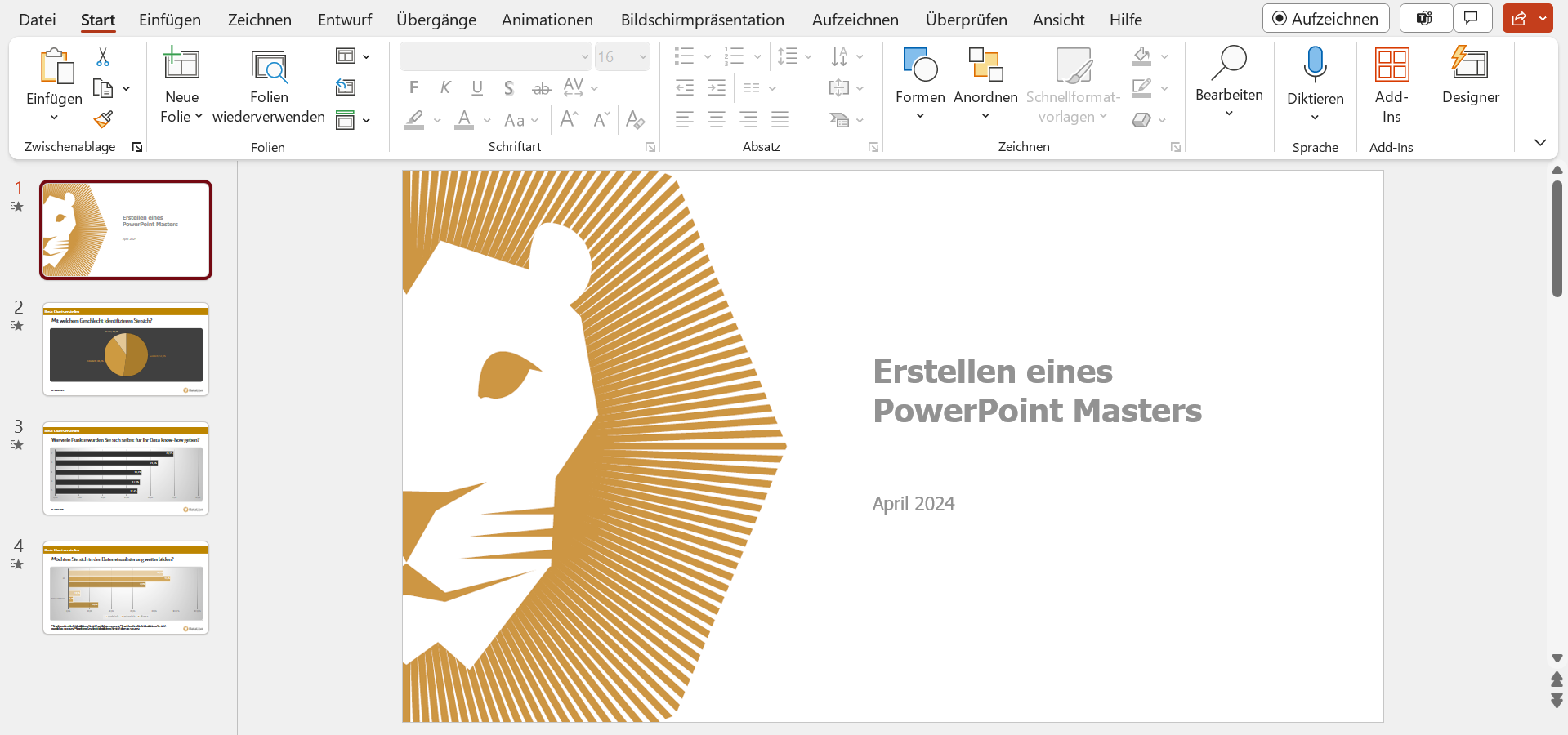
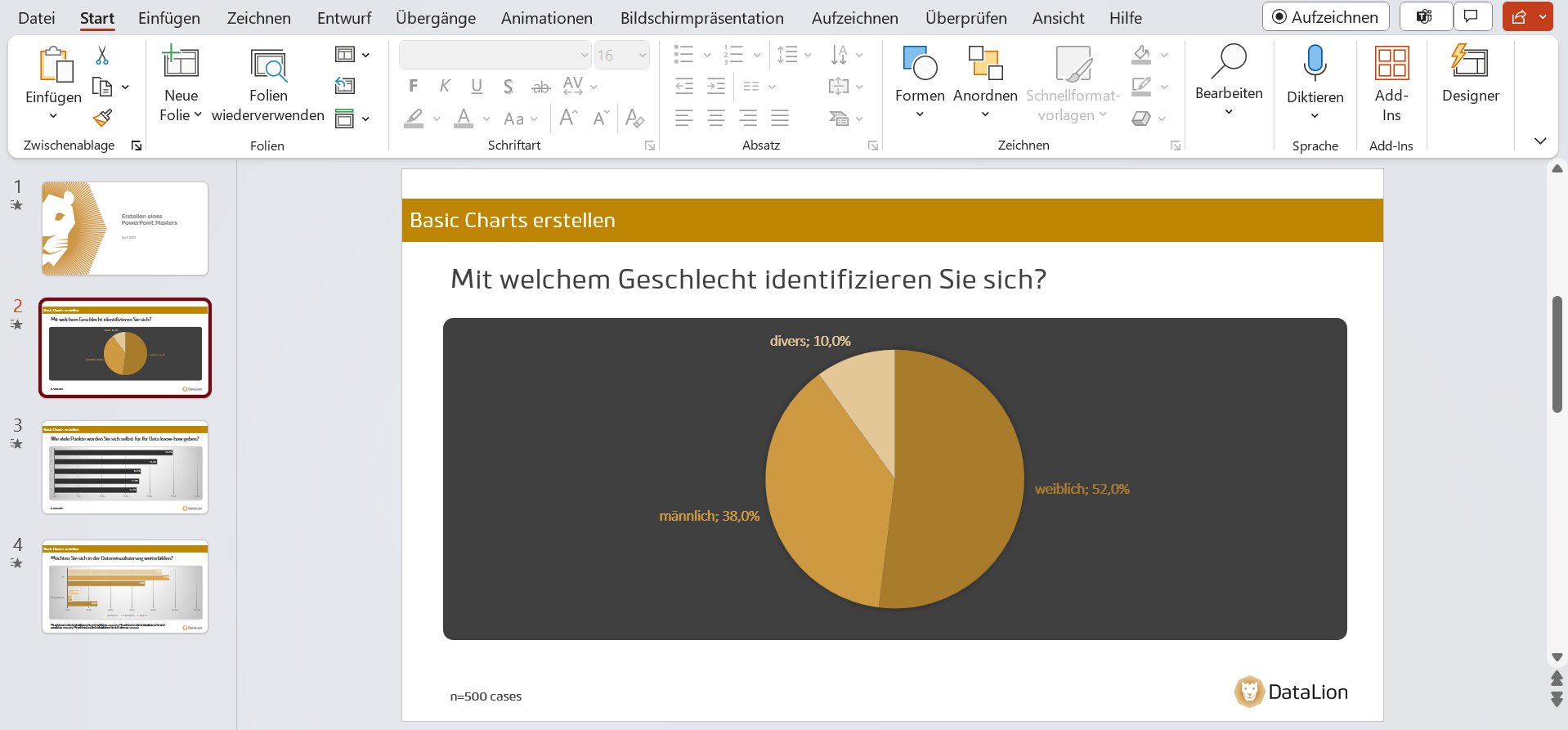
DataLion comes with a default slide master for the export. As long as you do not store a different master, this one is used for the exports. You can download it here and use it as a template for your own customized PowerPoint master.
How to proceed
Prepare the master
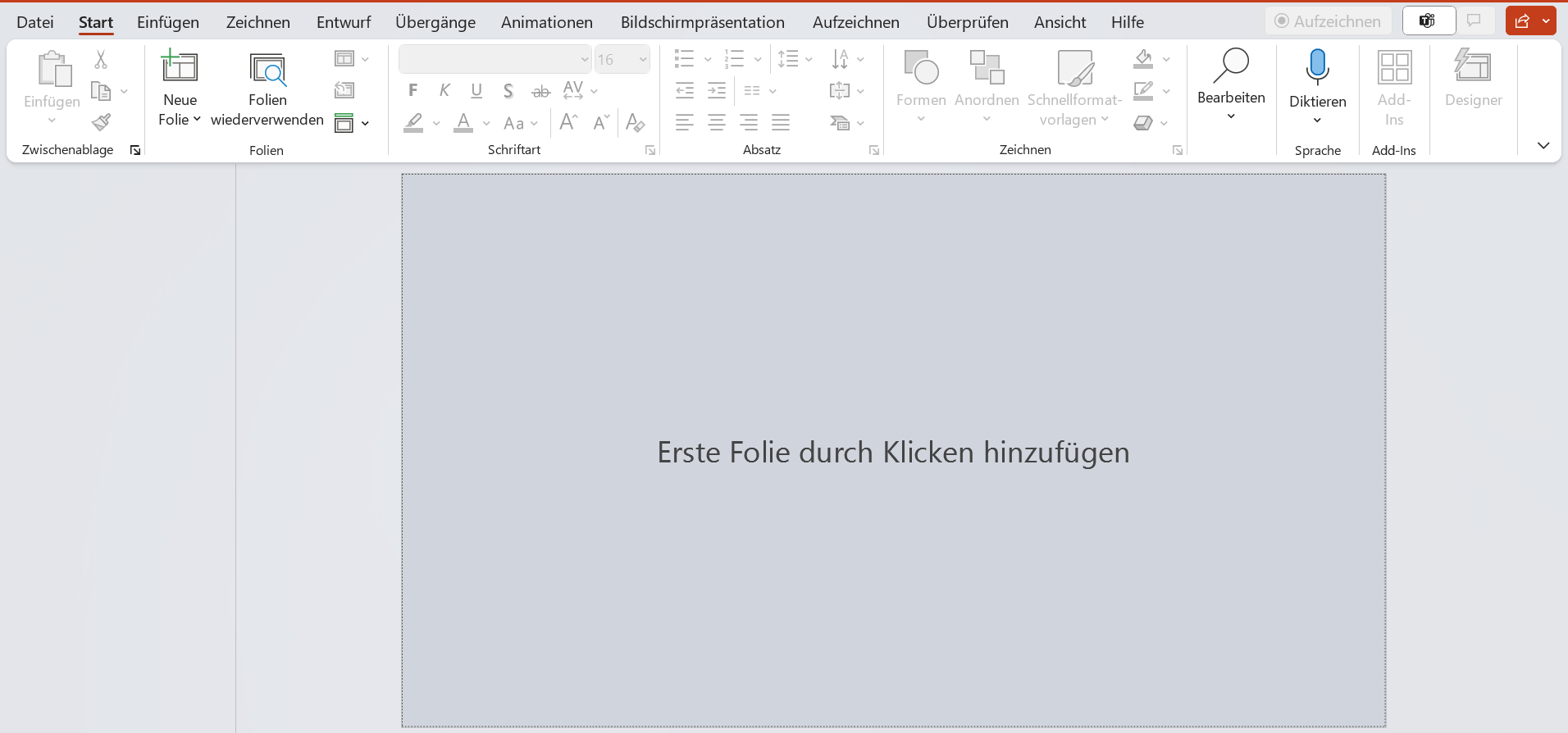
Create a new PowerPoint presentation and remove all slides in the normal view. If you use our template, this step is not necessary.
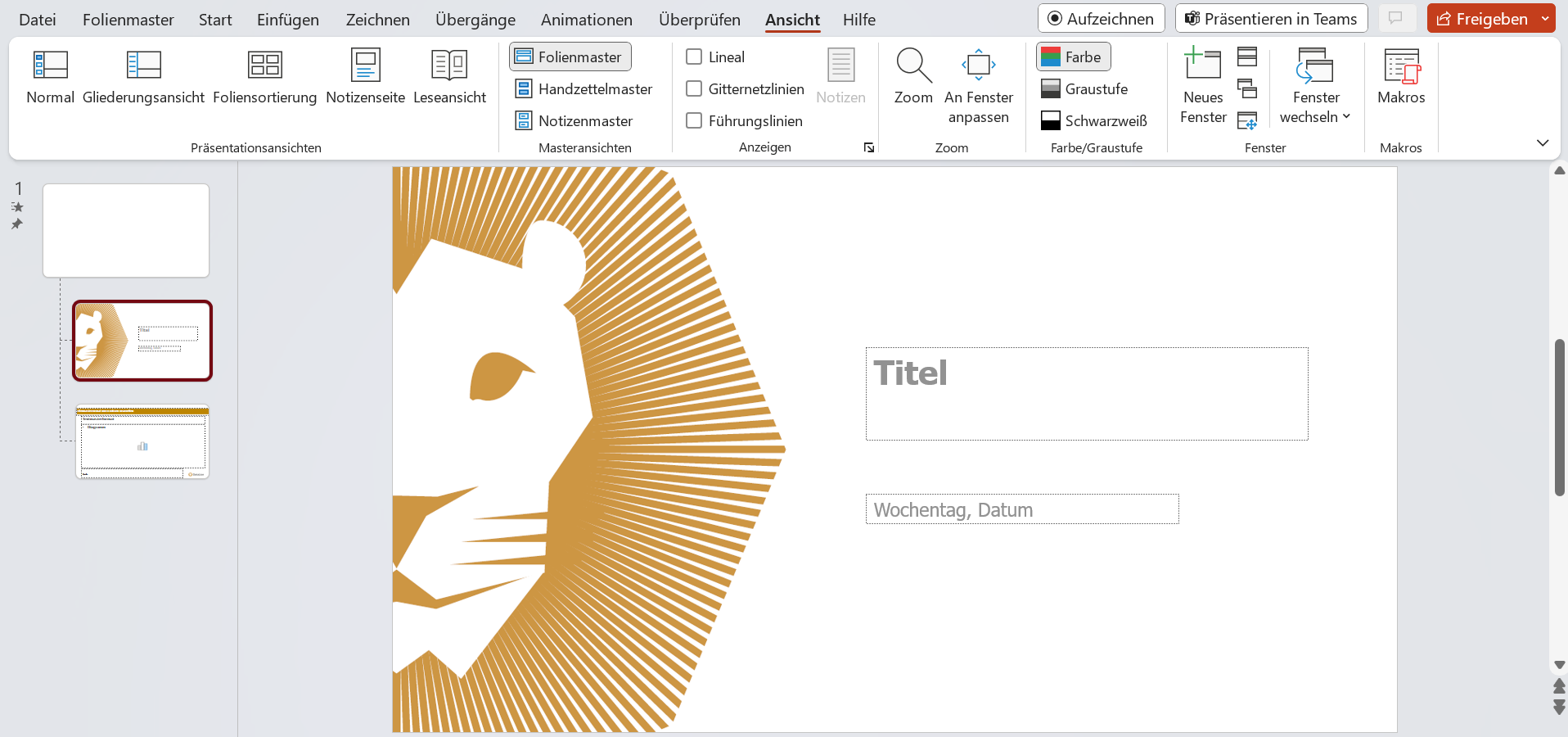
Switch to the slide master view via the “View” tab. The DataLion slide master already contains a layout for the title page of your export and the layout for the individual slides, each of which will contain one of your charts.
Customize the master
Important! Save the file at the end with the master view closed!
In the standard version, one chart per slide is exported; the structure is as follows:
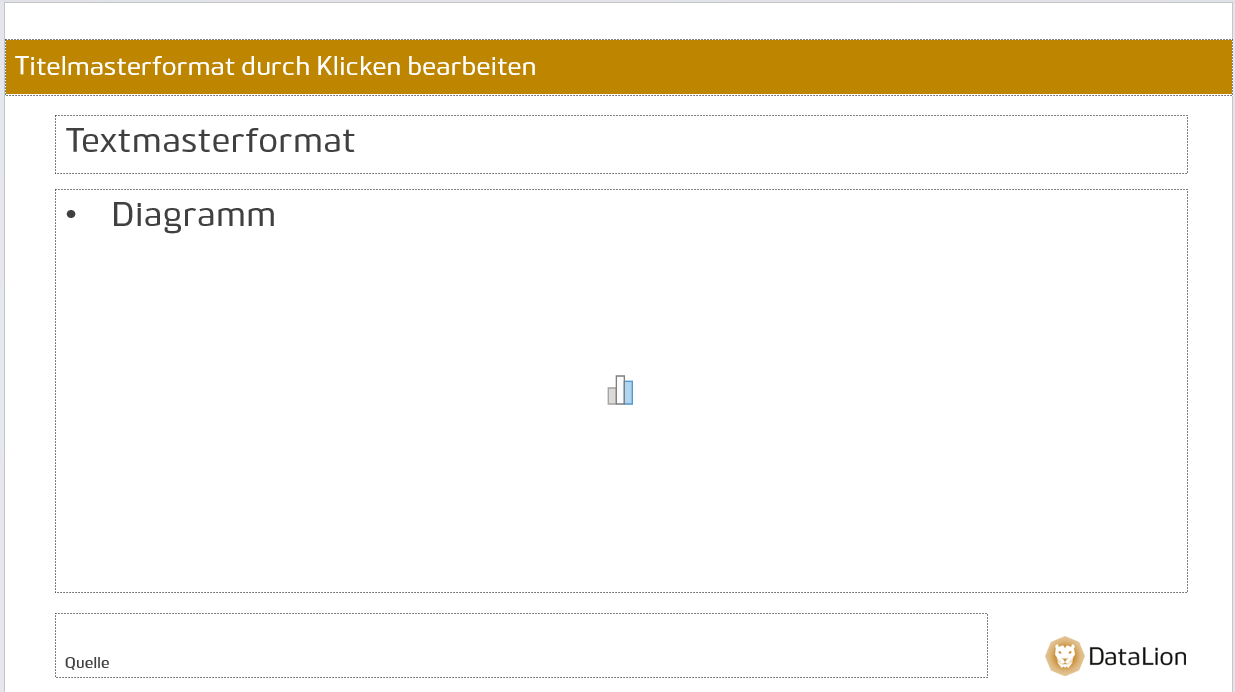
Various elements can be read into the text placeholders, such as the report title, the dashboard title, the chart title, the chart description or the chart footer. The charts are inserted into the chart placeholder.
You can choose the layout freely and, for example, add your logo, adapt the background to your corporate design and define the color scheme for the export.

[Note: All settings you make here affect the basic PowerPoint export and the creation of the presentation. Settings such as the color scheme used by your charts in the export come from the settings of your PowerPoint master, not from the settings of the dashboard.
After the export you can use all the usual PowerPoint functions to edit the presentation and to arrange and design the exported charts.]
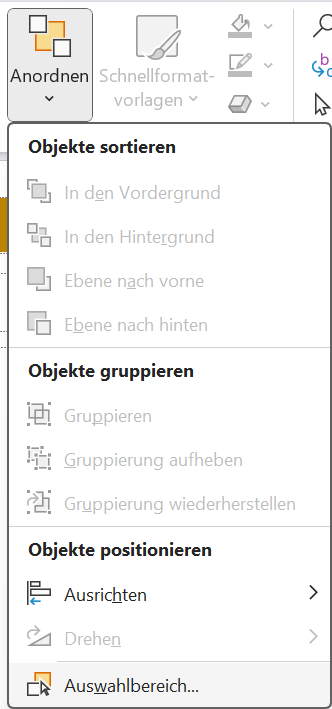
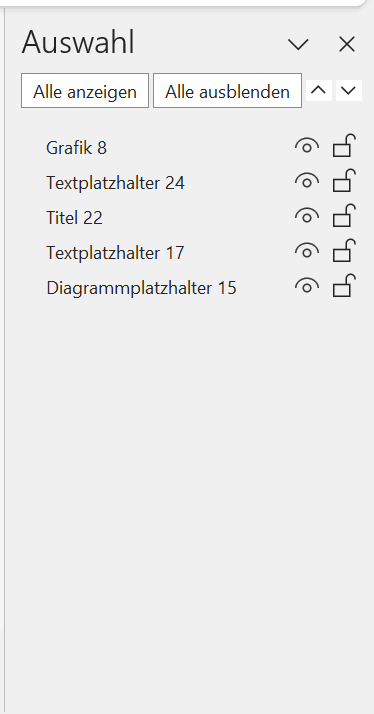
To place several charts on one slide by default in your export, you can also add further chart placeholders and text placeholders here. Under “Home” and “Arrange” you can open the selection pane.
Here you will find the IDs of your placeholders, which you can use to assign a function to the fields in the next step.
Important note! Once your master is fully configured, close the master view and save the file in this state. If the master view is still open when saving, this can cause problems during the export!
Add the master to DataLion
Since release 2026.2.199, PowerPoint masters live in a library for the whole workspace. You upload a master once and use it in as many projects as you like.
- Open Admin → Theme Studio and scroll to the PowerPoint masters card.
- Under Add a master, choose your file (PowerPoint file (.pptx), up to 100 MB) and give it a Name if you like. Without a name, DataLion uses the file name.
- If the master should apply to all projects, tick Use as default for all projects.
- Click Upload.
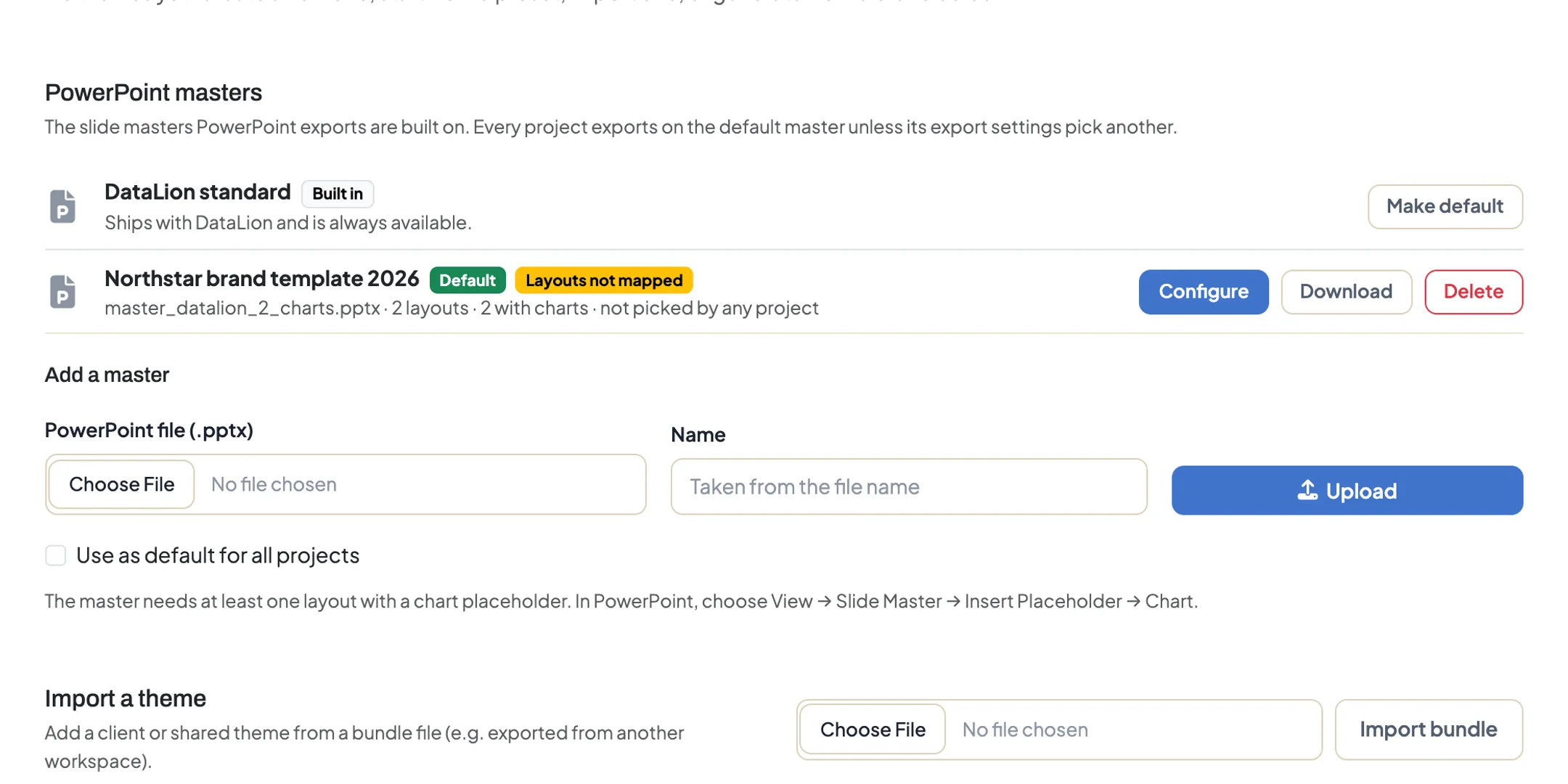
The master now appears in the list with its number of layouts and chart layouts. The yellow Layouts not mapped badge means you still need to map the placeholders in the next step. Next to it are Configure, Make default, Download and Delete. If you delete a master, projects that use it switch to the workspace default.
Which master a project uses is set in the project under Settings → PowerPoint, PDF and Excel defaults, in the PowerPoint master field: the workspace default, another master from the workspace library or the DataLion standard.
Earlier project masters: masters you uploaded directly to a project before keep working. They show up in the selection as “(this project only)”, and Move to library makes them available to all projects.
Custom masters require the white-label feature. Without it, the workspace exports with the DataLion standard master.
Configure the master in DataLion
In the PowerPoint masters card, choose Configure next to your master to assign the respective functions to the placeholders of your master.
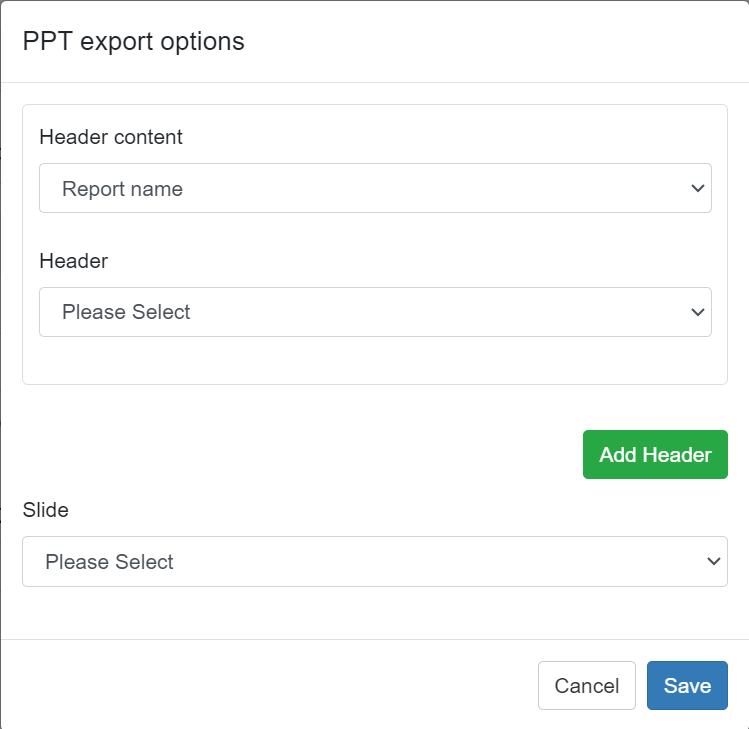
First select the page from the PPTX master to be used under Slide. This can be, for example, a page with only one chart placeholder or one with several chart placeholders.
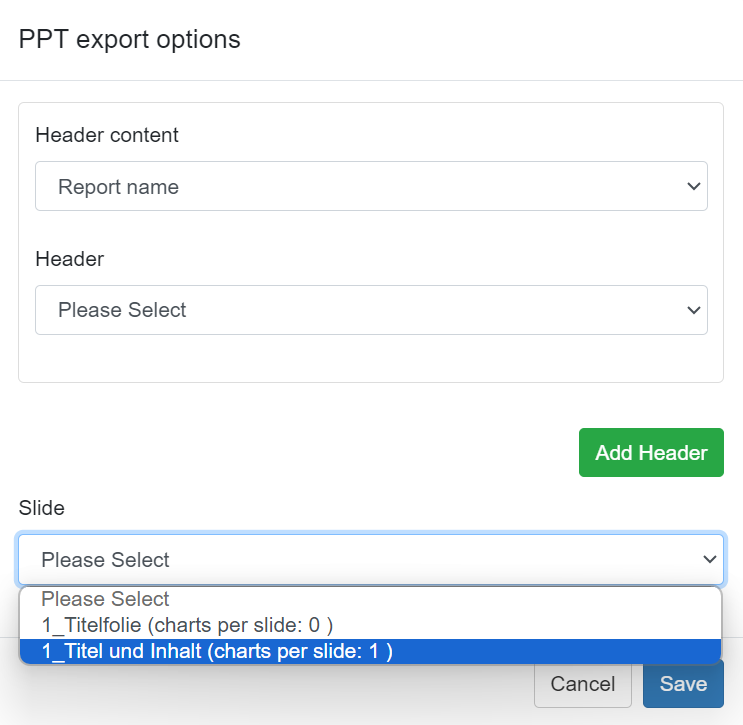
You can then define one or more placeholders for the Header Content (such as “Tabname”). Select the desired output content and assign the desired placeholder from your PPTX master.
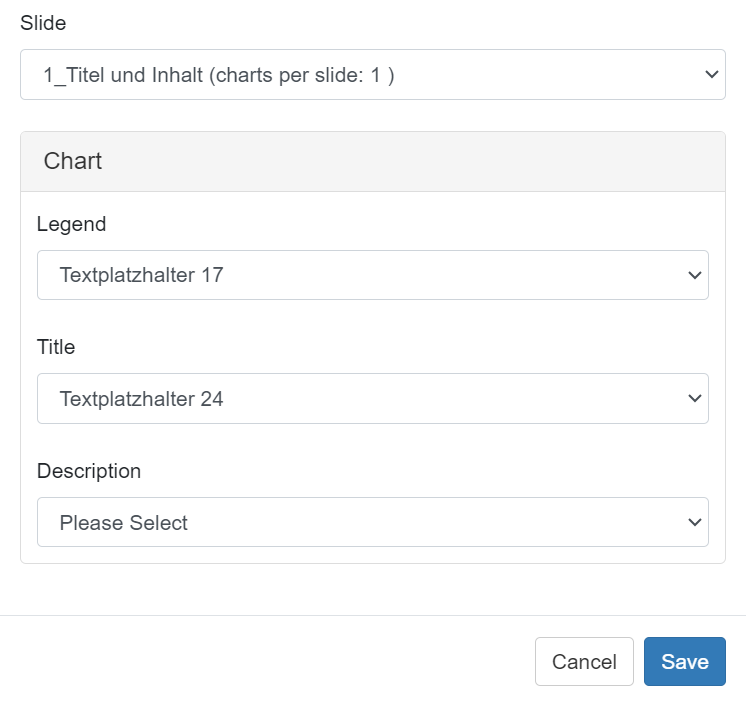
For each chart placeholder on a slide, you can define the placeholders for the chart header (Title), the footer (Legend) and the description in the charts (Description - typically the question). To do so, the desired placeholders from the master file are assigned to the respective function.
Header Content
In the upper area you can define which content is to be used as the header on the slide.
If “Automatic” is selected, the header takes the options in the following order (depending on which options are available):
-
Dashboard title
-
Dashboard subtitle
-
Tab name
-
Report name
-
Project name
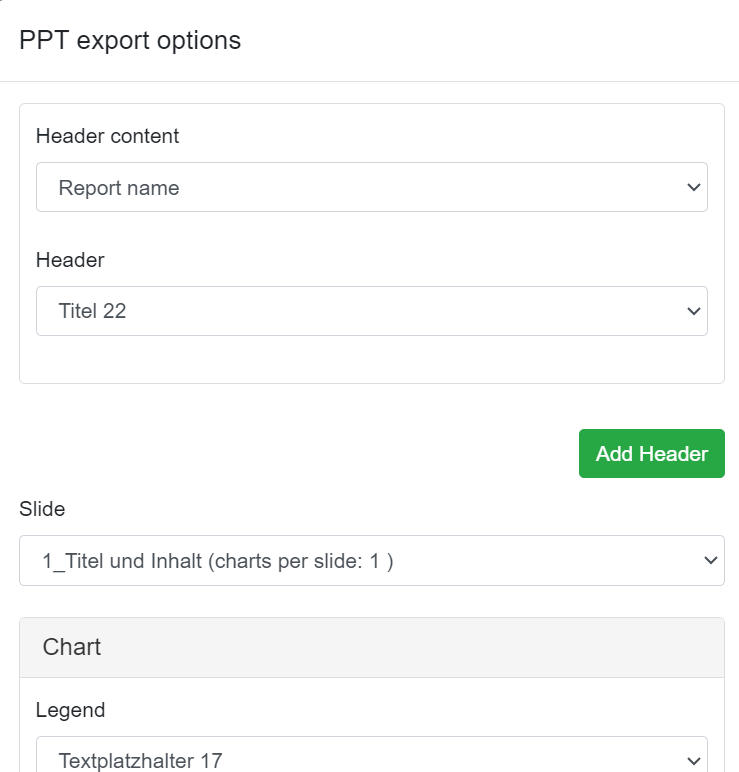
Using the Add Header button, you can add further headers to add content to the export (e.g. “subtitle” from the dashboard).
[Notes: Please note that these are functions that are repeated for every PowerPoint slide. If you only want a description for some charts, it is a good idea to create separate slides for this or to insert them directly in PowerPoint after the export.]
Export
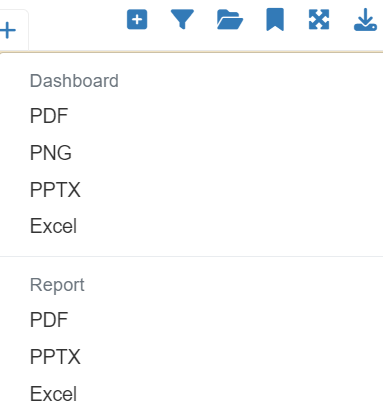
You can now export your charts into your PPTX master by selecting the download icon in the frontend  and then clicking PPTX under either Dashboard or Report.
Changing the export settings for individual dashboards
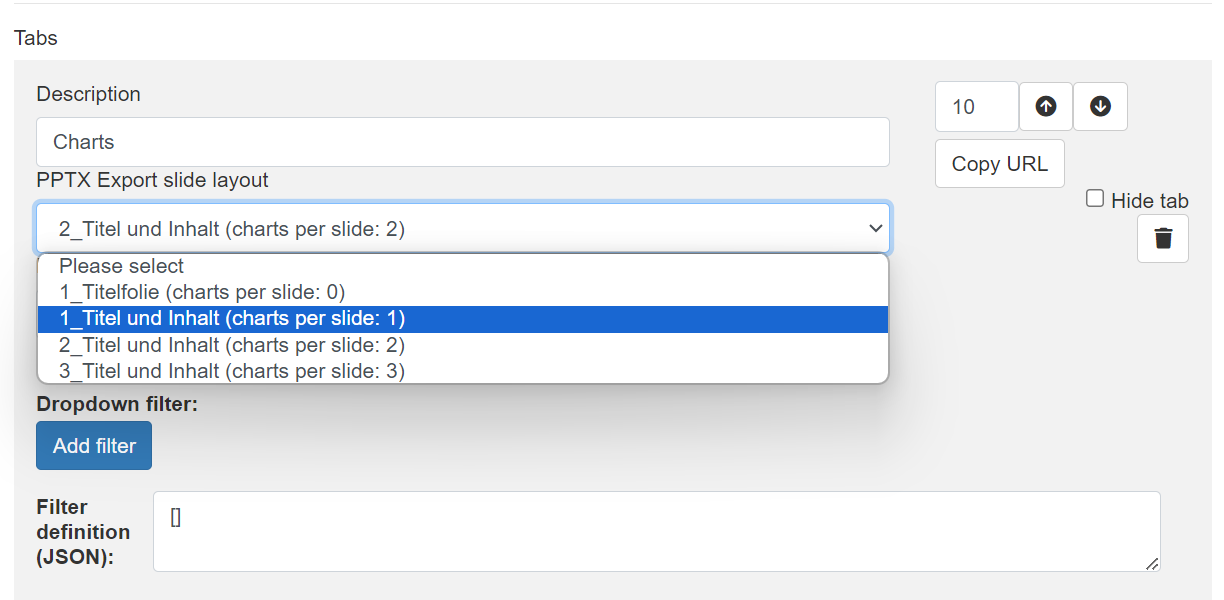
You also have the option of determining for each dashboard which slide of your PPTX master is to be used, and thus how many charts of a dashboard are to be exported onto one slide of your PowerPoint presentation. To do this, your PPTX master must contain slides with several placeholders, and these must be configured in the backend.
In the report settings (gear icon, top left in the frontend) you can then select the respective slide for each dashboard under PPTX Export slide layout. Save the settings at the bottom of the page.
Further settings
Using the JSON code in the PowerPoint export settings in the backend, you can also make further specific settings. Simply insert the desired command into the code. Here are a few examples:
-
Hide gridlines →
"grid":false -
Hide axes →
"valueAxis":false -
Change the number format
"format":"xx"(“p” = % without decimal place; “pd” = % with decimal place; “d” = number with decimals; “pn” = number without decimals) -
Insert a start slide →
"slide_title": 0 -
Insert an end slide →
"slide_closing": 0(insert the respective slide ID instead of the “0”; 0 = slide ID of the title page of the DataLion master) -
Font size:
The font size can be defined in the PPTX export configuration with the parametersfont_sizeandfont_size_fixed.The
font_sizeparameter defines the base font size for the export. At the same time, this base font size is automatically scaled (reduced) per chart if a question has many options. You can switch off this automatic scaling with the parameter"font_size_fixed": true.The settings for a fixed font size of 20 (without automatic scaling depending on the properties of the chart) would therefore be:
"font_size": 20, "font_size_fixed": true.For tables there is a separate setting
"font_size_table":, which works in the same way asfont_size. This lets you set a font size separately for all charts and for the tables.
After the export you can use all PowerPoint functions to edit your presentation and adjust the individual charts if necessary.