
Brand trackers: carry forward answers and repeat sections
A typical brand tracker first asks which brands someone knows and then asks follow-up questions about those brands only. Since DataLion 2026.3.201 you build this directly in the survey builder, without a separate question per brand. Two settings in Question settings do the work:
- Carry forward answers from shows only the options a respondent selected (or did not select) earlier.
- Repeat this section for each option of runs a whole section once per selected brand.
On top of that come the new Carousel question and formatted question texts with info popovers and collapsible items.
Carry forward answers from an earlier question
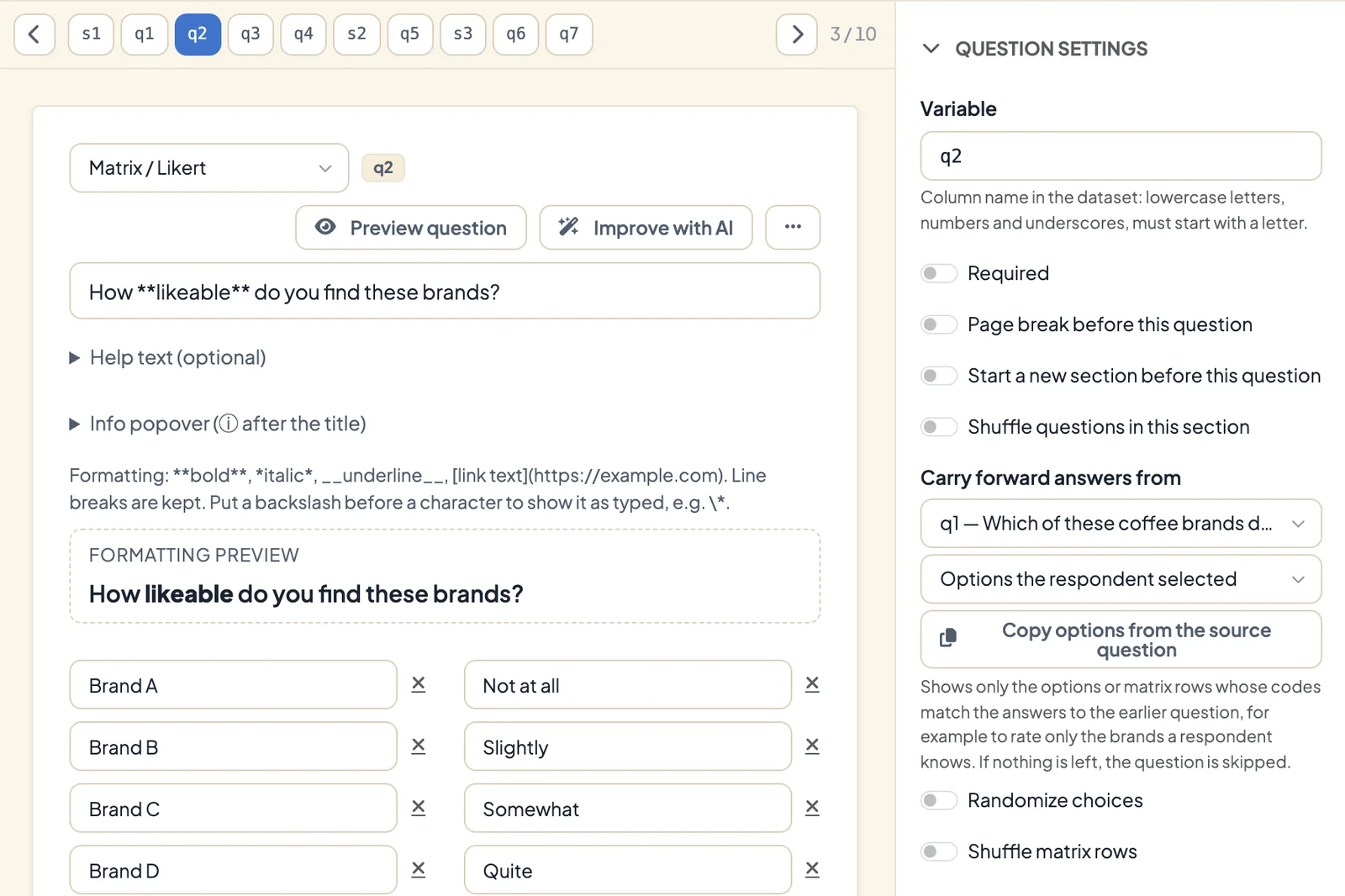
- Create the source question, for example “Which of these brands do you know?” as Multiple choice.
- Create the target question after it, such as a matrix “How likeable do you find these brands?”.
- Click the target question. In Question settings, pick the source question under Carry forward answers from.
- In the second field, choose Options the respondent selected or Options the respondent did not select.
- Click Copy options from the source question. DataLion copies the source options into the target question so the codes match.
Single choice, Multiple choice, Dropdown and Picture choice work as sources. The same types can carry forward, plus Ranking, Constant sum, Matrix / Likert, Matrix (multiple answers) and Carousel. For matrices and carousels, DataLion filters the rows, not the scale.
Good to know:
- DataLion matches options by their code, never by label. If no code matches, the builder shows a red warning. Copy options from the source question replaces the target’s options and keeps only its own Other and No answer options.
- “No answer” always stays in the target question. The source question’s no-answer option is never carried over.
- If nothing is left, DataLion skips the question. When a respondent changes an earlier answer, DataLion removes answers that no longer fit.
Repeat a section for each brand
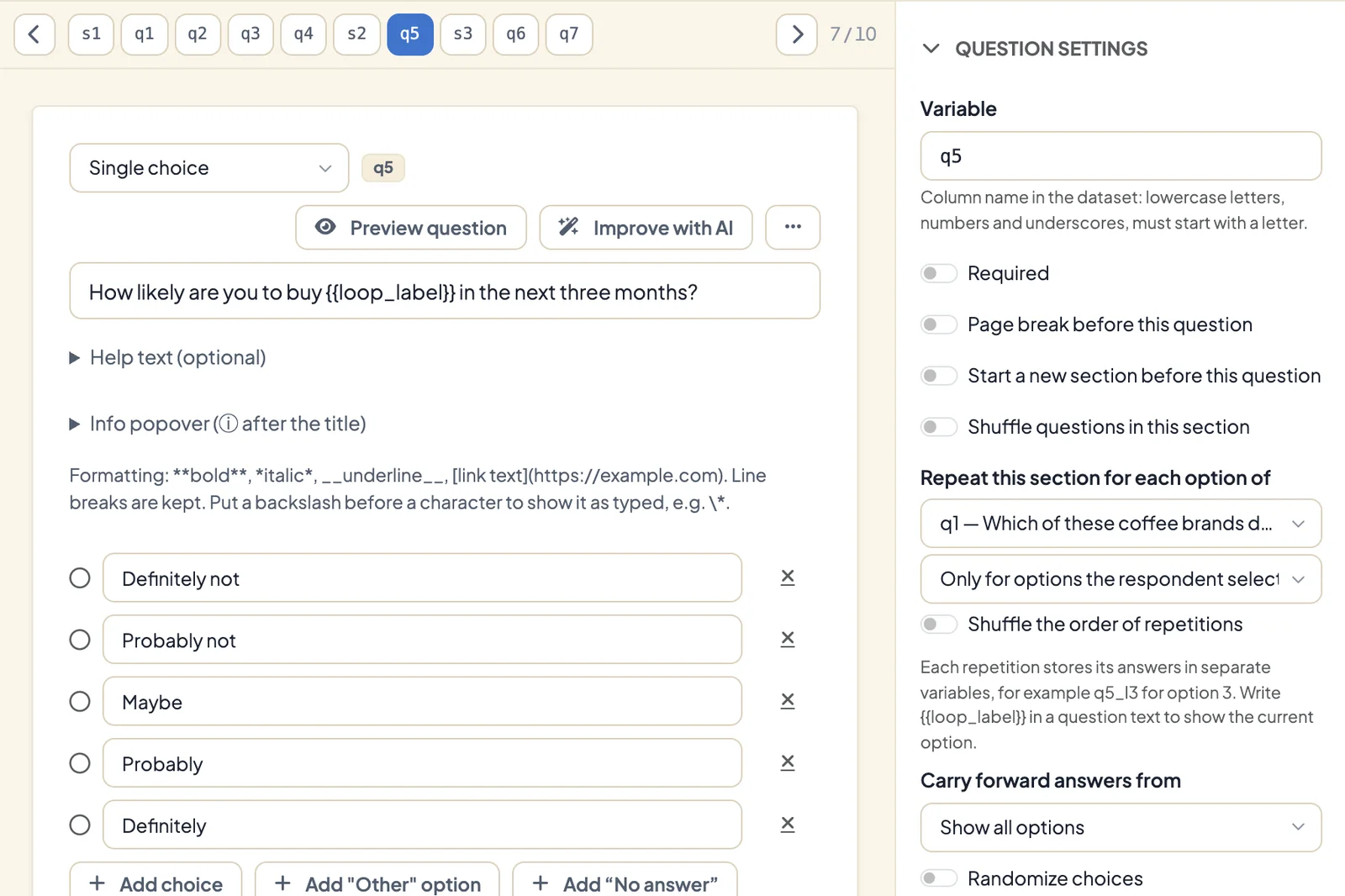
- Start a new section before the first question of the section: switch on Start a new section before this question in its Question settings. The first section of a survey can’t repeat.
- Click any question of that section and choose the source question under Repeat this section for each option of, for example brand awareness.
- Choose Only for options the respondent selected or For every option.
- Switch on Shuffle the order of repetitions if you need it.
- Write
{{loop_label}}in question titles, help texts or options. When you type{{, the builder suggests the placeholder Current loop option. In the survey, the brand name appears there.
Each repetition stores its answers in separate variables: <code>_l<option code>. So q5 becomes q5_l1, q5_l2 and so on. The number is the option’s code, not its position. Matrices and carousels add the row code, for example q5_l1_3. On the dashboard you analyse every brand as its own variable.
Important:
- You only see the repetitions in Preview, in Test survey and in the live survey. The builder shows each question once.
- Put
{{loop_label}}in the title. Otherwise every repetition gets the same label in the codebook. - Computed variables, quotas and rules outside the section must use the new codes such as
q5_l1. The original codeq5no longer resolves after publishing. - Repeated sections can’t be nested. A question inside a repeated section can only feed questions in the same section.
- If a question with a code like
q5_l1already exists, DataLion refuses to publish and names the duplicate codes.
The Carousel question
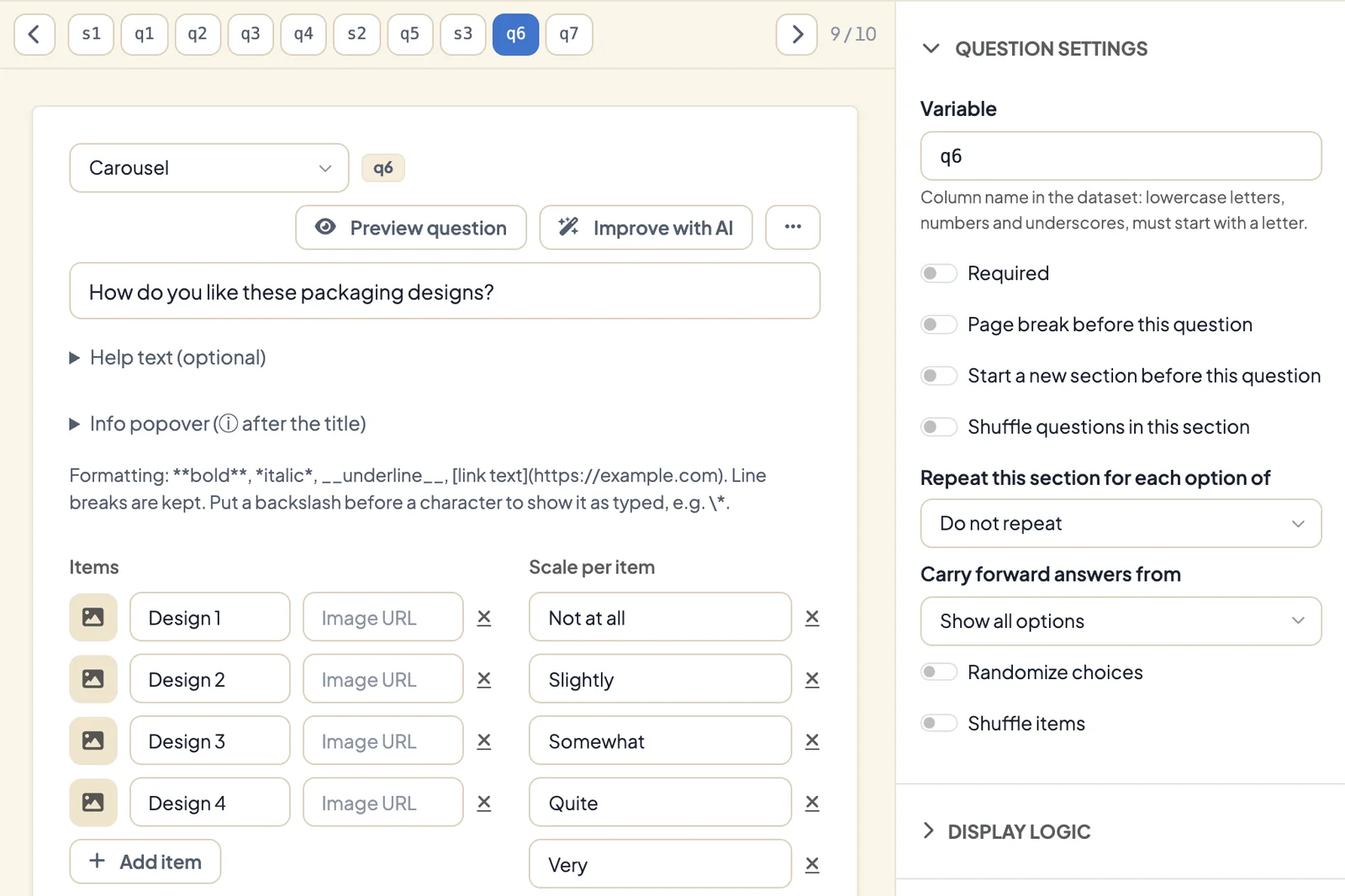
The Carousel shows items one after another and has each rated on the same scale, on phones as on desktop. You find it under Add question in the Grids & ranking group.
- Enter the items on the left under Items, with an Image URL if you like, for a logo or a packaging design. The image must be publicly reachable over https.
- Set the scale on the right under Scale per item. Add “No answer” adds an opt-out answer.
- Shuffle items in Question settings is on by default.
Respondents see one card at a time. After an answer the carousel moves to the next open item. Arrows, swiping, the arrow keys and progress dots help with navigation. Data is stored like a matrix: one variable per item, such as q6_1. That is why you can switch a matrix to a carousel and back without losing data.
Formatted question texts, info popovers and collapsible items
Titles, help texts and options may contain formatting:
**bold**,*italic*,__underline__- links as
[link text](https://example.com). https and mailto links are allowed and open in a new tab.
As soon as a title uses formatting, the builder shows a Formatting preview below it. Exports, the codebook and value labels get plain text.
An info popover adds explanations that not everyone needs. Below the title, expand Info popover (ⓘ after the title) and type the text. In the survey, an ⓘ after the title opens it. Whether the icon is an outline or a filled circle is set under Survey settings → Design → Info icon style.
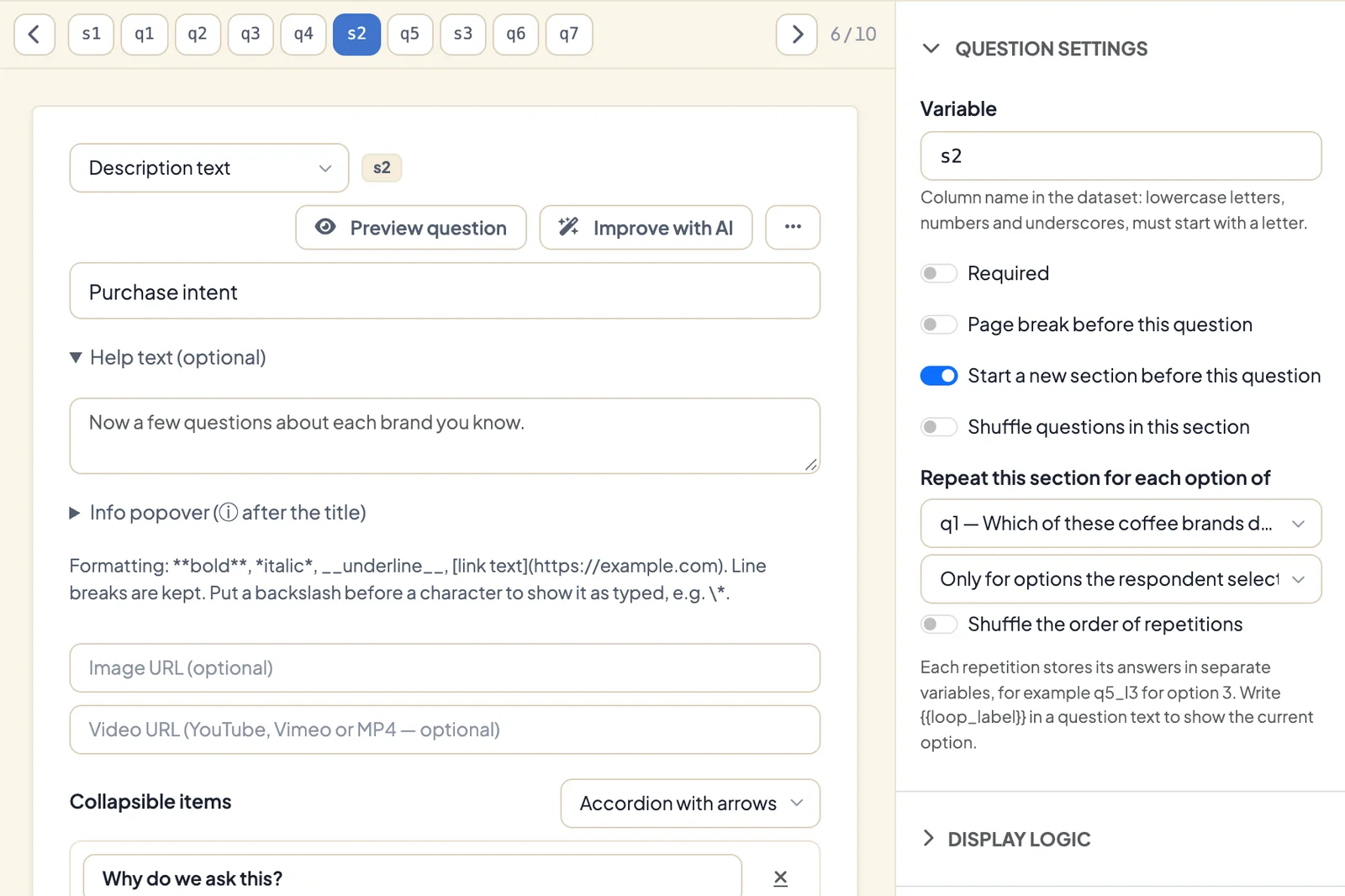
A Description text can hold Collapsible items, for example privacy notes or frequent questions. Click Add collapsible item, enter a heading and the text, and pick the style Accordion with arrows or Link list at the top. Up to 50 items are possible. Info popovers and items also appear in the translation editor, see Multilingual surveys.