
Check the data quality of a survey
A survey’s Monitor tab has a Data quality section. DataLion checks every completed response for common quality problems there and flags interviews that stand out. Each flag carries a code from the GDQ Feedback Loop, the catalogue of removal reasons from the Global Data Quality initiative. Nothing gets removed automatically: you decide whether a response leaves the dataset, and every decision is logged.
Requirements
- DataLion release 2026.2.199 or later.
- A survey with completed responses. Flags are computed for test responses too.
- To write the flags to the dataset: a published survey.
Read the overview
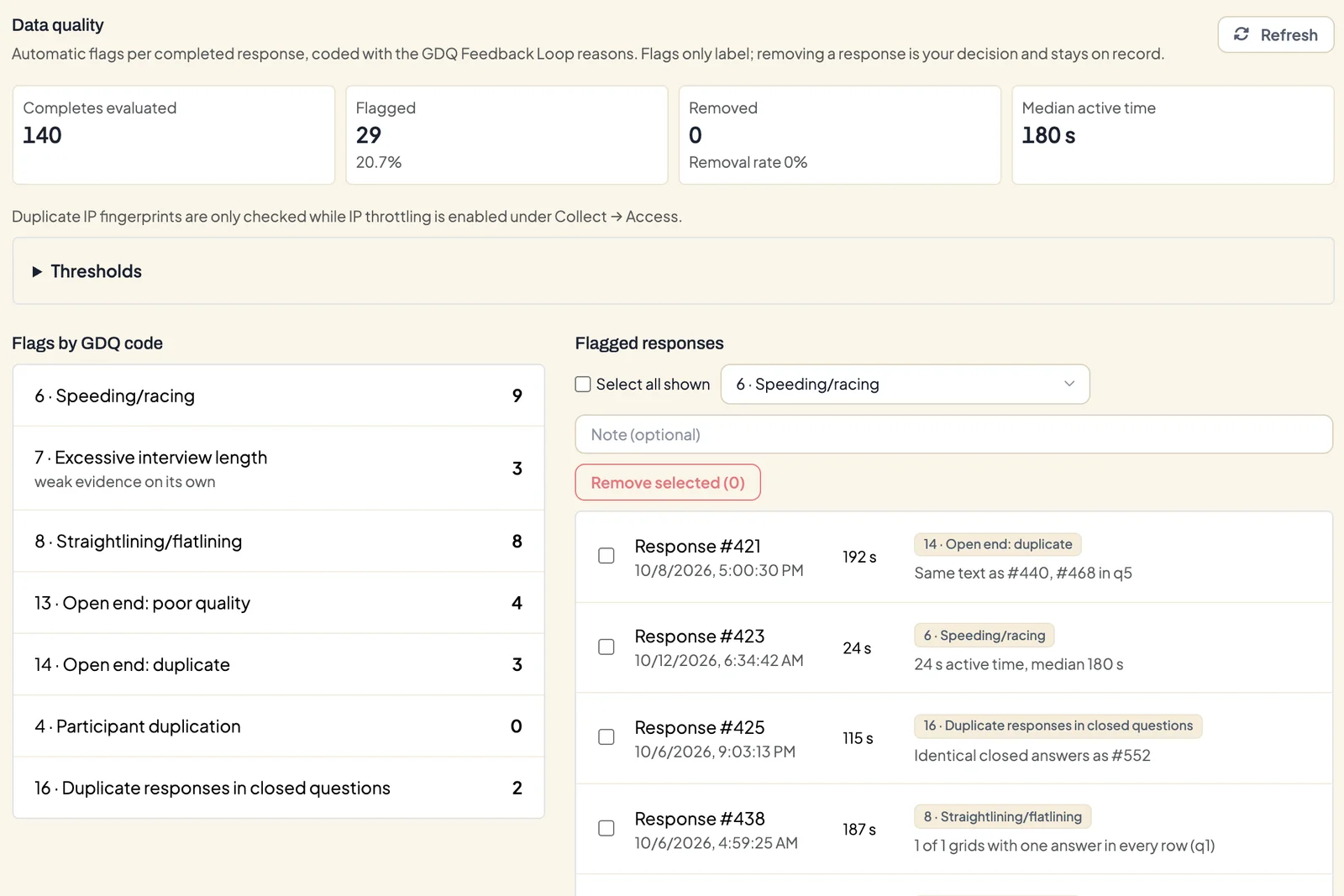
Open the survey under Admin → Surveys and switch to the Monitor tab. Below the fieldwork figures (see Track responses and drop-offs) you find Data quality with four figures:
- Completes evaluated: all completed responses still in the dataset.
- Flagged: responses with at least one flag, plus the share.
- Removed: responses you have taken out, with the Removal rate.
- Median active time: the median time respondents spent actively in the questionnaire.
On the left are the Flags by GDQ code with their counts, on the right the Flagged responses. Each row shows the response number, the time, the active time, the flags and a short reason, such as “24 s active time, median 180 s” or “Keyboard mash or repeated characters: q5: “asdfgh"". Refresh recalculates, for example after more responses have come in.
What DataLion checks
| Check | GDQ code | When a response is flagged |
|---|---|---|
| Speeding/racing | 6 | Active time is below 33% of the median time. |
| Excessive interview length | 7 | Active time is more than three times the median. Weak evidence on its own. |
| Straightlining/flatlining | 8 | In at least 50% of grids with four or more rows, every row has the same answer. |
| Open end: poor quality | 13 | An open answer is keyboard mash or repeated characters. |
| Open end: duplicate | 14 | The same text appears in several open questions of this response, or word for word in other responses. |
| Duplicate responses in closed questions | 16 | All closed answers match another response (from eight closed answers). |
| Participant duplication | 4 | Several responses come from the same IP fingerprint. Only checked while IP throttling is on under Collect → Access. |
The time-based checks only start once there are enough completes, 10 by default. Until then the section shows a note.
Adjust the thresholds
Under Thresholds you can change four limits:
- Speeder: below % of median time (default 33, range 5 to 90),
- Long interview: above × median (default 3, range 1.5 to 20),
- Straightliner: from % of grids (default 50, range 10 to 100),
- Minimum completes for time flags (default 10).
Click Save thresholds. GDQ advises calibrating the cut-offs after the soft launch, once the first real responses are in.
Remove and restore responses
- Tick the responses you want to take out, or choose Select all shown.
- Pick the GDQ reason. All 18 codes of the GDQ Feedback Loop are available, from Bot detection to Unspecified issue/other.
- Add a Note (optional) if you like, for example “Speeder, agreed in team review”.
- Click Remove selected and confirm.
The responses leave the analysis dataset but stay in the survey record. Under Removals you see every removed response with its reason, note and the person who removed it. Restore brings a response back into the dataset.
Log and quality variables
- Download log (CSV) gives you every response with its flags, active time and GDQ codes, plus all removals. Use it to settle up with a panel provider who wants to know which interviews you reject.
- Write flags to dataset recalculates every kept response and stores the checks as variables in the dataset, for example
quality_speeder,quality_straightlinerandquality_flag_count. The values are Flagged and Not flagged. Use them to filter flagged responses out on the dashboard or to compare them with the rest in a crosstab.
Good to know
- A flag is a pointer. A fast respondent may still have answered honestly, and a long interview often just means someone took a break.
- IP throttling and the other access options live under Collect → Access, see Distribute a survey.