
Track survey responses and drop-offs
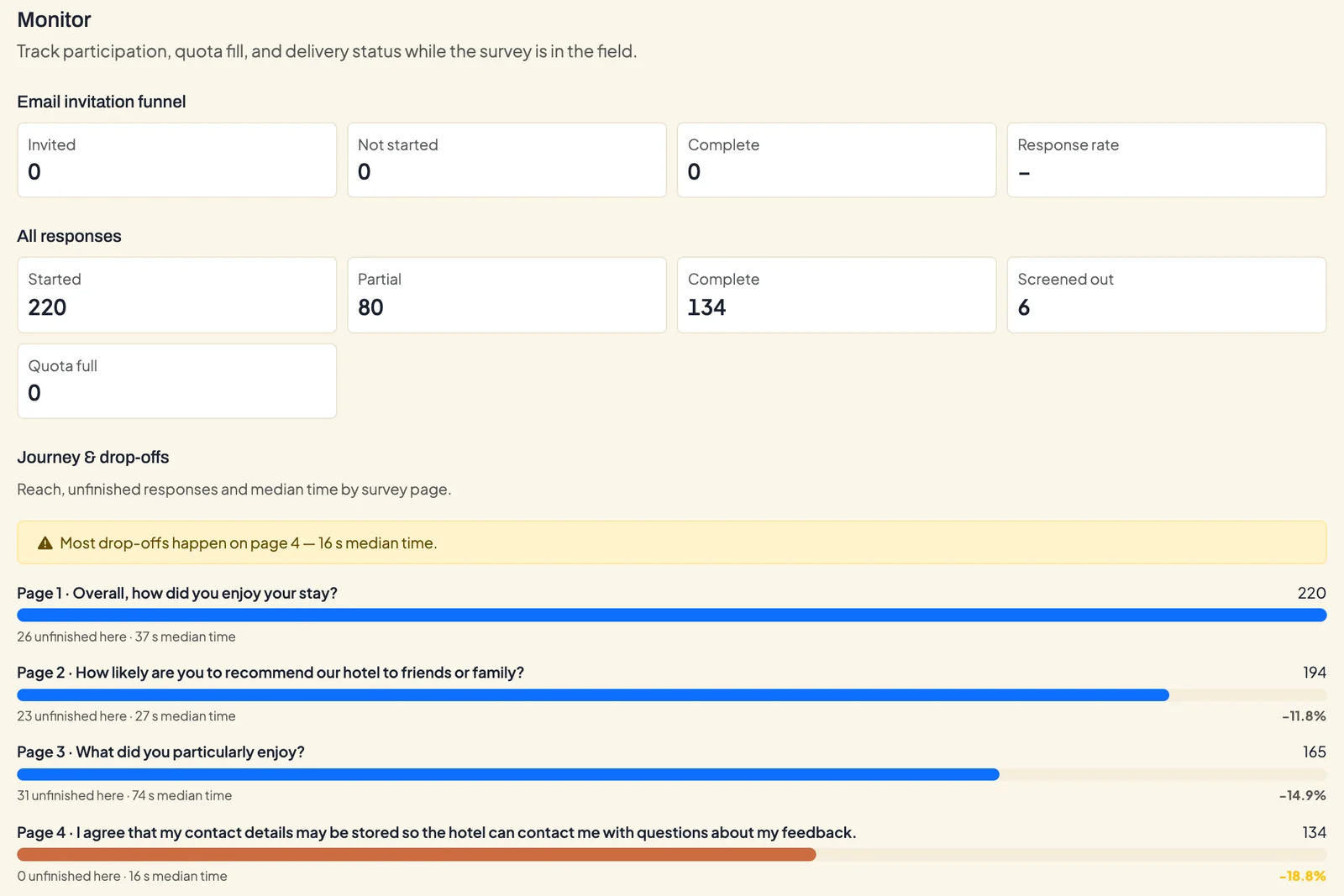
While a survey is in the field, the Monitor tab shows how many people started and completed, how full the quotas are and whether invitations arrive. Journey & drop-offs shows, page by page, how many people reach a page, how many stop there and how long they take in the median. That tells you early which part of the questionnaire loses participants.
Requirements
- DataLion release 2026.2.197 or later.
- An administrator account.
- A published survey. Test answers from the draft don’t count.
Open the Monitor tab
Open the survey under Admin → Surveys and switch to the Monitor tab. The figures refresh every 15 seconds on their own, so you don’t need to reload the page.
The figures
Email invitation funnel only covers people you invited through email invitations:
- Invited, Not started and Complete
- Response rate: completed invitees divided by all invitees
All responses counts every channel, including link, QR code and embedding:
- Started: everyone who saw the first page
- Partial: started but not completed yet
- Complete
- Screened out: excluded by a screen-out
- Quota full: turned away because their quota was already full
Read drop-offs per page
Under Journey & drop-offs, each page of the questionnaire has its own row, named after its first question.
- The number on the right and the bar show how many people reached the page.
- unfinished here counts the people whose response stopped on this page.
- median time is the typical time spent on the page. If there are no measurements yet, it says No timing yet.
- The percentage on the right shows how much reach is missing compared with the previous page.
The yellow note above names the page with the largest drop compared with the page before it, and its median time. The people missing there stopped on the previous page, where their number appears under unfinished here. In the example above, the note names page 4, while most drop-offs (31) happen on page 3 with the two open questions.
In anonymous surveys, DataLion doesn’t show small numbers exactly. Fewer than five drop-offs on a page appear as ”< 5” so no one can be identified.
Quotas and delivery status
Below the drop-offs you’ll find the fill level of each quota and the Delivery status table with all mailings, see Contact lists, quotas and email invitations.
When a page stands out
A page with many drop-offs and a long median time is usually too long or too demanding. Common causes and fixes:
- Required open questions. Make them optional or move them to the end.
- Large matrices. Split the statements across two pages or shorten the list.
- Too many questions on one page. Add page breaks, see Create a survey.
- Hard-to-read wording. Check the question with Preview question on a phone.
A published survey is locked. For bigger changes, close it with Stop collecting, copy it into a new draft with the JSON export and start a new wave.
Tips
- Check the Monitor tab in the first hours after launch. A logic error shows up there first, for example when nobody reaches a page.
- The responses themselves are in the Results tab, which opens the project’s dashboard.
- From release 2026.2.199, the Data quality section follows below the drop-offs. It flags speeders, straightlining and poor open answers, see Check the data quality of a survey.