
Create a survey: the question types in DataLion
In DataLion, the questionnaire and the analysis live in one tool. You build the survey in the builder, test it and publish it. Publishing creates a dataset with a codebook automatically, see From survey to live dashboard. This article shows how the builder is laid out and covers all 32 question types.
Requirements
- DataLion release 2026.2.192 or later. The advanced question types arrived in 2026.2.193, star display for rating scales in 2026.2.197.
- An administrator account. Only administrators edit surveys.
- A survey in Draft status. Under Admin → Surveys, click New for an empty survey, start from a template, or let AI write a draft.
The survey workspace
An open survey has four tabs:
- Build: the builder this article is about
- Collect: link, QR code, embedding, contact lists, quotas and email invitations, see Distribute a survey and Contact lists, quotas and email invitations
- Monitor: participation, quotas and drop-offs per page, see Track responses and drop-offs
- Results: opens the dashboard with the responses
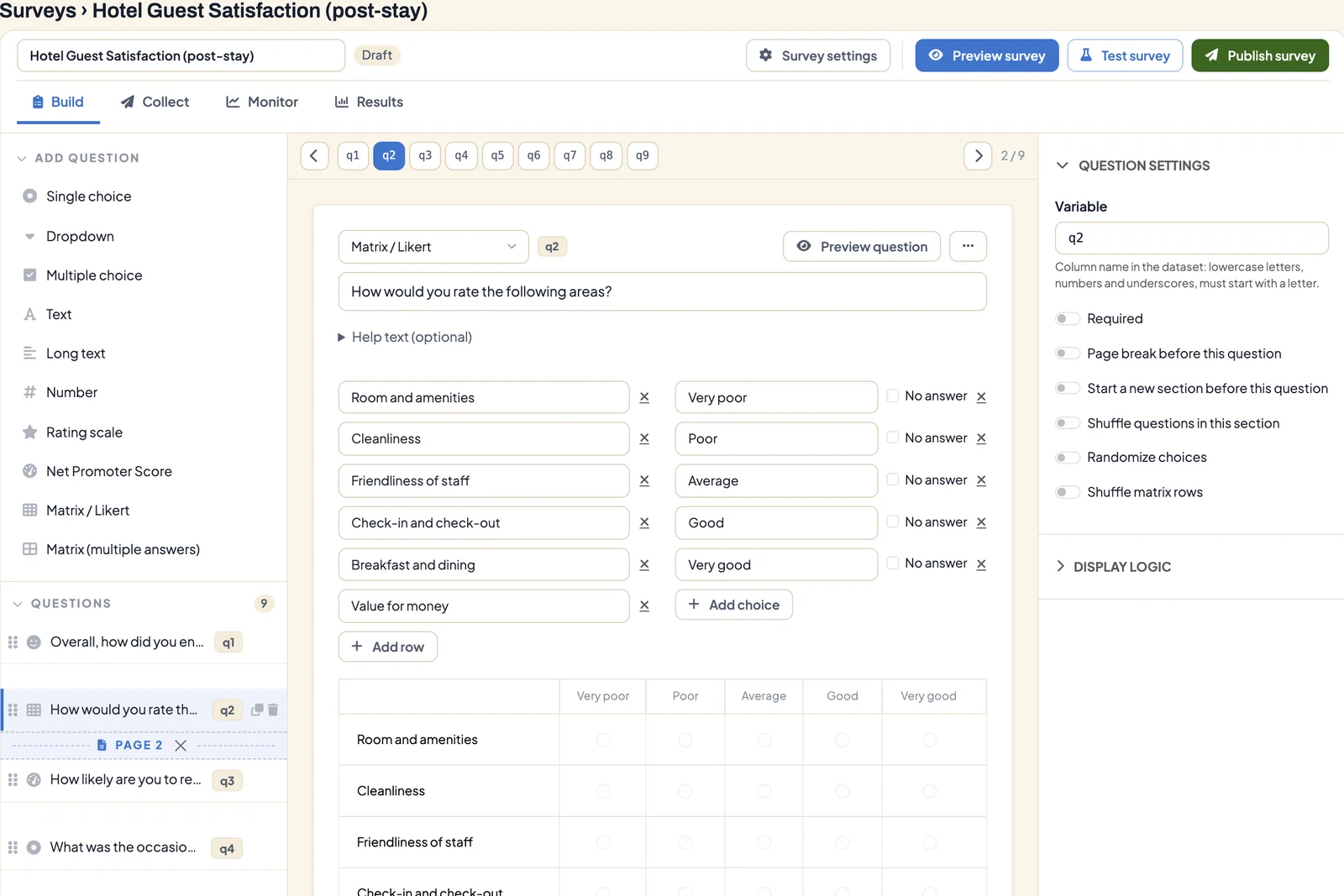
In the top right you’ll find Survey settings, Preview survey, Test survey and Publish survey. Next to the title, a status shows whether the survey is a Draft, Field live or Closed.
The builder
The Build tab has three columns:
- On the left are the Add question palette and, below it, the Questions list with all questions, page breaks and sections. Drag and drop to change the order.
- In the middle you edit the selected question: question type, question text, optional Help text, answer choices and, for matrices, the rows. Use the
q1,q2… bar to jump between questions. - On the right are the Question settings plus Display logic and Skip logic, see Survey logic.
DataLion saves every change right away. The header then shows All changes saved.
Add a question
- Click the question type you want in the Add question palette. The question appears at the end of the list.
- Enter the question text and the answer choices. Add choice adds more choices, Add row more rows in a matrix.
- To change the type later, use the selector above the question text. DataLion asks first, because some settings may be lost.
Under Quick presets in the palette you’ll find ready-made answer scales: Yes / No, Agreement (5), Satisfaction (5), Frequency (5), Importance (5) and the 0-to-10 Opinion scale.
The question types at a glance
The palette lists the types without groups. Here they are sorted by purpose.
Choice
- Single choice: exactly one answer
- Multiple choice: several answers
- Dropdown: one answer from a drop-down list, handy for long lists
- Picture choice: answer choices shown as images
Scales
- Rating scale: values on a scale. Under Display, choose Buttons or Stars.
- Net Promoter Score: the 0-to-10 recommendation question, see Calculate the Net Promoter Score
- Slider: set a value with a slider
- Emoji scale: large, tappable emojis that work well on phones
- Semantic differential: a rating between two opposites, such as “old-fashioned – modern”
Matrices
- Matrix / Likert: several statements on the same scale, one answer per row
- Matrix (multiple answers): several answers per row
Order and allocation
- Ranking: put answers in order
- Constant sum: distribute a budget, such as 100 points, across options
Interactive questions
- Distribution: respondents drag a ball onto their answer. Grey dots show earlier answers.
- Gauge: a needle that shows earlier answers and their average
- Image marker: respondents tap a spot in an image, and DataLion stores the position
- Map: respondents place a marker on a map
- Swipe cards: swipe cards left or right, for example for agree and disagree
Market research methods
- Conjoint analysis: choice-based conjoint with attributes, levels and choice tasks
- MaxDiff: pick the most and least important item from changing sets, see Analyze MaxDiff results
- Kano: rate the same feature once as present and once as missing
- Price sensitivity: the four Van Westendorp price questions
- A/B test: each person sees one of several variants, such as two designs, and rates it
- Implicit association test: sort terms into two categories under time pressure
- Generated follow-up: AI phrases a follow-up question based on an earlier open answer. Add a Fallback question for when no AI is available.
Input
- Text and Long text: open answers
- Number and Date
- File upload: respondents upload files. You set the number, size and allowed extensions. Only administrators can see the files.
- Contact fields: for example name and email address
- Consent: a checkbox for agreement
On top of these there’s the Description text. It places text, an image or a video between questions and expects no answer.
Variable, required and answer choices
In the Question settings on the right you set:
- Variable: the column name in the dataset,
q1,q2and so on by default. Lowercase letters, numbers and underscores are allowed, up to 20 characters, starting with a letter. If you rename it, DataLion updates references in the logic automatically. - Required: respondents can’t continue without an answer
- Randomize choices: shuffles the answer choices to avoid order effects. For matrices, the switch is called Shuffle matrix rows.
For choice questions, tick Other (free text) on an option or click Add “Other” option. Respondents then see a text field. Ticking No answer turns an option into an opt-out answer that the analysis handles separately.
Pages and sections
- Add a page break from the palette, with Insert page break between two questions in the list, or with the Page break before this question switch.
- Start a new section before this question groups the following questions into a section. With Shuffle questions in this section, each person gets that section’s questions in their own order.
Preview, test and publish
- Preview question opens only the selected question, Preview survey the whole survey. In both cases DataLion stores no answers.
- Test survey opens the draft in test mode. These answers are stored, so you can already see a preview dashboard under Results. DataLion deletes them when you publish.
- Publish survey puts the survey live. After that the questionnaire is locked so the collected data stays consistent. Stop collecting closes the survey, Resume collecting reopens it.
Tips
- Give variables meaningful names such as
genderornps_scorebefore you publish. They become the column names in the dataset and the labels in the codebook. - Keep variable names identical across all waves of a tracker so the data stays comparable.
- Test branched questionnaires with Test survey once per path, then check under Results that every variable arrives.
- For look and logo, see Survey design and white label.