
Fieldwork: contact lists, quotas and email invitations
You don’t need a second tool for fieldwork. In the Collect tab you upload your contacts, use quotas to cap how many responses come from a group, and send invitations and reminders with your logo. The Monitor tab shows whether the emails arrive and who has responded.
Requirements
- DataLion release 2026.2.196 or later.
- An administrator account.
- A published survey for sending. You can prepare contact lists and quotas while the survey is still a draft.
Upload a contact list
- Open the survey and go to Collect → Contact lists.
- Enter a List name, for example “October guests”.
- Pick the file under CSV or Excel file and click Upload.
The file needs an email or mail column. Every other column becomes a merge field for the invitation, so “First Name” becomes {{ first_name }}. DataLion keeps duplicate email addresses only once. A list can have up to 50,000 rows and 20 MB. CSV files with a comma or semicolon as separator are detected automatically.
Uploaded lists appear as a badge with name and row count below the form. They belong to the whole workspace, so you can use the same list for several surveys.
Set up quotas
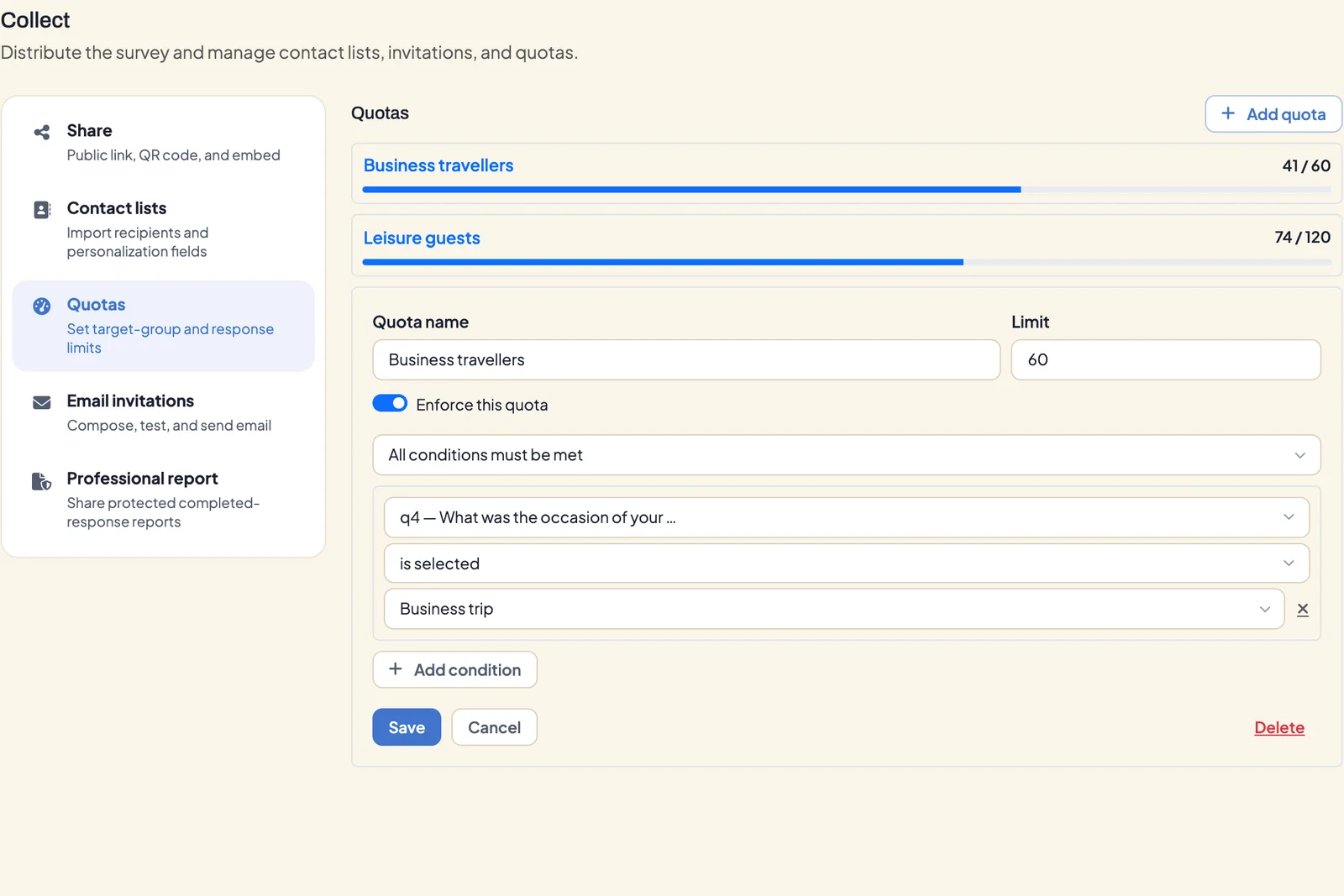
A quota caps how many responses are accepted from a group.
- Open Collect → Quotas and click Add quota.
- Enter a Quota name and a Limit.
- Use Add condition to define who belongs to the group, for example “What was the occasion of your trip? is selected: Business trip”. Combine several conditions with All conditions must be met or Any condition is enough.
- Leave Enforce this quota switched on and click Save.
Each quota shows a bar with its count, such as “41 / 60”. When it’s full, the bar turns red, and further people from that group see a message that the group is complete. Enter your own message under Survey settings → General → Quota-full text, or a panel address under Quota-full redirect URL.
If you switch off Enforce this quota, DataLion only counts and keeps accepting responses. The quota is then listed as Inactive.
Send invitations
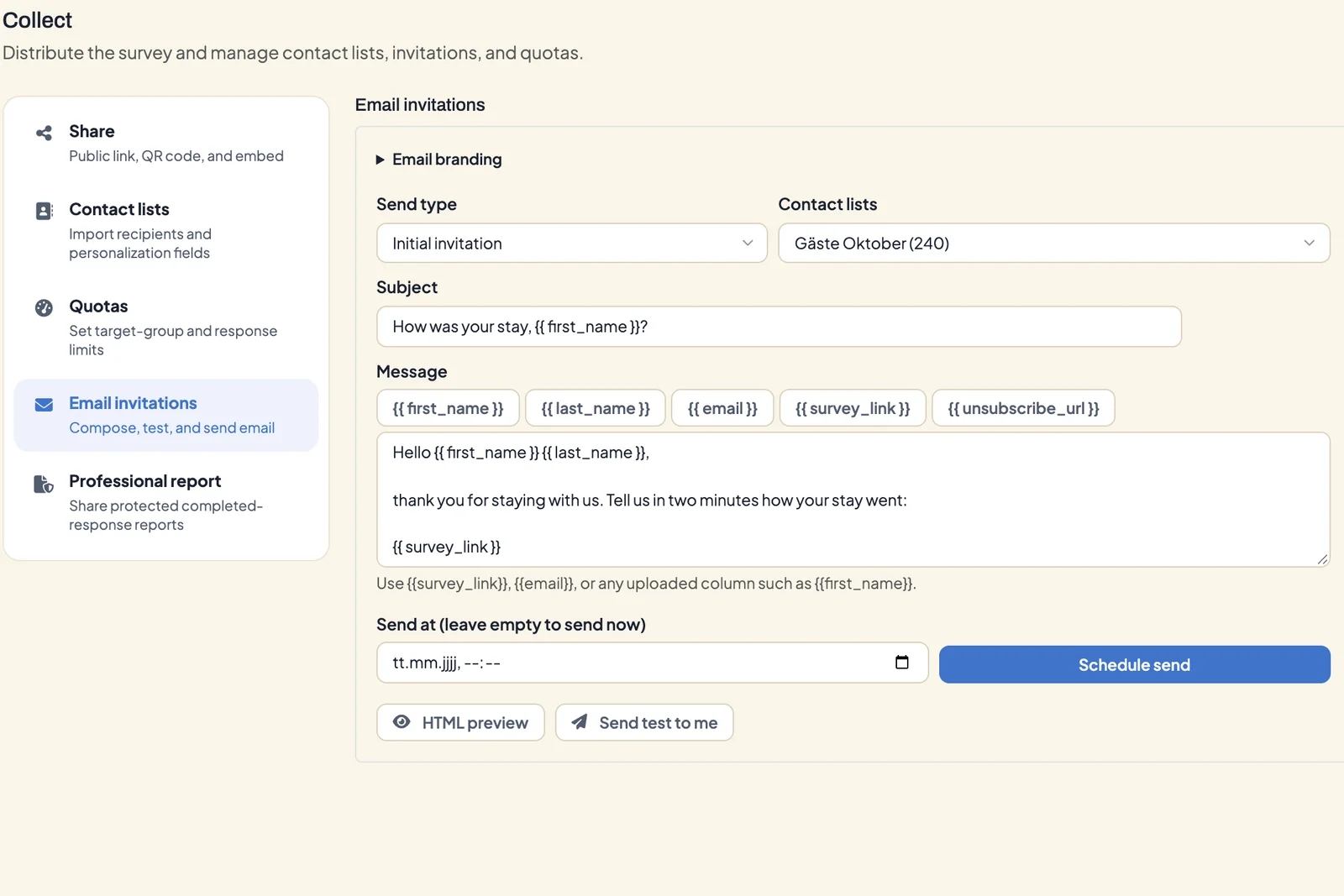
- Open Collect → Email invitations.
- Under Send type, choose Initial invitation, and pick the list under Contact lists.
- Write the Subject and Message. The message supports Markdown. The buttons above it insert merge fields:
{{ first_name }},{{ last_name }},{{ email }},{{ survey_link }}and{{ unsubscribe_url }}. Your own list columns work as merge fields too. - Check the email with HTML preview and send yourself a copy with Send test to me. The test email has
[TEST]in front of the subject. - Leave Send at (leave empty to send now) empty or pick a time, then click Schedule send.
Each person gets their own link. Every invitation also contains an unsubscribe link. DataLion leaves anyone who unsubscribes out of all further mailings.
Reminders
For a reminder, choose Reminder under Send type and pick the Reminder recipients:
- Non-starters and partials
- Non-starters only
- Partials only
Schedule the reminder three to five days after the initial invitation, for example. In anonymous surveys, DataLion can’t link partial responses to people, so Partials only reaches nobody there.
Invitations with your branding
Expand Email branding above the form. There you set the Email logo, Header color, Hero image, Footer text, Sender name, Sender address and Reply-to address.
For emails from your own sender address to arrive reliably, your domain has to be enabled by DataLion and set up with SPF and DKIM. Contact DataLion support for this. Until the domain is confirmed, DataLion sends invitations from its own system address and puts your address in as the reply-to. Replies from recipients still reach you.
Track delivery
The Delivery status table under Collect → Email invitations and in the Monitor tab lists each mailing with subject, status and the number of emails sent. Failed deliveries appear next to it in red. How many invitees started and completed is shown in Track responses and drop-offs.
Tips
- Upload your list with columns like
first_nameorlocation. You can then greet recipients personally and use the columns in the text. - Send yourself a test email before every mailing and click through the link once.
- For panels with their own mailing, unique links as CSV are often enough.
- For scored surveys, Collect → Professional report lets you share protected reports on individual responses, see Scored surveys and personal results.