
Check project health
The Health page checks a project for everything that can quietly break a dashboard: formula errors and unknown columns in the codebook, values that don’t occur in the data, an unreachable database and charts that failed to load. You find the problems there before your readers run into an empty chart.
Requirements
- DataLion release 2026.2.198 or later.
- An administrator account. Only administrators see the page.
Open the Health page
Under Admin → Projects, open the project. In the project navigation, the Data section has the entry Health. A red number next to it shows how many errors are open.
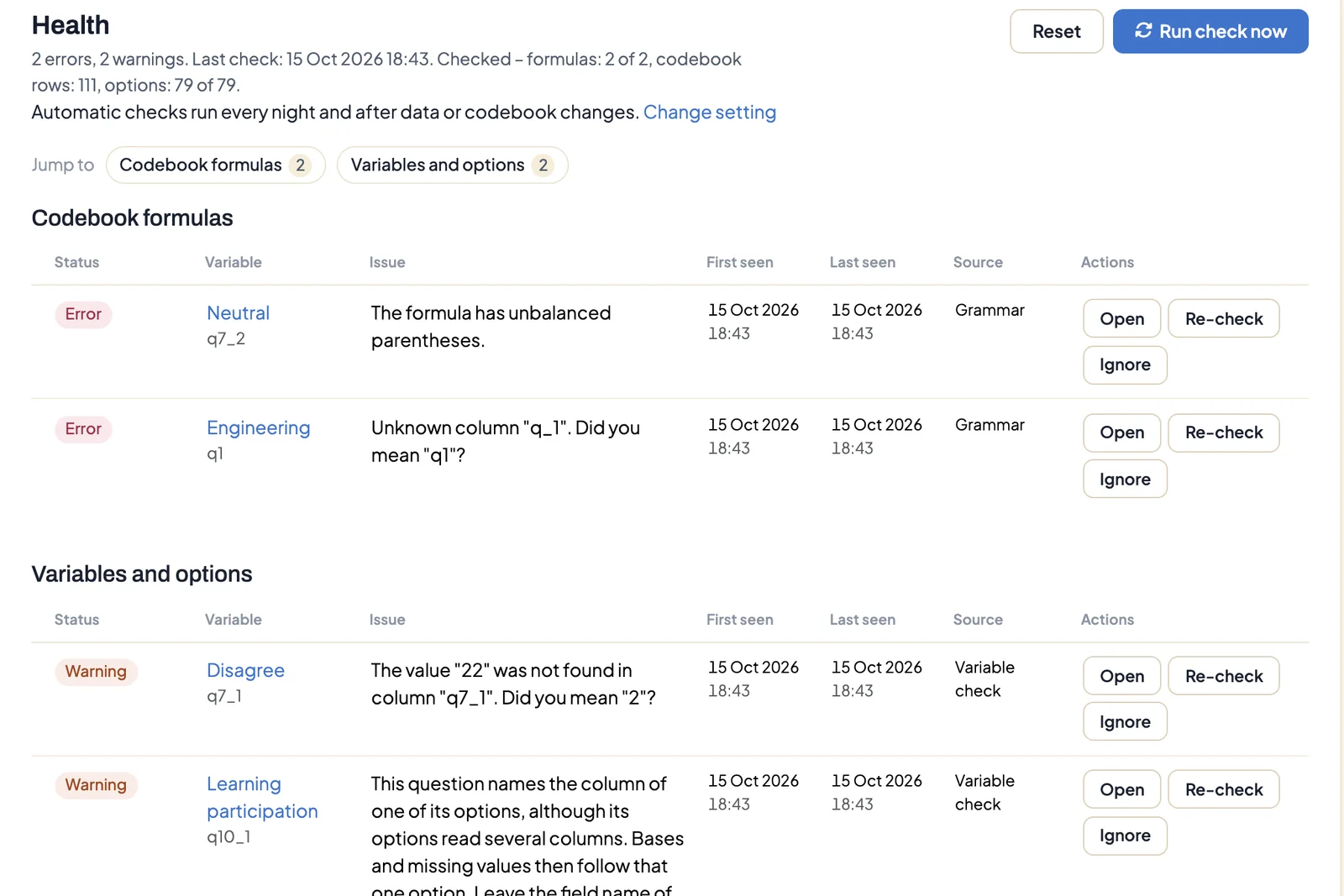
At the top, the page sums up the errors and warnings and when the last check ran, for example “Checked – formulas: 180 of 180”. If several sections have findings, Jump to takes you straight to a section.
You also get here from a dashboard: when a chart fails, its error card shows administrators the link View project health, which leads straight to the matching finding.
When DataLion checks
- automatically after every data import, every release of a draft and every codebook change, about 30 seconds later,
- every night at around 2:15 (Central European time),
- whenever you click Run check now.
DataLion checks very large codebooks in stages, up to 200 formulas and 1,000 options per run, and continues in the following runs.
For projects that shouldn’t be checked automatically, turn off Automatic health checks in the project navigation under Project → Advanced → Diagnostics. The Change setting link on the Health page leads there. Run check now keeps working.
What the check finds and how to fix it
Findings are grouped into sections by the check that found them. Errors (red) mean a chart shows wrong data or none. Warnings (yellow) mark places that are probably not meant that way.
Codebook formulas
A codebook formula is invalid, for example because of a missing bracket or a typo in a column name. For an unknown column name, DataLion suggests the intended column: ‘Unknown column “q_1”. Did you mean “q1”?’
Fix: Open takes you to the codebook row, straight to the formula field. Correct the formula and save.
Variables and options
- The row names no column of the data table. The codebook row then selects no data. Enter the correct column in the formula field.
- Unknown column. The column in the field name doesn’t exist in the data table, often after an upload with renamed columns. The codebook row then shows “(not in the data table)”. Choose an existing column and save.
- A question reads the column of one of its options. Check the question’s field name.
- A value doesn’t occur in the data. An option asks for a code that isn’t in the data, while a similar value stays unlabelled. Usually this is a typo in the code. Correct the option’s value.
Database dry run
DataLion sends every formula to the database once as a test, the way a weighted chart would query it. If the database rejects it, the database’s message appears here. On Exasol, DataLion also points out text in double instead of single quotes.
If the database can’t be reached at all, this section shows “The data source could not be reached”, and the check stops after the first connection failure. Check the data source’s connection under Data Sources and run the check again.
Values in formulas
A formula asks for a value that doesn’t occur in the column, for example ‘The value “Sth” was not found in column “region”. Did you mean “South”?’ The chart then shows 0 instead of the expected cases. Correct the value in the formula.
Data source
DataLion checks whether umlauts and special characters come back from the database undamaged. If not, the data isn’t stored as UTF-8. Upload the file again with the right encoding.
Runtime errors
A chart failed while loading on a dashboard. The finding shows the error message and, where possible, the chart’s codebook row. It disappears on its own once the chart loads without errors again.
Work with findings
- Open jumps to the codebook row, at the field you need to correct.
- If several rows report the same problem, DataLion groups them into one row. ”… occurrences” lists links to each affected codebook row.
- Re-check checks only this codebook row after a fix. For grouped findings, it checks the whole project. Fixed findings then carry the tag Resolved.
- Ignore hides a finding, together with all identical findings. Only Reset undoes this.
- Reset deletes all of the project’s findings, including ignored ones, and the check history. The next check starts from scratch.
Findings in the codebook editor
The same checks run in the codebook editor while you type. A formula or field name cell turns red or yellow, and the tooltip shows the message with a marker at the faulty position. Rows with open findings carry a red exclamation mark. You can save at any time; the findings don’t block anything.
How the codebook is structured is explained in The codebook, part 1 and part 2.