
Roles management (Admin, Editor, Viewer)
Roles management - overview
Role and permission management in DataLion works on multiple levels: at the instance level, the project level and finally the report level. Permissions can be adjusted and changed at any time.
Users (instance level) | Projects | Reports |
An individual role can be defined for each user.
| For each project, users can be granted access and assigned individual access profiles.
| For each report, users can be granted access to either "only" view the report or to edit it.
|
IMPORTANT: The hierarchy for user permissions in DataLion is instance level → project level → report level.
To be a report owner/editor, the user must be at least an Editor (instance level) and a project editor in the report’s project.
To be a project editor, the user must be at least an Editor at the instance level.
Only Admins (instance level) can be project owners.
1. User roles at the instance level
First, users are created in the DataLion administration area under the Users tab. The user is then assigned a user role that defines which permissions the user generally has on the instance. This role also determines which roles the user can take on at the project and report levels.
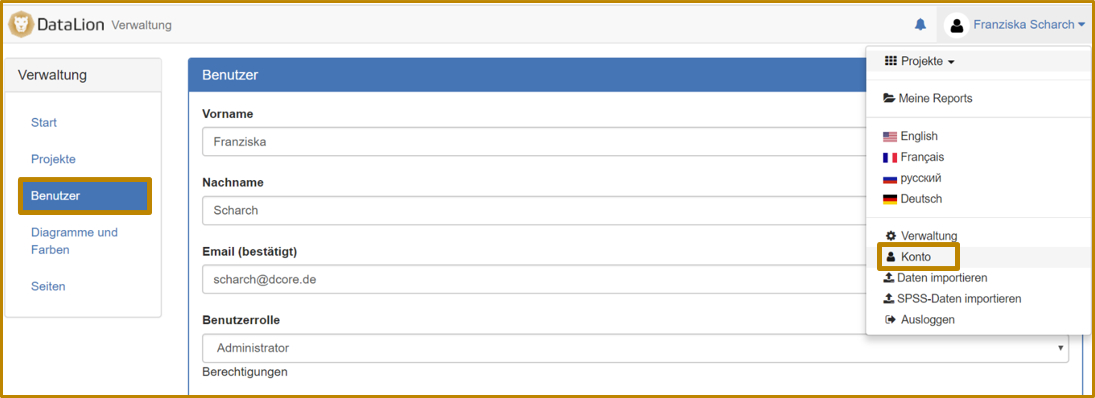
Overview of the user roles (instance level)
Administrator | Editor | Viewer |
Administrators can edit all settings of an instance (full range of functions).
| Editors can be granted access to projects and reports and (in the projects where they have editor permissions) create reports.
| Viewers can be granted access to projects and the reports of those projects. They can view reports and interact with them to a limited extent.
|
In addition, the higher-level role can do everything the lower-level role can do.
2. User roles at the project level
For a user to be able to access a project, they must be assigned a user role for the project. At the project level, user permissions are also defined in the user settings. To do this, click on the user to open the user menu and switch to the second tab, Projects, in the top right.

At the very top of the menu, you can optionally specify a project that is loaded after login. This way the user does not land on the instance home page but goes straight to the home page of the assigned project.
In the second part of the dialog, you assign the user roles or access profiles for individual projects. You can find detailed instructions on access profiles here.
Overview of the user roles (project level)
Owner | Editor | Viewer |
Owners can edit all settings of a project (full range of functions).
Note: To use a project's project backend (data upload, codebook, etc.), a user must be an Admin at the instance level. | Editors can create reports in the project. They have no access to the project settings.
| Viewers have no access to the project settings or report settings.
|
In addition, the higher-level role can do everything the lower-level role can do.
3. User roles at the report level
To have access to a report of a project, the user must first be granted access to the project. In the report settings, you can define the access options for a report, including all dashboards within the report.
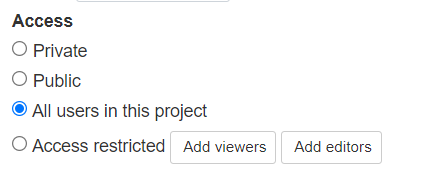
The following options are available:
-
Private → only the report owner has access
-
Public → everyone has access
-
All users in this project → all users who have been granted access to the project have access
-
Access restricted → the users who should have access are defined by name (this way individual reports can be made available only to specific user groups)
Add viewers
Since DataLion 2026.2.198 you give people access to a report and, if needed, to its project in one step.
- In the report, open Report settings and go to the Access section.
- Click Add viewers.
- In the Select users window, pick the people. Anyone marked Not in this project yet also gets viewer access to the project when you save. Under Access profile for new project members you can set an access profile for these new members.
- Confirm with OK and save.
Your selection replaces the existing list of viewers. Administrators see every active user of the workspace in the window. Report owners and report editors only see people who are already members of the project. Editors can add viewers only when the project allows it (setting Editors can add/remove viewers).
Overview of the user roles (report level)
The following roles are available at the report level:
Owner | Editor | Viewer |
Owners have full rights to the report. Only one person can be the report owner. By default, the creator of the report is the owner. The owner can, however, be changed.
| Editors can view, edit, (grant access to) and save the report.
| Viewers can view the report.
|
In addition, the higher-level role can do everything the lower-level role can do.
By default, only the owner (= creator) of a report can grant access to users and editors. Project owners can, however, allow report editors to add report viewers and/or report editors to the report. To do this, the desired setting is configured under Project settings → General → Reports and dashboards.

IMPORTANT: For a user to be added as an editor in the report settings, they must first be added as a viewer.