
Send reports by email on a schedule
Delivery in the report editor sends a whole report to a list of recipients as a PDF or PowerPoint file on a regular schedule. You set the schedule up once. At each send, DataLion builds a fresh file from the current data and sends every person their own email.
Requirements
- DataLion release 2026.2.199 or later.
- Edit rights for the report. Anyone who may edit the report may also create schedules.
Create a schedule
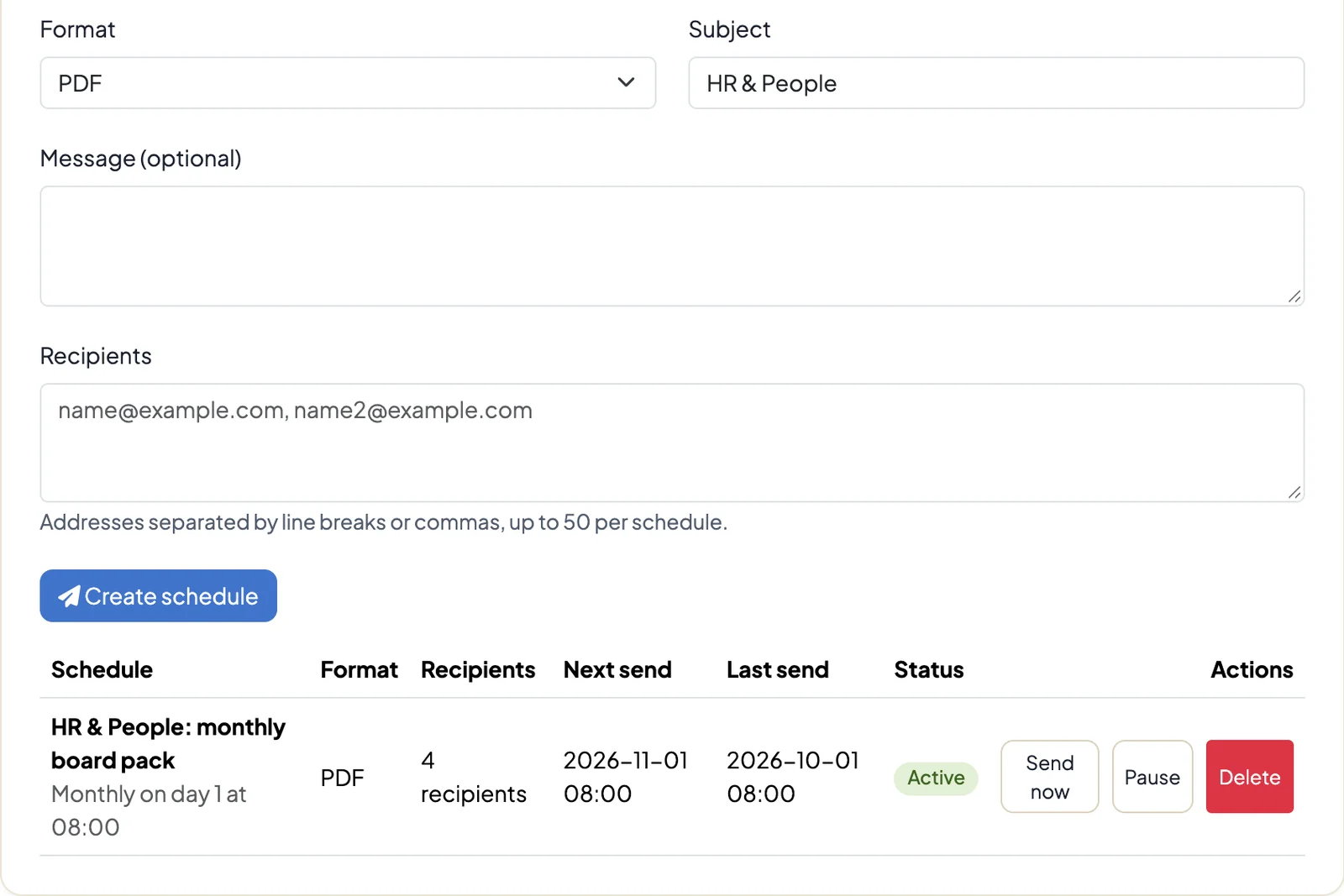
- Open the report in the report editor, for example via Admin → Reports → Edit, and choose the Delivery section on the left.
- Choose the Frequency: Daily, Weekly or Monthly. Weekly is the default.
- Choose the Time. Reports go out on the hour; the default is 08:00.
- For weekly delivery choose the Weekday, for monthly delivery the Day of month (1 to 31). If a month doesn’t have that day, for example the 31st, the report goes out on the last day of that month.
- Choose the Format: PDF or PowerPoint.
- The Subject starts out as the report’s name. Change it if you like.
- Under Message (optional), write a short text that appears in the email above the attachment.
- Enter the email addresses under Recipients, separated by commas or line breaks.
- Click Create schedule.
The new schedule appears in the table below.
What recipients receive
Each person gets their own email with your subject, a line saying that you are sending them the report, your message and the file as an attachment. The reply address is the person who created the schedule, so replies come straight to you.
At the bottom of the email there is an Unsubscribe from this report link. Recipients don’t need a DataLion account to use it. Anyone who unsubscribes gets no further emails from this schedule, and the table shows how many recipients have unsubscribed.
Manage schedules
For each schedule the table shows:
- Schedule: subject and frequency, such as “Every Monday at 08:00”.
- Format and Recipients.
- Next send and Last send. If the last send failed, the error appears below it in red.
- Status: Active or Paused.
The buttons next to it:
- Send now builds the report straight away and sends it to all recipients. The regular schedule stays as it is.
- Pause stops the schedule, Resume starts it again.
- Delete removes the schedule after a confirmation.
Limits
- By default a schedule takes up to 50 recipients. For more people, create a second schedule.
- By default attachments can be up to 15 MB. If a file is larger, DataLion sends a message asking recipients to request the file from you instead. The table then shows how large the export was.
- The report needs at least one tab. An empty report isn’t sent, and the table says why.
- If the person who created the schedule no longer exists in DataLion, delivery stops with an error. Create the schedule again in that case.
Good to know
- The report is exported as it is saved: all visible tabs in their order.
- If the report contains an AI summary, the export generates any missing summaries itself.
- You control what PDF and PowerPoint exports look like as usual, see Export dashboards and reports as PDF and Create and apply a PowerPoint master.