
AI summary on the dashboard
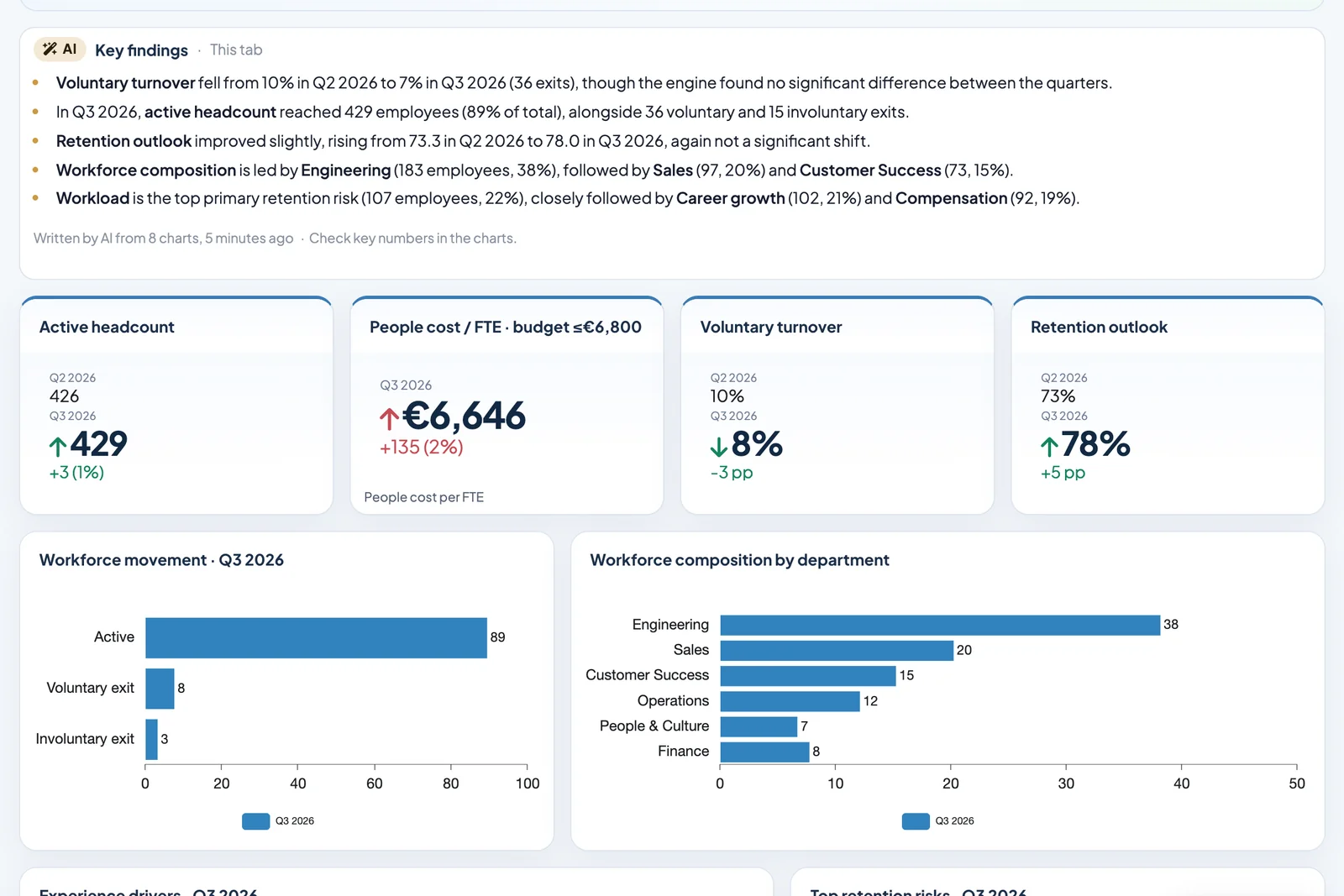
An AI summary is a text card on the dashboard. The AI reads the charts of the tab, the report or the whole project and writes up the key findings in a few sentences. It uses the weighted results, the bases, significance notes and whatever filters are active.
Requirements
- DataLion release 2026.2.199 or later.
- Built-in AI is switched on for the workspace. If it is off, the menu entry is missing.
- Edit rights for the project to add a card. Anyone who can view the project can read the summary.
Add a summary
- Open the dashboard and click + New at the top.
- Choose New AI summary. The command is also in the command palette under ⌘/Ctrl+K.
- The Key findings card appears on the tab. Click Generate summary.
- After a few seconds the text appears in the card. Move and resize the card like any other element and save the tab.
Below the text, the card says how many charts it was written from and when, for example “Written by AI from 8 charts”, followed by a reminder to check key numbers in the charts.
Set the scope and instruction
Instruction and scope in the card controls two things:
- Summarise: This tab, Whole report or Whole project. Each scope has its own default instruction.
- Instruction: tell the AI what matters, for example “Five bullet points for the leadership team, percentages rounded to whole numbers” or “Start with voluntary turnover”. Use default instruction resets the text.
Save and regenerate writes the summary again with the new settings.
The AI reads at most 30 charts. If the chosen scope has more, summarise a single tab instead.
When filters change
Each summary belongs to one filter selection. If someone picks a filter that already has a summary, the card shows it. If there is none yet, the previous text stays and the card says: “This summary was written for a different filter selection.” Update summary writes the text for the current selection. The card waits for your click and does not start on its own.
Regenerate rewrites a summary even when nothing has changed, for example after a data update.
In exports
- PDF, image, PowerPoint and Google Slides include the summary. If there is no text yet for the exported filters, the export generates it. If that fails, it uses the latest available text.
- Excel leaves out text cards, so AI summaries are not included.
- Scheduled report delivery generates missing summaries as well.
Good to know
- The AI only works from the charts’ result tables. It never sees individual respondents’ answers.
- AI text can be wrong. Check the key numbers in the charts before you pass a summary on.
- For questions about the data that go beyond a summary, use Ask your data.