
The start page: demo projects, surveys and your own data
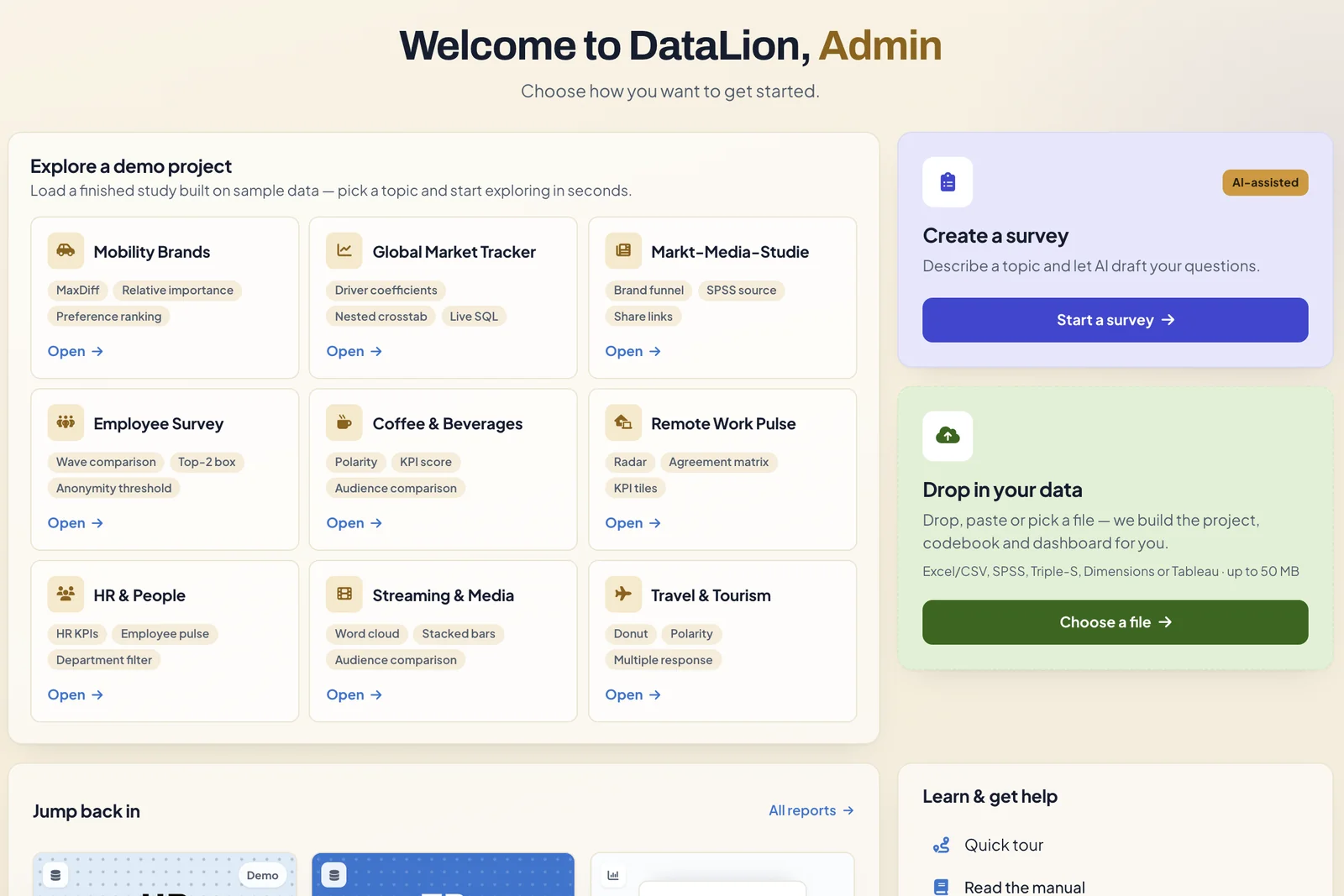
After you log in, you land on the start page. From here you can try DataLion with finished sample studies, create a survey or upload your own data. Later, the page lists the projects and reports you worked on last.
Requirements
- DataLion release 2026.2.192 or later. The screenshots show release 2026.2.198.
- A user account. Only administrators see the Create a survey tile.
Open a demo project
As long as your workspace has no projects of its own, Explore a demo project sits at the top of the page. It offers nine finished studies with sample data: Mobility Brands, Global Market Tracker, Markt-Media-Studie, Employee Survey, Coffee & Beverages, Remote Work Pulse, HR & People, Streaming & Media, and Travel & Tourism. The tags on each card name what the study demonstrates, such as MaxDiff, wave comparison or a nested crosstab.
- Pick a card and click Open.
- The first time, DataLion creates your own copy of the study and shows its report. Next time, the same copy opens again.
- Change charts, filters and the codebook as you like. The data is made up or comes from open sources, so nothing can break.
Inside a demo report you’ll see Ready to work with your own data? with an Import my data button that takes you straight to the file upload.
Once you have projects of your own, the demo section moves to a collapsible block at the bottom of the page. The demos stay available there.
Start a survey
The Create a survey tile leads to Admin → Surveys via Start a survey. There you start from scratch, use one of the survey templates, or let AI draft a survey.
Drop in your own data
Drag an Excel, CSV, SPSS, Triple-S, Dimensions or Tableau file onto the Drop in your data tile, paste it, or click Choose a file. DataLion builds the project, codebook and a first dashboard from it. Drop a file, get a dashboard explains what happens.
Jump back in, help and setup
- Jump back in shows up to six projects and reports you worked on recently. The line under each name says whether it’s a project or a report. All reports opens the full list.
- Learn & get help collects the Quick tour of the current page, the manual, the FAQ and, for administrators, the way into the admin area. What’s new below it lists the latest releases.
- Your setup in the top right counts how many of the first steps you’ve completed: open a project, build a report, share your insights. Click it to see the list. Once every step is done, it disappears.
Hide demo projects for the workspace
Administrators control the demos under Admin → System → Platform.
- Set Demo projects to Disabled to hide the demos for everyone in the workspace. Existing copies and your changes to them are kept and come back when you switch to Enabled again.
- Remove demo projects permanently deletes all demo copies and their data. This can’t be undone.
Tips
- A demo is a safe place to try filters, target groups and exports before you upload your own data. For the next steps, see 5 steps to your first dashboard.
- To reset a demo to its original state, remove the demo projects and open the study again. This affects every demo in the workspace.
- The public sample dashboards in the gallery can be viewed without an account.