
Drop a file, get a dashboard (one-drop import)
The one-drop import turns a data file into a project you can analyze in a single step. You drop the file on the start page, DataLion imports the data, generates the codebook and builds a first dashboard with charts and filters. You then land straight in that dashboard and carry on from there.
Requirements
- DataLion release 2026.2.192 or later. Triple-S and IBM Dimensions work from 2026.2.195, Tableau workbooks from 2026.2.193.
- An account that is allowed to create projects.
- A file with one row per case and one column per variable, no larger than 50 MB.
Supported files
- Excel (
.xlsx,.xls), CSV and text (.csv,.txt) - SPSS (
.sav) with variable and value labels - Triple-S: the
.sssmetadata file together with the.ascor.csvdata file - IBM Dimensions:
.mddtogether with.ddf - Tableau workbooks (
.twb,.twbx)
For Triple-S and Dimensions, select both files together. If the second file is missing, DataLion tells you which pair it expects.
How the import works
- Open the start page.
- Drag the file onto the Drop in your data tile. You can also paste it from the clipboard or click Choose a file.
- The tile shows Building your dashboard…. Large files can take a few minutes.
- When the import is done, the new dashboard opens.
Behind the scenes:
- The project is named after the file. If that name is taken, DataLion adds a number.
- The data is imported and the codebook is generated by fixed rules. SPSS labels and multiple-response sets from SPSS, Triple-S and Dimensions are kept.
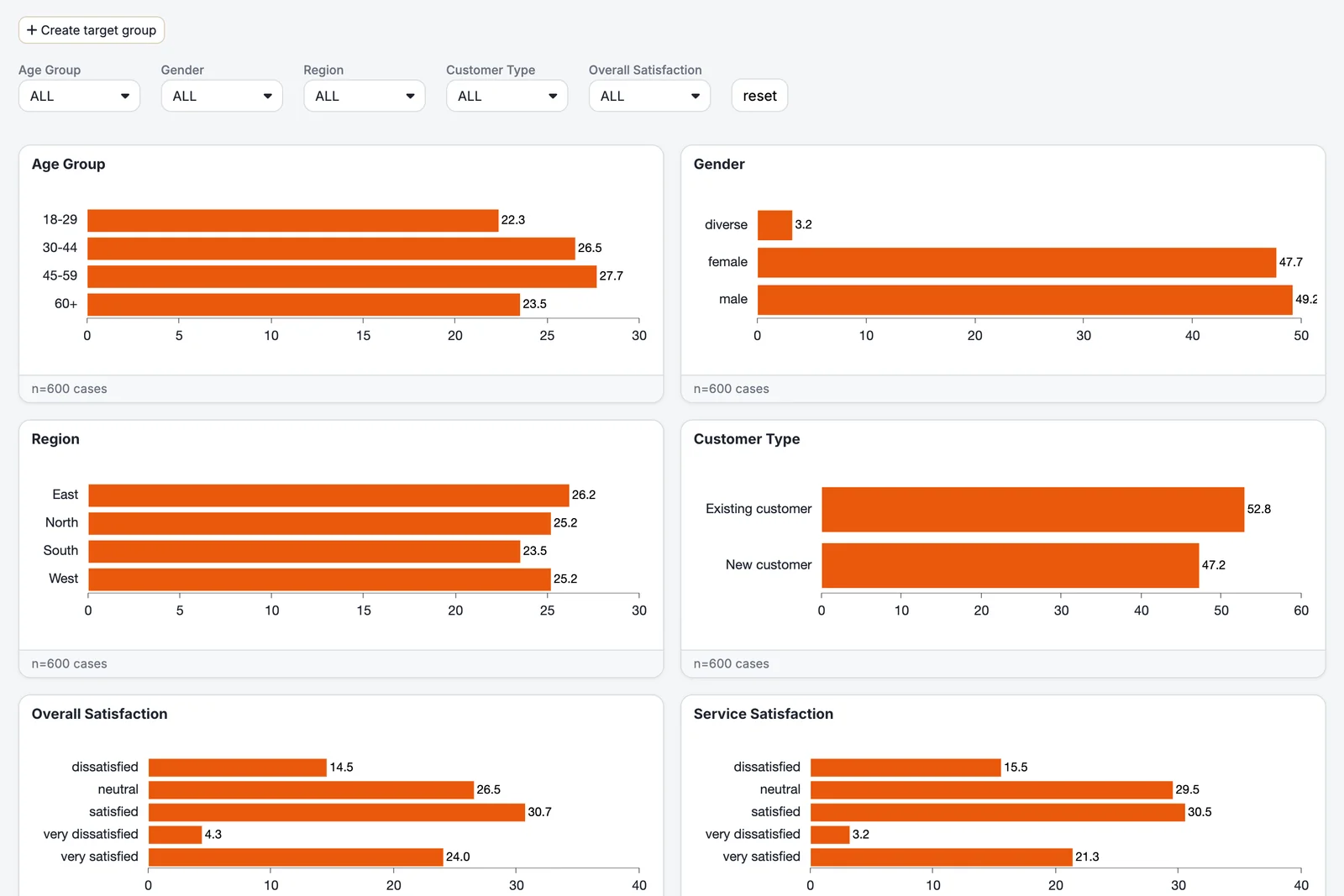
- A report with an Overview tab is created. It holds up to twelve charts and a filter row with the key variables. The codebook still covers every variable in the file.
- CSV files saved by Excel on Windows (Windows-1252, ISO-8859-1) are converted before the import, so accented characters survive.
If the import fails, DataLion doesn’t leave a half-built project behind. You get an error message and can drop the corrected file again.
With or without AI
If an AI model is set up in your workspace, the tile says Uses AI to tailor your dashboard. DataLion then sends a few sample rows to the model, which suggests a title, charts and filters. Survey data usually gets one chart per question, business data more KPIs and timelines. Without AI, or if the model doesn’t respond, DataLion plans the dashboard by rules. The dashboard above was built that way.
Tableau workbooks
For a .twb or .twbx file, DataLion takes the dashboards from the workbook itself and rebuilds them as report tabs. The data comes from the embedded Hyper extracts. To see per sheet what was imported, approximated or skipped, import the workbook under Admin → Import Tableau workbook instead. That route ends with a report for each sheet.
After the import
- Check labels and order in the codebook. Answer categories from CSV files start out in alphabetical order, so a satisfaction scale reads “dissatisfied, neutral, satisfied, very dissatisfied …”. Drag the rows into the right order under Admin → Projects → Codebook → Codebook view, see The codebook, part 1.
- Adjust chart types and layout, see Available chart types.
- Load new data for the same project with a data update. A second drop creates a new project.
Troubleshooting
- “That file type isn’t supported.” Check the file extension. For Triple-S and Dimensions, both files of the pair must be selected.
- The file is too large. The limit is 50 MB per file. Leave out columns you don’t need or save Excel files as CSV.
- Accented characters look broken. Save the file as CSV UTF-8 and drop it again.
- The import takes very long. Keep the tab open. The import keeps running on the server even if the connection drops briefly, and it won’t create a duplicate project.
- You’d like to add a file when you sign up. That works from 2026.2.197, see Login and registration.