
Login and registration
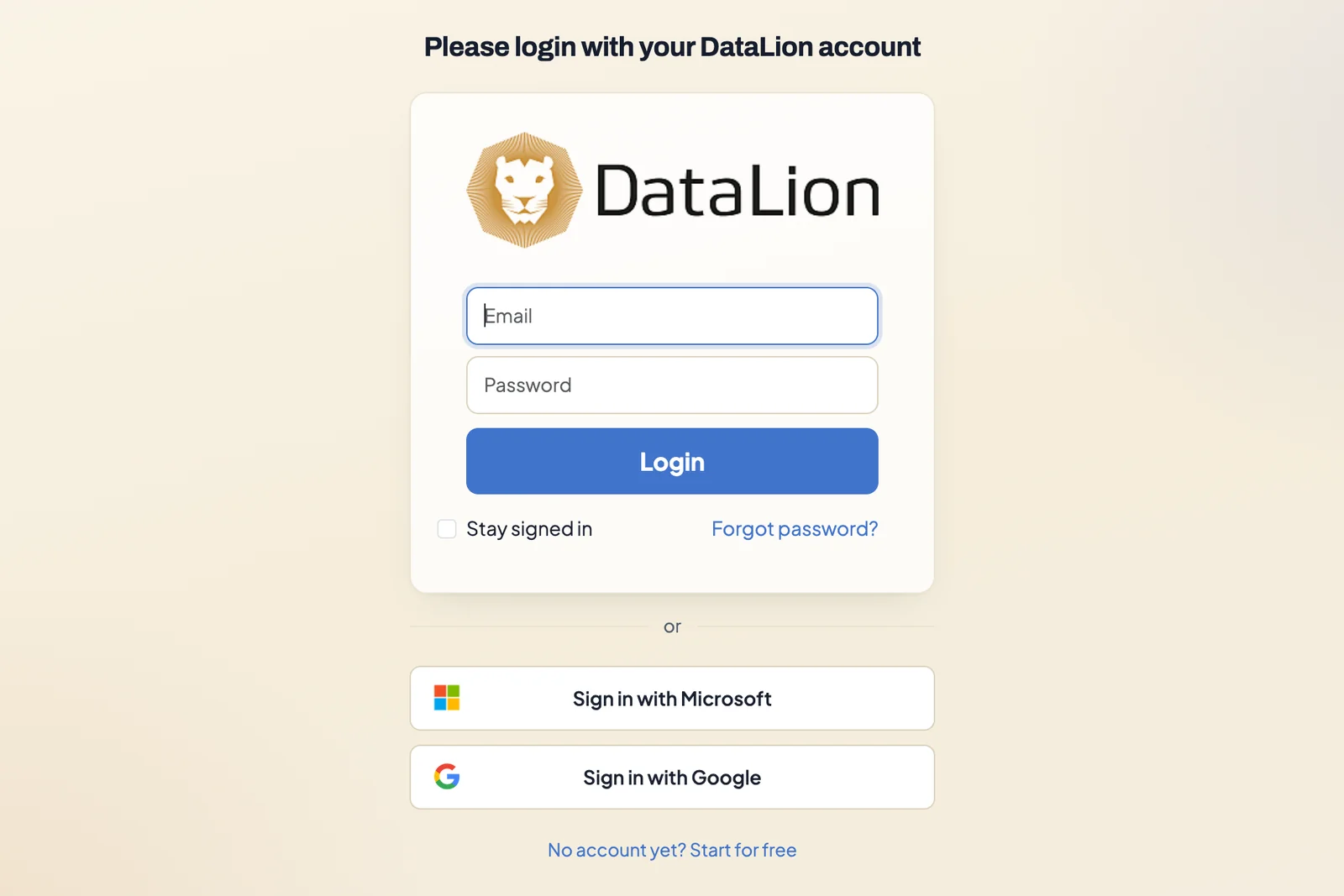
You log in to DataLion with email and password or with your Microsoft or Google account. Registering your own workspace takes a few minutes, and you can add a data file right away. If you’re invited to an existing workspace, you set your password through a link in the invitation.
Requirements
- Login with Microsoft and Google is available from DataLion 2026.2.192, the file upload at registration from 2026.2.197.
- For an invitation: an administrator of your workspace who invites you.
Log in
- Open your workspace’s address, for example
https://your-company.app.datalion.net. - Enter your Email and Password and click Login. With Stay signed in, you’re asked to log in again less often on this device.
- After logging in, you land on the start page or, depending on your workspace settings, directly in a project.
If you forgot your password, click Forgot password?. You get an email with a link to set a new one. Recently used passwords can’t be reused.
Log in with Microsoft or Google
Click Sign in with Microsoft or Sign in with Google and sign in with the provider.
- If a DataLion account already exists for your email address, you’re logged in right away.
- If there’s no account yet and registration is open, DataLion creates a new workspace for you. No confirmation email is needed, because the provider has already verified your address.
- If registration is closed, you see No account exists for this email address. Ask an administrator to invite you.
Register a workspace
- Open app.datalion.net/register or click No account yet? Start for free on the login page.
- Enter your Email and Password. The password needs at least eight characters.
- Optional: under Your data file, pick a CSV, Excel, SPSS or Tableau file of up to 50 MB. DataLion builds your first dashboard from it while the workspace is being set up.
- Accept the terms and privacy policy and click Start for free. Instead of email and password, you can also choose Sign up with Google or Sign up with Microsoft.
- A progress page shows your workspace being set up. When it’s ready, open it with the button at the end.
- Confirm your email address with the link in the Confirm your email address email. Until then, your access is provisional, usually for 24 hours.
If you added a file, the confirmation link opens your new dashboard directly. If the import fails, your workspace is still set up and you start on the start page, where you can drop the file again, see Drop a file, get a dashboard.
Your workspace gets its own address in the form name.app.datalion.net.
Accept an invitation
Administrators create accounts under Admin → Users. No email goes out at that point. Only Invite and require new password sends the person an invitation.
As the invited person:
- Open the You have been invited to DataLion email and click Accept invitation.
- Set your password. If it doesn’t meet the requirements, DataLion tells you why.
- You’re then logged in.
The link is valid for 72 hours. If it has expired, ask the administrator to send the invitation again with Resend and require new password. For accounts that are already active, Invalidate password and send reset link resets the password and sends a new link.
Troubleshooting
- “Account not confirmed”. Click Resend activation email and check your spam folder too.
- “No account exists for this email address.” You’re logging in with a different address than the one you were invited with. Check which Microsoft or Google account is active.
- Registration rejects your address. The domain can’t receive email. Use an address where you can be reached.
- The invitation link doesn’t work. It expired after 72 hours or was replaced by a newer invitation.
Which permissions you have in the workspace is explained in Roles: admin, editor, viewer.