
Using (multiple) data sources in one project
DataLion lets you use one or more data sources in a project - and, if needed, link them together (join).
Step 1: Initial upload of your data into the main table (this has no further label after the number (= project ID)
-
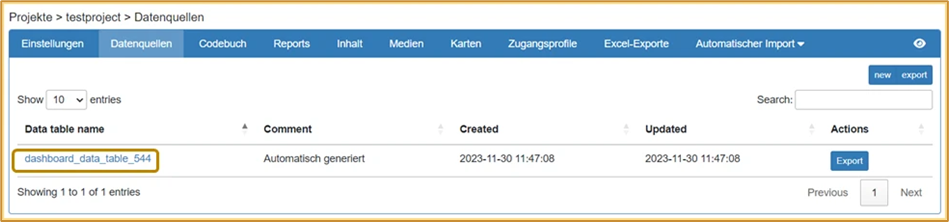
In the project backend, click the “Data sources” tab in the blue navigation bar.
[Note: Data is imported into data sources. For most projects, one data source is sufficient; this then contains all the data.] -
Click on the automatically generated data source to get to the data upload.
-
Click “Choose file” and select your dataset. At the bottom of the page, click “Save”.
-
You will now see a preview of your data. The settings can be left at their default values (if your data uses commas as decimal separators, please select the “Convert comma to dot” option).
Click “Save” again. -
After a successful upload, you will see a preview of your data at the bottom of the page.
Step 2: Create additional data sources
-
Import data
In the project backend → Data sources, import another table by clicking New.
Important: Assign any name (= suffix) to this second table. This allows you to reference the data in this table later via the codebook. -
Adjust the codebook
In the codebook, add a column named Suffix. For codebook entries that do not refer to variables of the main table, enter the suffix (= name) of the corresponding data source in this column. This tells DataLion in which data source the data can be found.
-
Import the codebook.
Import the codebook in the project backend under Codebook. You can now visualize data from both data tables in your project.[You can find basic information about the codebook here.]
Optional: link data tables together via a unique variable
-
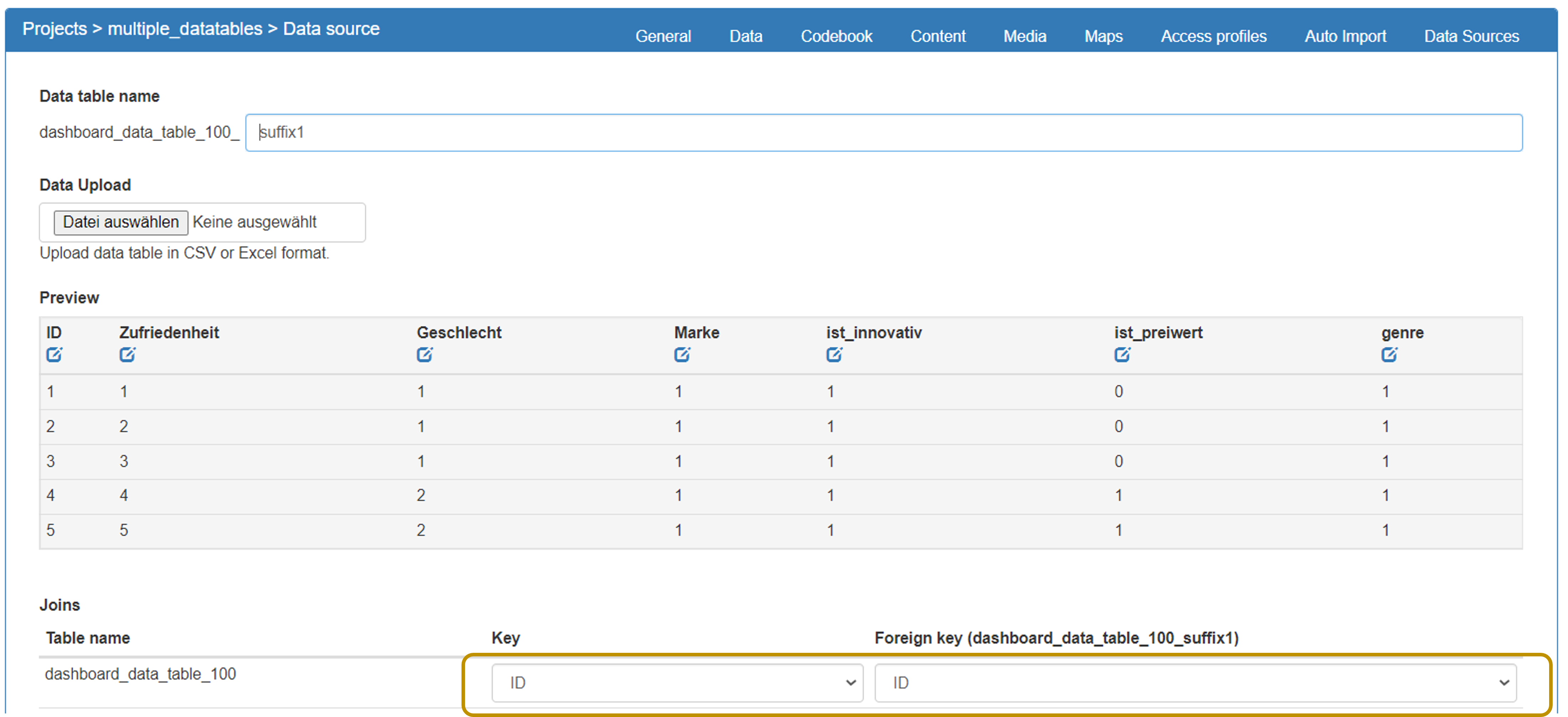
If you want to link the data tables together, select the key variable from the data table to be linked and from the current data table in the Joins area of the data source (see image below). The key variable must be a unique variable that appears in both data sources (e.g. ID)
Save.
Using the key, the rows of the two data tables are matched to each other and the datasets are thus linked together. -
Note: If you want to look at the data from both data tables independently of each other, no join is necessary. There is also the option of not linking tables and still using variables that appear in both data tables as a filter across both data tables. You can learn how to do this here.
If you want to update the data in a data source, you can learn how to do this here.