
Weighting in DataLion
Prefer to watch? The 2-minute tutorial
In DataLion you can define one or more weight variables. In the frontend, you can choose for each chart whether and with which weight the data should be weighted (gear icon → Weights).
Weight to the census
Since DataLion 2026.2.198 you can weight a sample to the adult population of one of 34 countries without your own weight variable. You map respondent ID, age and gender, and DataLion calculates the weights from the United Nations population estimates for 2023. The result shows raw, weighted and effective n plus the efficiency. The guide is Weight to the census.
Weights in the project settings
The settings for weights are under Admin → Projects, in the project under Weights. Weights can be used directly from the uploaded dataset (A) or pulled in from a separate weights table (B). Advanced option: if needed, weights can be calculated within DataLion (C).
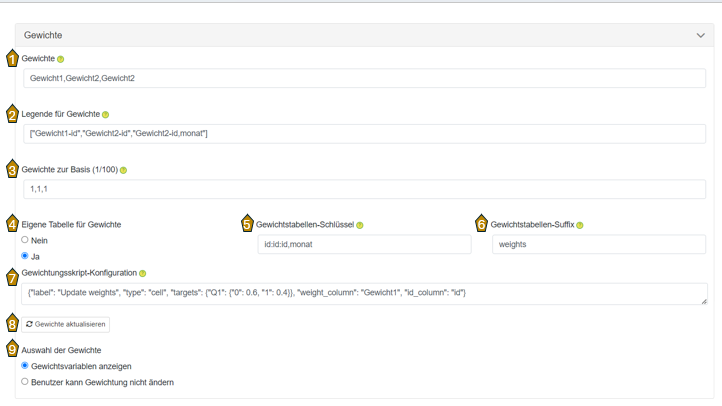
A - Using weights in a DataLion project
(1) Weights: Enter the weighting variable (the name of the variable in the dataset). For multiple weighting variables, enter them comma-separated (caution! separate without spaces).
It is also possible to use formulas to calculate the weights (example: Weight1*2*Variable | multiplies the weighting variable Weight1 by 2 and by another variable).
(2) Weight legend: Enter how the variable(s) should be labeled for users in the frontend (example: [“Weight1”,“Weight2-id”,“Weight2-id&month”])
(3) Weights to base: Optionally enter a base against which the weights should be calculated.
(9) Weight selection: Specify whether the weighting variables should be visible to users in the frontend
B - Using a weighting variable from a separate table
In DataLion, weights can also be used from a separate table. This weighting table can be uploaded into the project as its own data source (project backend > Data Sources). The software can access the weighting via joins. The following information is required for this:
(4) Separate weights table: ‘Yes’ to use weights from a separate table
(5) Weights table keys: Name of the key variable for linking the weighting table to the dataset, typically a unique ID.
-
Match via one variable: Enter the variable name (example: id | matching is done via the variable id)
-
Match via multiple variables: Enter the variable names comma-separated (without spaces!) (example: id,month | matching is done via the variables id AND month)
-
If you want to define multiple weights and these should be matched via different variables, separate the different variables (combinations) with a ”:” (example: id:id,month | the first weight variable is matched via the variable id; the second weight variable is matched via the variables id AND month)
(6) Weights table suffix: Suffix that was assigned to the weighting table during data import via the “Data Sources” tab.
C - Have weights calculated from a separate table [advanced]
When using a weighting table, weights can optionally also be calculated by DataLion on the basis of a script.
Procedure:
-
Step: In the field (7) Weights script configuration, enter the code for the calculation (see example below)
-
Step: Click (8) Update weights
-
Step: Click save
The code in the Weights script configuration input field generates weights so that cells have the same distribution as in the target specification.
Example: The code below creates weights so that the distribution of the two categories “0” and “1” of the variable “Q1” is 60% to 40%:
{“label”: “Update weights”, “type”: “cell”, “targets”: {“Q1”: {“0”: 0.6, “1”: 0.4}}, “weight_column”: “weight”, “id_column”: “id”}
- Weighting script parameters:
“label”: “Update weights"
"type”: “Cell”: Calculates the weights on the basis of the cells
”targets”: Target variable on the basis of which the weights should be calculated, and the weighting specification in this format: {“Variable”: {“Category1”: proportion, “Category2”: proportion}}
“weight_column”: Name of the weighting variable in the weighting table
”id_column”: Column in the dataset that contains a unique ID. Normally this is the key variable that links the weighting table to the data table.