
Tables in DataLion: chart-specific settings
This page collects the settings that only exist for the Table chart type. Since DataLion 2026.2.198, you style tables directly in the chart style: bars inside the value cells, a highlighted column, zebra stripes, significance triangles and a funnel view for stacked questions. How to build a table is explained in Tables in DataLion.
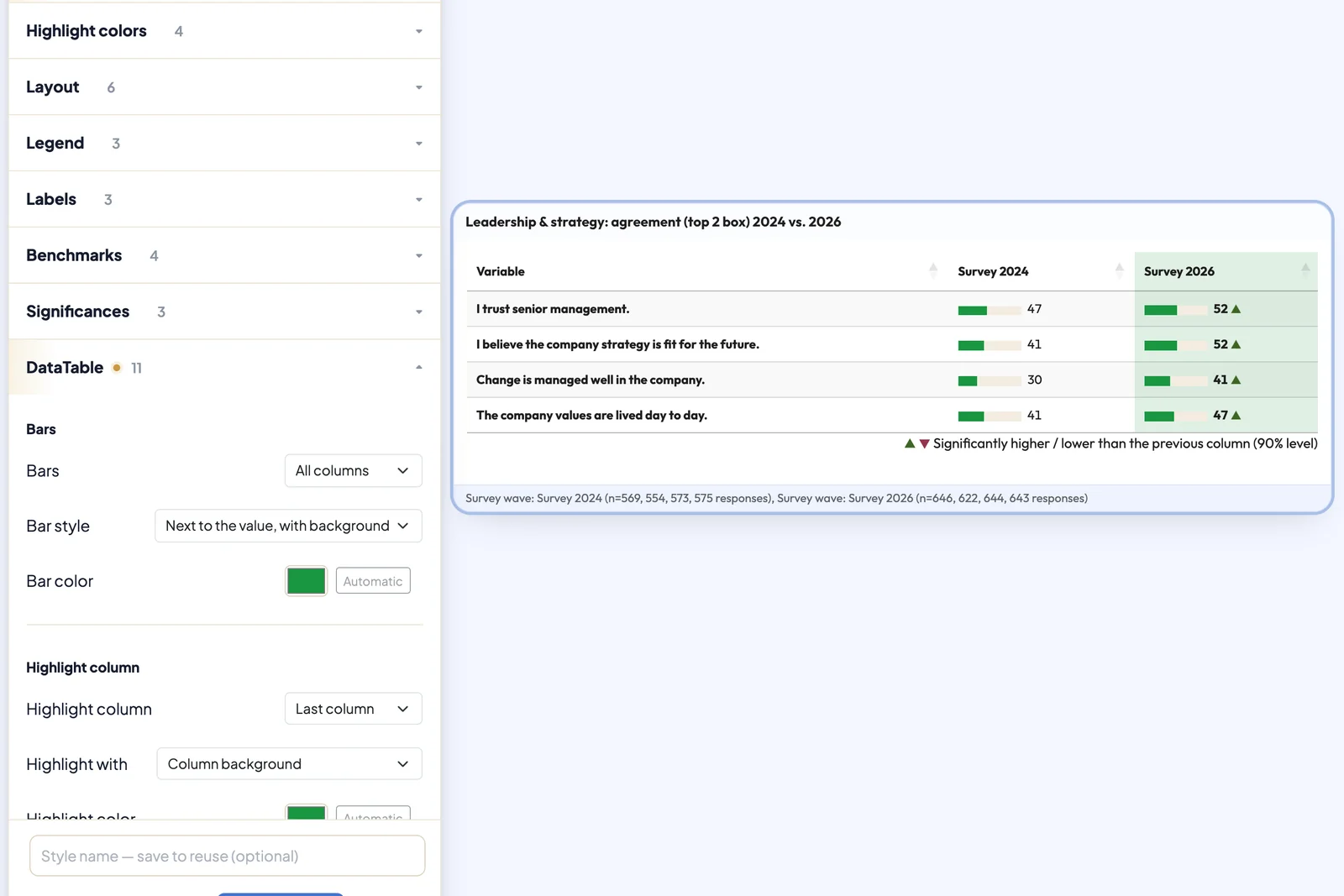
Style tables in the chart style
The display options live in the table’s chart style. You need edit rights on the dashboard.
- In the table header, click Chart settings (gear icon) and choose Chart style… under Appearance.
- In the panel on the right, switch to the Customize tab.
- Expand the DataTable section. Every change shows in the table right away.
The options in detail:
- Bars: All columns draws a bar in every cell, Selected columns (chart menu) only in the columns you marked in the chart menu under Column bars. Under Bar style, the bar sits Behind the value, Next to the value, with background or Next to the value, bar only. The Bar color is Automatic or a colour of your choice.
- Highlight column: First column or Last column, which in a wave comparison means the first or the current wave. Under Highlight with, choose Column background, Bar color, other bars grey or both. The highlighted column also gets a bold header.
- Zebra stripes shades every other row. It is on by default.
- Group rows: with Subheaders switched on, Group style sets how the subheadings look: Label row, Label row with separator line or Separator line only.
- Comparison: the Comparison column shows the Absolute difference or the Difference in %. Under Compared columns, choose Each column with the one before or Only the last column with the one before. The second option adds a single difference column at the end of the table, for example the change against the previous wave. Bars from the center draws the differences as bars, negative to the left and positive to the right. Pick other column pairs under Benchmarks as before, see Difference columns.
- Significance: Significance markers offers Letters and Triangles vs. previous column, see the next section.
Significance as triangles
With Triangles vs. previous column, ▲ or ▼ follows every value that differs significantly from the column to its left. In wave comparisons this reads faster than letters. You don’t need a comparison column for it. If the table has no pairwise test yet, DataLion uses the z-test for shares and the independent t-test for means. The triangles also appear in Excel and PowerPoint exports. How significance tests work in DataLion in general is covered in Show significances in tables and charts.
Show as funnel
Show as funnel turns a stacked question into a funnel, for example a brand funnel with the answers “buy regularly”, “have bought”, “aware only” and “not aware”. The first answer is the narrowest stage. Each further stage counts everyone who reached at least that stage, so “have bought” includes “buy regularly”. The last answer of the stack counts as outside the funnel and is dropped, in this example “not aware”.
The Conversion (%) column shows, for each stage, the percentage of the previous stage that reaches it. You can rename its header like any other. The funnel view only applies to stacked questions without a top-box calculation, and it hides significance markers.
Rename a column header
Editors rename a column header directly in the table:
- Double-click the header.
- Type the new name and press Enter. Esc cancels, and an empty field restores the original name.
The name is saved with the chart. If translations are switched on in the project, it applies only to the language you are working in. Exports use the new name too.
Search and load all rows
Tables with 20 or more rows get a search field in the card header. It filters the rows as you type.
DataLion loads very large tables, with more than 200 rows or more than 10,000 cells, in pieces as you scroll. Load all … rows at the end of the table fetches every row at once, for example to search them.
Difference columns
Tables can show differences, absolute or relative, between columns or sub-columns. You set them up in the chart style under Benchmarks.
- Metric sets whether differences or differences in % are shown.
- Column type sets whether differences are calculated between columns or sub-columns. The second option only makes sense if your table has sub-columns.
- Comparison columns sets which columns the difference is calculated between. Counting starts at 0, excluding the base column.
The difference column is added as the last column or sub-column of the table.
Linking table items
You can attach links to other dashboards or dashboard elements to items in a table. You set them up in the chart settings menu under DataTable. This setting only exists for the Table chart type.
Click Add new to add a link definition.
- Row ID sets which table item is linked (the row_id of the item from the codebook).
- Link sets which dashboard URL the item links to. We recommend the format
https://instancename.net/projectname/dashboard/init/dashboardID, for examplehttps://name.datalion.net/projectabc/dashboard/init/209. - Chart ID optionally sets which chart of the target dashboard the link points to. Use the chart ID from the page source. You can find it in the browser: right-click, choose Inspect and hover over the chart. Example: chart ID = 7.
- Open in new tab? sets whether the link opens in the same tab or in a new one.